
 Need help?
Do you have a question about the OneScreen TL6 and is the answer not in the manual?
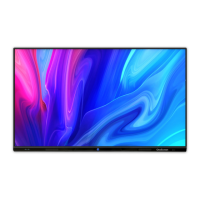
The OneScreen TL6 is an interactive display designed to facilitate collaboration and learning in various environments, from educational institutions to businesses. It serves as a central hub for video conferencing, screen sharing, presentations, writing, and remote device management. The device is available in three sizes: 65 inches, 75 inches, and 86 inches, all featuring an LED Backlit Display with a 3840x2160 (V) resolution and a 10-bit display color depth. The touchscreen offers 20 points of touch capability, allowing for multi-user interaction with fingers or a stylus, and boasts a fast response time of less than 6ms. Its anti-glare glass surface minimizes reflections, enhancing visibility in various lighting conditions.
The OneScreen TL6 comes with a comprehensive set of accessories, including two stylus pens (one extendable), a remote control, an HDMI cable, a USB touch cable, screws, a wall mount, and a power cord. For installation, the manual provides detailed instructions for wall mounting, emphasizing the importance of checking wall integrity and ensuring proper ventilation with at least 5 cm spacing between the wall and the screen. The VESA mounting standards are 500x400 for the 65-inch model, 600x400 for the 75-inch model, and 800x400 for the 86-inch model.
Hardware details include various ports for connectivity. The front of the display features two USB 3.0 ports and a power button. The bottom ports include an earphone port, AV out, AV in, YPBPR port, VGA audio port, VGA port, LAN in, LAN out, a power rocker switch, and a power supply port. On the left side, there are HDMI 1 and HDMI 2 ports, a Touch USB-B input (for HDMI & VGA), an RS-232 port, and two USB 2.0 ports.
The OneScreen TL6 operates on an Android Home Screen, which displays time, date, and connectivity status. Key icons on the home screen include:
The device features several toolbars for enhanced usability:
Connecting an external PC to the OneScreen TL6 involves using an HDMI or VGA cable along with a USB touch cable. For VGA connections, a 3.5mm audio cable is also required. The USB touch cable connects to the USB Touch Port on the left side of the screen.
The OneScreen TL6 integrates several proprietary software solutions:
Safety instructions emphasize disconnecting the product immediately if major failures occur (unusual smell, smoke, abnormal sound, no image/sound, errors). Users are warned against dropping liquids or metal into the product, opening the back case due to high voltage components, and using unspecified power supplies or cables. Regular cleaning of the power plug with a dry cloth is recommended after disconnecting power. The rear power output port is 5V/2A (maximum) and should only be used with compatible devices. The manual also advises against placing items on top of the product, installing it in humid or high-temperature environments, or blocking vents. For transport, the product should be packed with provided cushioning material and moved vertically to prevent screen damage.
Troubleshooting guidance covers common issues such as OPS-PC not working, touch not working on HDMI source, incorrect touch recording, forgotten lock screen password, display misalignment, app incompatibility, screen not waking from sleep mode, and camera not being read. Solutions range from checking cable connections, port functionality, and power settings to performing factory data resets and ensuring correct aspect ratios. For more complex issues, users are directed to contact the OneScreen technical support team via phone or email.
The remote control offers extensive functionality, including power on/off, mute/unmute, number pad, navigation keys, program control for PC, page up/down for PC, start menu access, touch driver reset, annotation mode control, cursor and selection keys, exit application, source options, whiteboard access, menu options, volume control, sleep mode, source switching (VGA, HDMI, Media), file manager, picture modes, and sound modes. Function keys (F1-F12) provide shortcuts for video playback, touch control, screen lock/unlock, screenshot, refresh, program navigation, and full-screen mode.
OneScreen offers free training with their Guru team for the TL6 and associated software, accessible via a QR code or email.

 To Next Page
 General