17
OneScreen
TL6
All your collaboration tools are right here
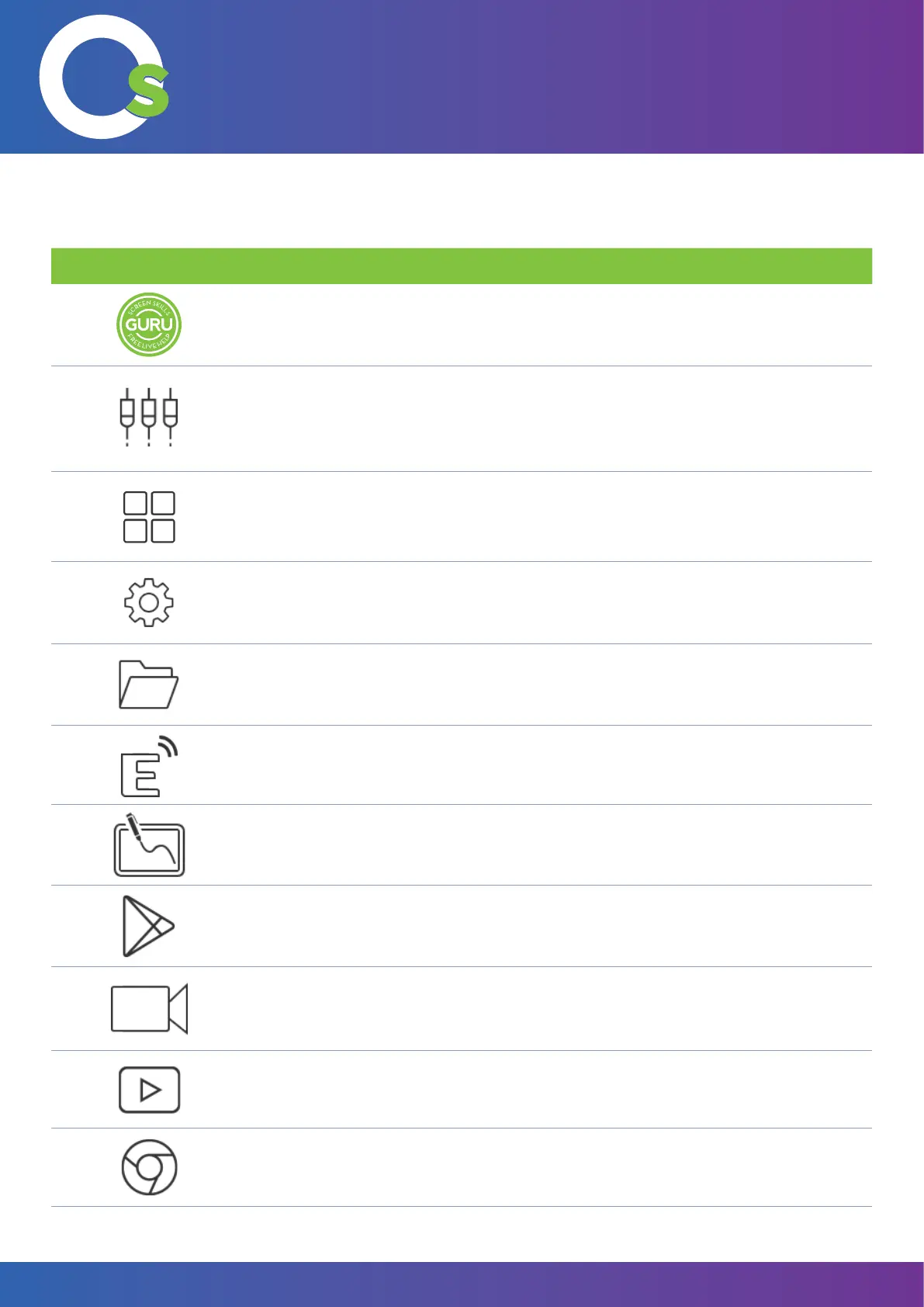
7.1.1 Icons on the Home Screen
Sr. Icon Function
1.
GURU: Pressing the GURU icon will connect you to the Screen Skills Guru Team via Audio/
Video. Please ensure that you have a microphone/Camera connected to OneScreen. Screen
Skills Guru Team will provide online training and support when needed.
2.
SOURCE: Pressing the source icon will take you to the source menu, and let you select the
active input source. Once you select the source type, tap on the mini screen to switch to the
respective source.
3.
MY APPS: Pressing the My Apps icon will take you to the Android Applications. The
Applications window is shown on page no. 17.
4.
SETTINGS: Pressing the settings icon will take you to the settings menu. The settings menu is
shown on page no. 18.
5.
MY FILES: Pressing the My Files icon will take you to the le Explorer. Here you can access
the internal storage and external storage devices. The Explorer window is shown on page no.
18.
6.
ESHARE: Pressing the EShare icon will launch the EShare Application. This application is
used for wireless screen sharing. The EShare application is shown on page no. 19.
7.
8.
PLAY STORE: Pressing the Play Store icon will launch the Play store, which is used to access
the Play Store and download relevant applications for the unit. (Note: You may have to sign
in)
9.
HYPE: Pressing the Hype icon will launch the Hype application, OneScreen premiere video
conferencing software (Note: You may have to sign in).
10. YOUTUBE: Pressing the YouTube icon will launch the YouTube application.
11.
CHROME: Pressing the Chrome icon will launch the Chrome Browser.
Write:
Pressing the Write icon will launch the whiteboard application. This
application allows the user to perform basic annotation.


 To Next Page