27
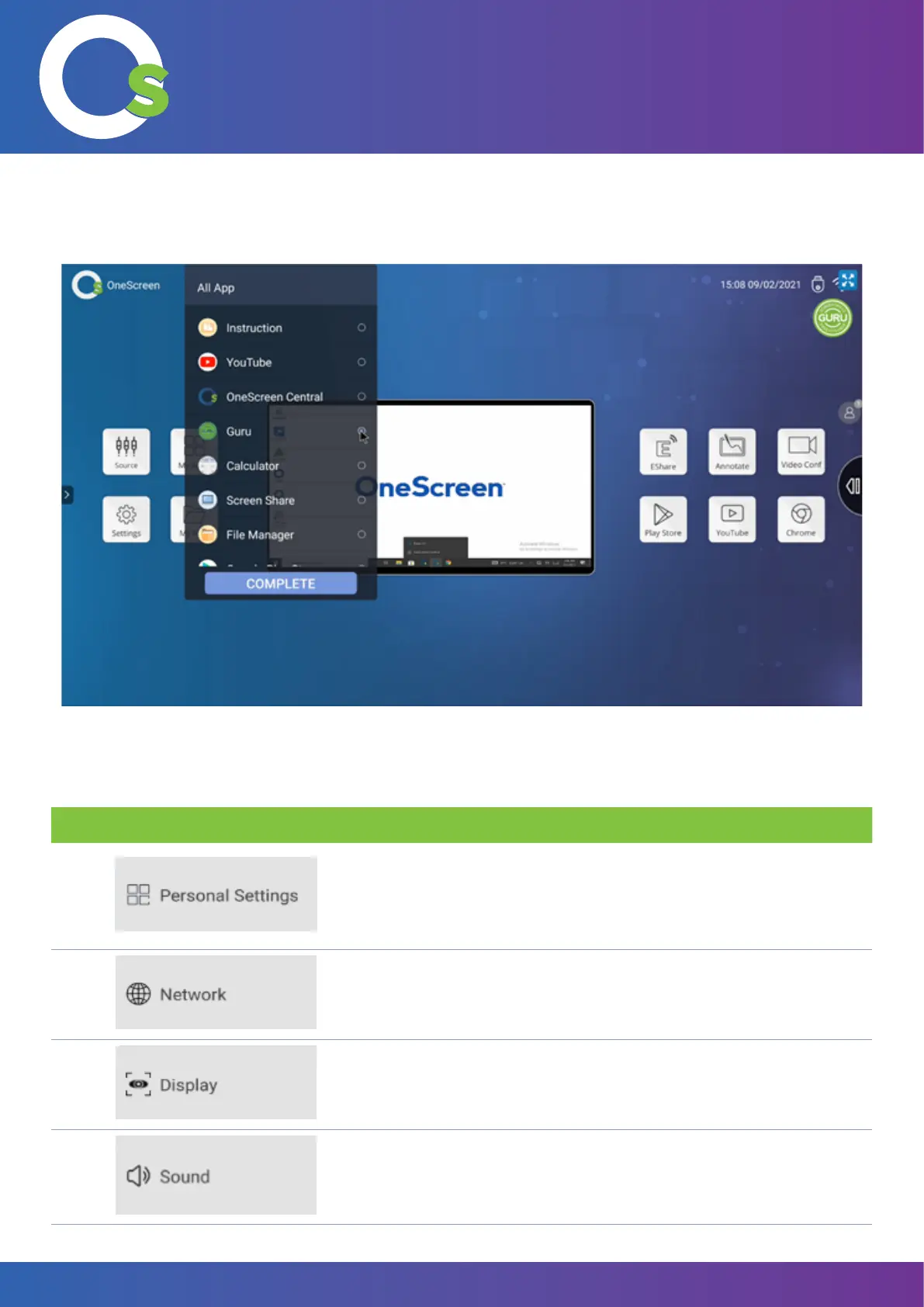
After removing an option, tap on the “+” icon to add another option at its place. You can choose from any one of the
options visible in the scrollable list. To complete the addition, tap on the option. Once selected, tap on “complete”.
OneScreen TL6
All your collaboration tools are right here
7.3 Device Settings Menu
Sr. Tabs Details
1.
Toggle and/or change keyboard, boot channel, OPS Power On Settings,
Power Detect Settings, Smart power key, Screen lock code, USB camera
Setting, Floating Toolbar, Sidebar Menu, Pull Up Menu, Centralized Control,
Shared front USB, Intelligent Recognition, USB Drive lock.
2.
Toggle and/or change wi- and wired networks, create a WLAN hotspot,
connect through Bluetooth or check the network status of the OneScreen.
3.
Change the Screen Saver settings, Wallpaper Settings, or the Color
Temperature Adjustment.
4.
Toggle System sounds, surround sound, digital audio output and control
the equalizer.


 To Next Page