Page 20
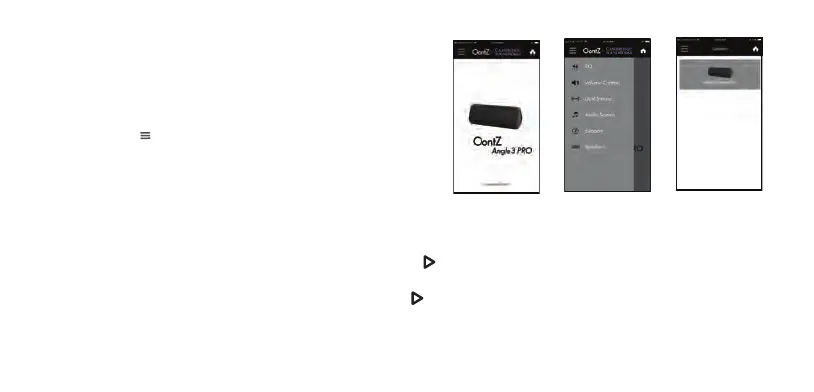
To enable the OontZ app with your OontZ Angle 3 Pro
- Turn on your OontZ Angle 3 Pro speaker
- Launch the OontZ app and the Home screen will appear
- Select the Menu in the upper left hand corner of the OontZ
app and the Menu screen will appear
- Select ‘Speakers’ from the Menu and the Speaker screen will
appear
OontZ Angle 3 Pro icon is Grey
- Press the Grey speaker icon on the app to enable the OontZ app with the OontZ Angle 3 Pro
- The OontZ app will be enabled with
your OontZ Angle 3 Pro in a few seconds
- The Grey speaker icon will turn Blue and the Play/Pause Button Light on the OontZ Angle 3 Pro will turn solid Green
- The
OontZ app is enabled and ready to use.
If the OontZ Angle 3 Pro icon is Blue and Play/Pause Button Light on the OontZ Angle 3 Pro is solid Green
- The OontZ app is already enabled and ready to use.
The OontZ app
Home screen
Menu screen
Speaker screen




 To Next Page