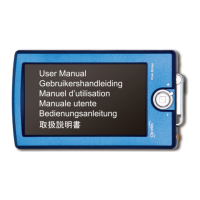
Optelec Compact 5 HD
English Page 18
Pressing the Mode button for 3 seconds will toggle the object lighting on or off.
Switching modes will automatically turn the object lighting back on.
Using the snapshot button
The snapshot button allows you to take a temporary picture of a text or an
image.
- Hold or place the Compact 5 HD over the text or image you wish to
display.
- Press and hold the snapshot button located on the top right side of the
unit.
o You will hear a beep when pressing the snapshot button.
o Keep the snapshot button pressed.
o The Compact 5 HD will zoom out, focus, take a snapshot and give
two beeps.
o Release the snapshot button.
o The Compact 5 HD will zoom back to the original position and
zoom level.
- The image will be temporarily stored inside the Compact 5 HD memory.
Bringing the Compact 5 HD closer to your eyes will enable you to view
the object or text closely.






 To Next Page