16
Recording a video clip / Taking a still picture
1. Set the caputre or record resolution.
aceording to the setting, please refer to the table below:
Output Switch Resolution Setting Capture resolution Recording resolution
VGA
XGA 1024 x 768
1024 x 768
UXGA 1600 x 1200
HDMI
720P 1280 x 720 1280 x 720
1080i 1920 x 1080 1920 x 1080
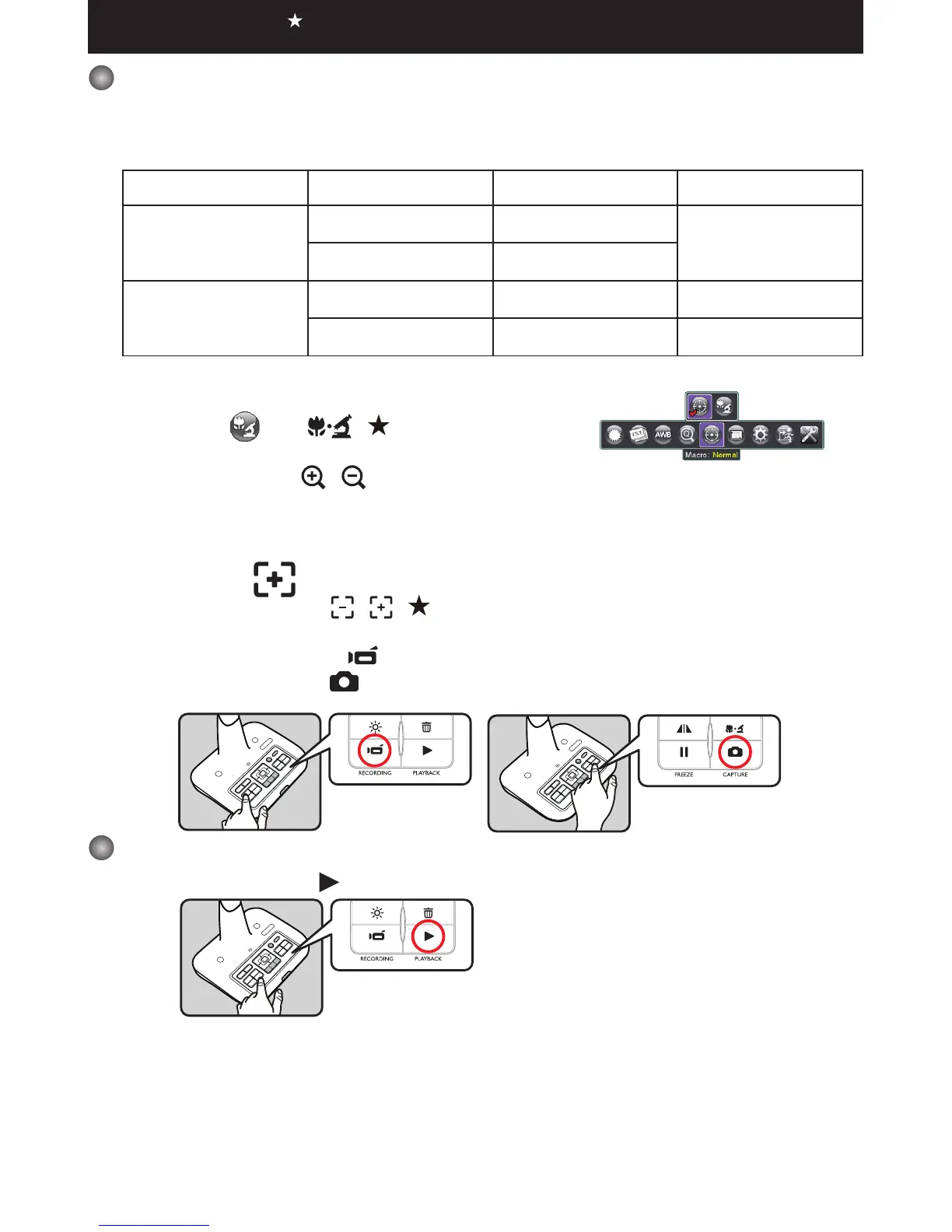
2. Choose the focus mode according to distance to object:
Normal mode for 25cm to ∞.
Macro mode (
) or ( )( ) to take close - ups.
3. Use the Zoom button (
/ ) to zoom in or zoom out
from the screen.
4. Automatic focus/Manual focus
Press AF button (
) to do one-time auto-focus.
Use manual focus button (
/ )( ) on the remote control to fine-tune focus.
5. Press the Recording button (
) to start recording and press it again to stop recording.
Press the Capture button ( ) to take a still picture.
Playback
1. Press PLAYBACK button ( ) .
2. The last recorded picture or video clip will show on the screen.
3. Use Up / Down button to choose files.
Functions indicated by can only be used by the remote control.



 To Next Page