Device Connection-Mobile Hard Disk Mode
Mobile Hard Disk Mode (Used as a mobile hard disk)
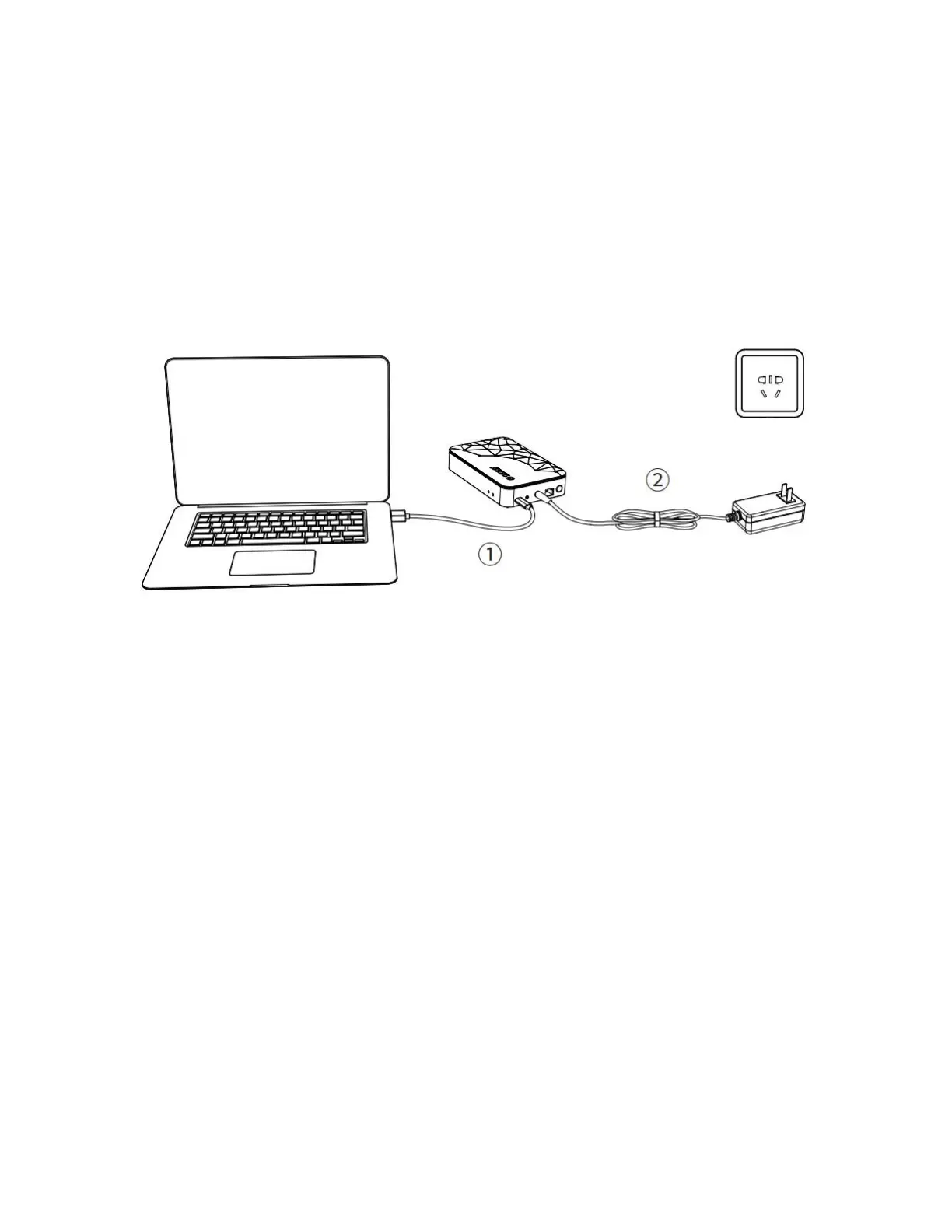
1. Use the USB-C cable, connect one end to the USB-C port of the CD2510/CD3510, and
the other end to the USB port of the PC.
2. Use the power adapter, connect one end to the DC IN 12V power connector of the
CD2510/CD3510, and the other end to the power outlet. After the power supply is
connected, the default system automatically powers on.
Note:
In mobile hard disk mode, the network function will be turned off automatically.
When the USB-C cable is disconnected, it automatically switches to NAS network
mode.
Do not format the hard disk in mobile working mode. If you need to format the hard
drive, please switch to NAS network working mode and perform the formatting
operation on the Weline APP.



 To Next Page