1/3
AUTO
SCANNER
Vehicle Information
Vehicle ID Number
Calibration ID
Cal. Verf. Number
AUTO
SCANNER
Vehicle ID Number
Vehicle ID Number
VIN: Not Supported
1/3
AUTO
SCANNER
Vehicle Information
Vehicle ID Number
Calibration ID
Cal. Verf. Number
AUTO
SCANNER
Vehicle ID Number
Vehicle ID Number
VIN: Not Supported
“OK” -- Indicates that a particular monitor being checked has
completed its diagnostic testing.
“INC” -- Indicates that a particular monitor being checked has not
completed its diagnostic testing.
“N/A” -- The monitor is not supported on that vehicle.
4. Press “BACK” button to return to previous menu.
• Vehicle Information: This function enables retrieval of Vehicle
Identification No. (VIN), Calibration ID Nos. (CINs), Calibration
Verification Nos. (CVNs) and In-use Performance Tracking on
2000 and newer vehicles that support Mode 9.
Ignition on, engine off or running.
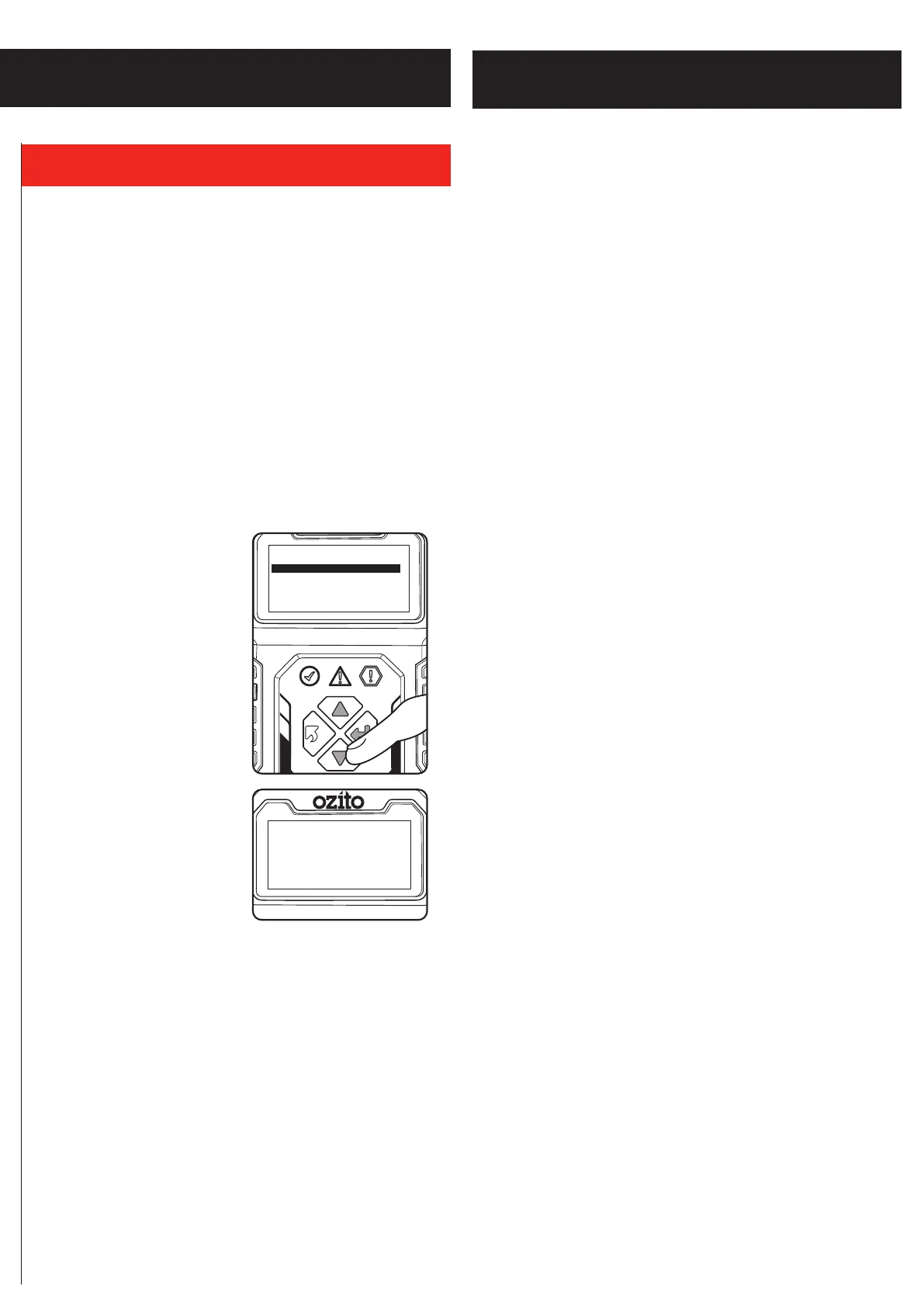
1. Use the “UP” and “DOWN” buttons to select Vehicle Information
from the Diagnostic Menu and press the “OK” button to confirm
.
2. From the Vehicle Information
menu, use the “UP and “Down”
buttons to select available item
and press the “OK” button to
view.
3. View retrieved vehicle
information on the backlit LCD.
Note: If the vehicle does not
support selected mode, a “Not
Supported” message shows on the
backlit LCD.
4. Press “BACK” button to return to
previous menu.
TROUBLESHOOTING
Connection Error
When vehicle ignition is off or engine not running the automotive
scan tool cannot communicate with the engine system, this
message will be displayed. You will need to do the following to
check:
1. Verify that the ignition is ON or the engine is running.
2. Check if the scan tool’s OBD2 connector is securely connected
to the vehicle’s DLC.
3. Verify that the vehicle is OBD2 compliant.
Vehicle Link Error
A communication error occurs if the scan tool fails to communicate
with the vehicle’s ECU (Engine Control Unit). You need to do the
following to check:
1. Verify that the ignition is ON.
2. Check if the scan tool’s OBD2 connector is securely connected
to the vehicle’s DLC.
3. Verify that the vehicle is OBD2 compliant.
4. Turn the ignition off and wait for about 10 seconds. Turn the
ignition back to on and continue the testing.
Operator Error
If the automotive scan tool freezes, then an exception occurs or
the vehicle’s ECU (Engine Control Unit) is too slow to respond to
requests. You need to do the following to reset the tool:
– Reset the scan tool.
1. Turn the ignition off and wait for about 10 seconds.
2. Turn the ignition back to on and continue the testing.
Automotive Scan Tool Does Not Power On
If the automotive scan tool won’t power up or operates incorrectly
in any other way, you need to do the following:
1. Check if the automotive scan tool’s OBD2 connector is securely
connected to the vehicle’s DLC;
2. Check if the DLC pins are bent or broken. Clean the DLC pins if
necessary.
3. Check vehicle battery to make sure it is still good with at least
8.0 volts.
4. Verify the control module is not defective.


 To Next Page
 Loading...