12 13
6. MOuse FunctiOns
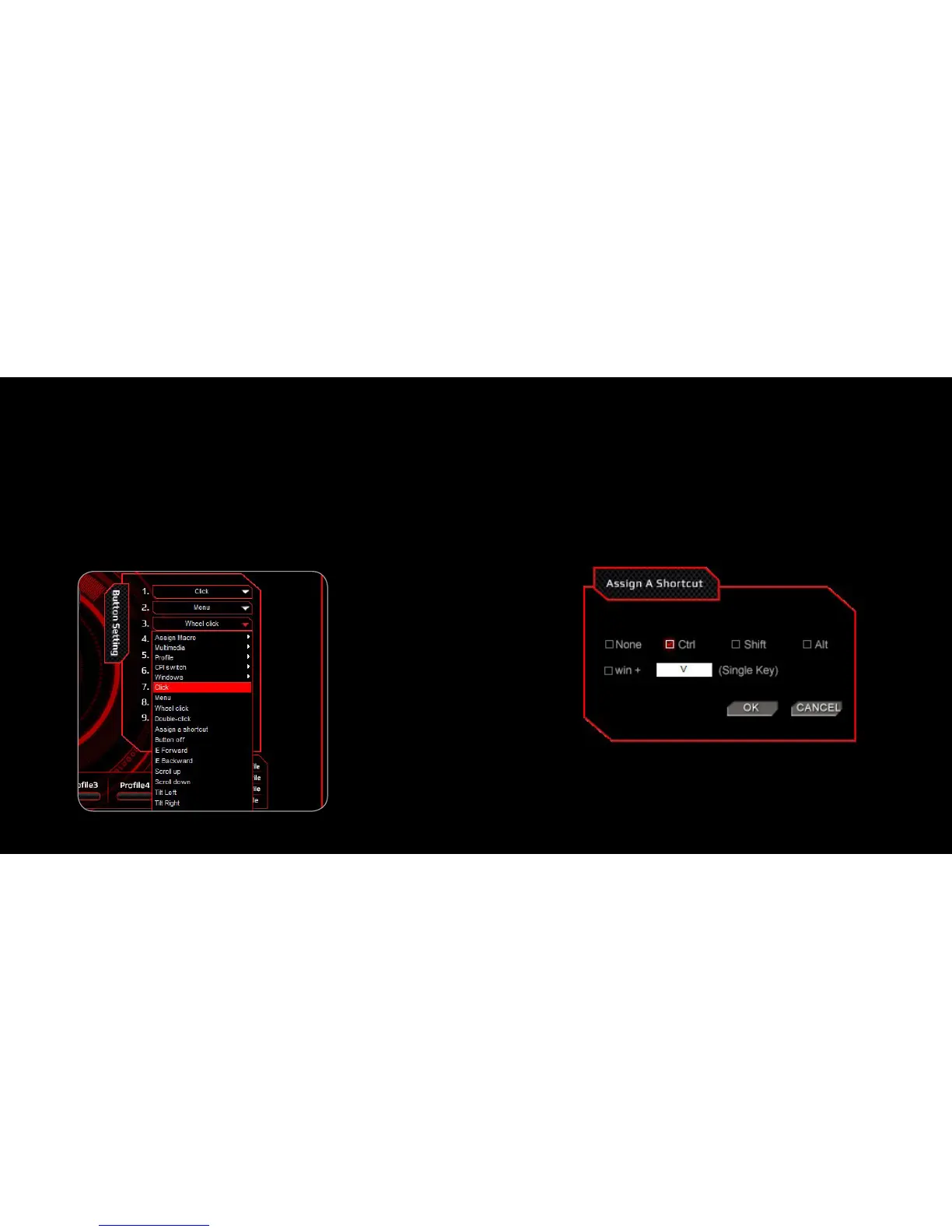
1. Select a button and click the desired mouse function in the menu:
“Click”, “Menu”, “Wheel Click”, “ Double-click”, “IE Forward”, “ IE
Backward”, “Scroll Up”, “Scroll Down”, “Tilt Left”, “ Tilt Right”,
“Fire Button”, “ On-To-Go (This is a combination button used to get
a continuous mouse function: Hold down this button together with
any other button with an assigned mouse function to get a continuous
repeated mouse function)”.
2. Then, click “APPLY” to confirm the setting
7. Assign a ShOrtcut
Single mouse click to activate a combination of keys which used often
1. Select a button and click “Assign a Shortcut” from the menu
2. Select and enter the desired combination of keys from the pop-up
window and click “OK” to continue
3. Click “APPLY” to complete the setting.
Ex. now the “Ctrl” + “V” will be executed



 To Next Page