© 2018 AAMP Global. All rights reserved. PAC is a Power Brand of AAMP Global.
PAC-audio.com
Pacific Accessory Corporation
Page 5
Rev: V5
Date:091218
Advanced Amplier Interface for
General Motors
AP4-GM61
Restoring Factory Settings
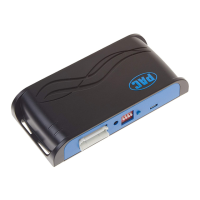
You can restore the interface to factory default settings by pressing and holding the programming button on the side of the module
until the status LEDs start blinking red. Once the LEDs start blinking red, release the button.
This reset will restore the following settings to their factory defaults:
• Center Channel volume level percentage
• Chime volume level
• Enable / Disable Factory Chimes
• Minimum volume level
Troubleshooting
1. Hiss at high amp gain - Set feature DIP switch 2 to the on (down) position to lower the output voltage of the AP4 to 4v. If you
still hear the hiss, lower your amp gains until the hiss is gone.
2. If you experience no audio after resetting the AP4-GM61, switch to a different audio source (AM, FM, SAT, USB, etc.) and
test again.
3. Cannot hear OnStar or Nav Prompts - Use the factory volume controls while either of these are active to adjust the volume.
4. Cannot hear chimes - Set chime volume using process outlined in Setup and Conguration, or using the AmpPRO app. If
you still do not hear chimes, be sure that you are using the remote output from the AP4 to turn on your aftermarket amplier.
5. Low volume setting on radio is too loud - Set minimum volume using process outlined in Setup and Conguration, or using
the AmpPRO PC app.
6. If for any reason the AmpPRO module becomes unresponsive, or will not power up with the key on, you can always reset
the interface by turning the key to the ignition position, then pressing and holding the Power button on the factory radio for
12 seconds or by pressing and holding the reset button on the side of the AmpPRO module for 10 seconds (until the LEDs
alternate ashing red).
Chime Volume Adjustment Mode
Minimum Volume Adjustment Mode
Firmware Updates
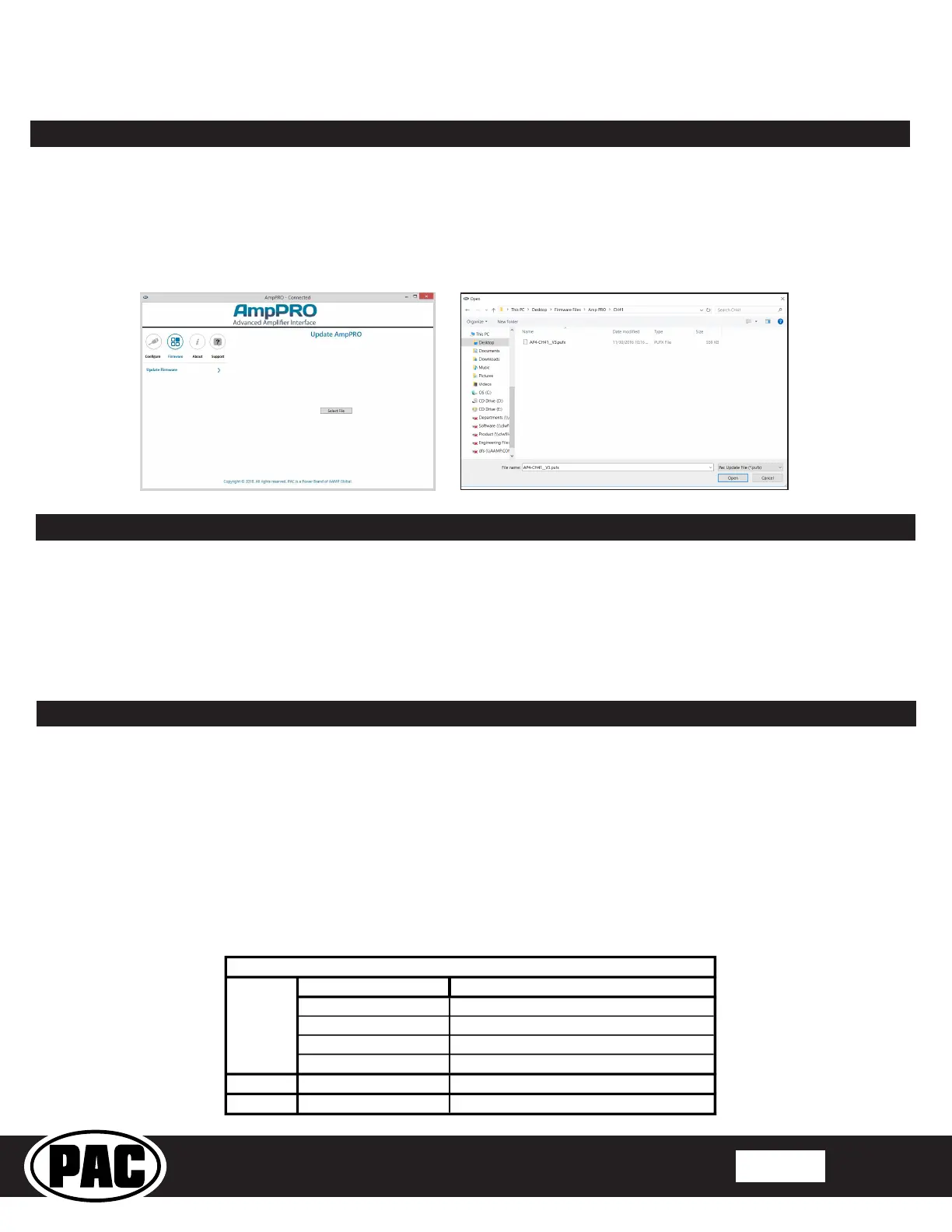
The AmpPRO PC app will also allow you to update the interface with new rmware as it becomes available. Please visit
www.pac-audio.com or contact our tech support department to see if there is a rmware update for your interface.
Connect the interface to your PC and select "Firmware", then “Update Firmware”. Now select “Select File”. Finally, browse to the
place where you saved the le and select it. This will begin the updating process. Once nished, disconnect the interface from
the PC and resume normal operation.
AmpPRO PC App (cont.)
• Enable / Disable factory EQ
• Factory EQ frequency
• Factory EQ Q factor


 To Previous Page