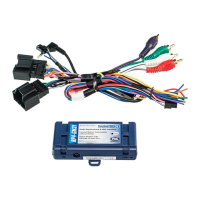
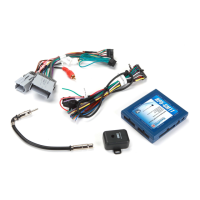
Radio Replacement and Steering Wheel Control
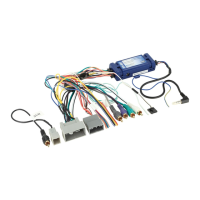
Interface for Select Honda Vehicles
RP4-HD11
© 2018 AAMP Global. All rights reserved. PAC is a Power Brand of AAMP Global.
PAC-audio.com
Pacific Accessory Corporation
Page 3
Rev: 3
Date: 050818
Optional Steering Wheel Control Programming
PLEASE NOTE: The screen on the dash can not be in the “Vehicle Menu” mode when reprogramming the SWC. If the
screen displays “Vehicle Menu”, press the Menu button on the SWC to leave this screen, and ensure you are in the proper
mode before proceeding.
1. Turn the key to the ignition position.
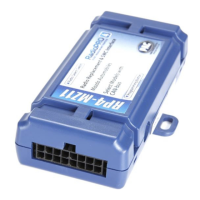
2. Press and release programming button on the side of the interface.
3. Within 7 seconds, press the button that is to be learned on the steering wheel. The LED will turn off when the button is pressed.
At this point you have two options:
A. For short press functionality: Release the button within 1.5 seconds. The LED will turn back on.
B. For long press functionality: Hold the button until the LED starts blinking. Release the button and the LED will
go back to solid.
4. If you need to program more buttons, repeat step 3 for each additional audio function on the steering wheel.
5. If you come across a function in the chart that your steering wheel does not have, or you do not want to program, press and
release the program button on the side of the interface to skip that function.
6. Once programming is completed, wait seven seconds. The LED will ash three times, indicating end of programming.
7. Test the interface for proper functionality. Whenever a SWC is pressed, the LED on the interface should blink. If any function
does not work, repeat the programming steps
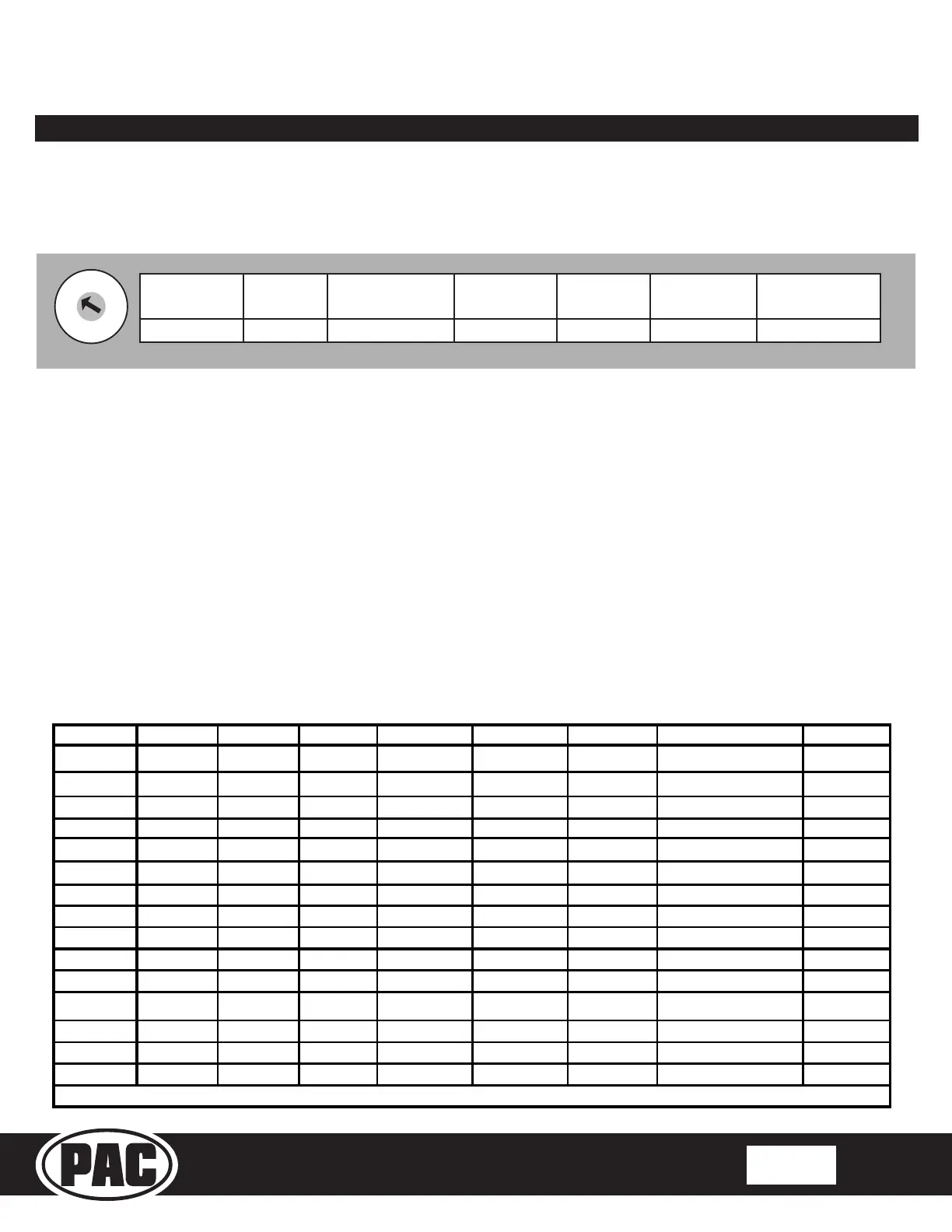
If you wish to re-assign the SWC functions or utilize short press, long press dual command functionality, the interface must be
programmed in the specic order shown on the chart below. If you come across a function in the chart that your steering wheel
does not have, or you do not want to program, press and release the program button on the side of the interface to skip that
function. The LED will ash off, and on, conrming that you have successfully skipped that function and are ready to proceed to
the next one.
Alpine JVC Kenwood Clarion Other * Pioneer Sony Fusion
1 Volume + Volume + Volume + Volume + Volume + Volume + Volume + Volume +
2 Volume - Volume - Volume - Volume - Volume - Volume - Volume - Volume -
3 Mute Mute ATT Mute Mute Mute Mute Mute
4 Preset + Source Source Source Preset + Preset + Preset + Source
5 Preset - Track + Play Search + Preset - Preset - Preset - Track +
6 Source Track - Track + Search - Source Source Source / End Call Track -
7 Track + Band / Disc + Track - Band Track + Track + Track + Audio
8 Track - Preset / Disc - Disc / FM + Send / End Track - Track - Track - Power
9 Power Select Disc / AM - Send Band Band Band
10 Enter / Play Aenuaon Answer End Answer ** Phone Menu Power / End Call
11 Band / Program Phone Receive Voice Voice End ** Answer Call Voice / Answer / End Call
12 Receive Phone Reject On Hook PTT ** End Call
Voice(Android Auto & Car Play)
Answer / End Call ***
13 End Voice O Hook Voice
14 Voice Power Mute
15 Preset +
* Advent, Boyo, Dual, Lightning Audio, Jensen, Rockford Fosgate & Visteon ** Jensen & Advent ONLY *** XAV-AX100 ONLY
Optional Programming Order
Alpine JVC
Kenwood /
Lightning Audio
Clarion /
Nakamichi
Pioneer /
Other*
Sony Fusion
1 2 3 4 7 8 9
*Other - Dual / Axxera, Jensen, Rockford Fosgate
SET RADIO SELECT SWITCH


 To Next Page
 Loading...