Useful Tips and Hints
Cable ends are protected by a metal sheath. To remove from the PT878 - pull the sheath back. •
The[ENTER]keyallowsyoutoenterandconrmaparameter,enteramenuandenteradropdownmenu.•
The red end of the cable needs to be placed on the upstream transducer and the blue end on the downstream transducer.•
Keypad Description
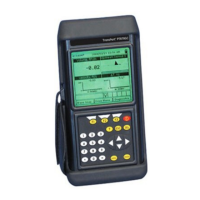
The PT878 keypad has 25 function keys. The functions for each of the keys are as follows:•
3functionkeys([F1],[F2],[F3])-Enableyoutoselectthespecialfunctionswhichappearatthebottomofthescreen.•
12numerickeys(including[-]and[.])-Enableyoutoenternumericdata.•
4 arrow keys - Enable you to move through the menu options.•
[?] Help key - Enables you to acces online help•
[MENU] Menu key - Enables you to access the Main Menu•
[ENTER]-Enablesyoutoenteraparticularmenu,andentersselectedvaluesintothePT878memory.•
[SEL] - Enables you to move between data measurementson the screen.•
[ESC] - Enables you to exit menus or menu options at any time; cancels a numeric entry.•
RedKey-TurnsthepowerOnorOFF,andtogglesthebacklightOnorOff.•
Programming Transducer, Pipe and Fluid Parameters
Entering the Standard Volume / Mass Flow Parameters
The Standard Volume/Mass Flow option enables the user to correct standard volumetric
unitsfortemperatureandpressure.Italsoallowsyoutoenableordisablemassow.
3.TherstparameterallowsyoutoenableordisabletheStandardVolumeoption.
4. Use the arrow keys to scroll to correct radio button.
5.Press[ENTER]toconrmyourselection.
Note: If you select “Disabled” you cannot select any other prompts in this window.
1. Scroll to the Program Menu and press [ENTER].
6. The next option asks you to enter the base pressure. Press [ENTER] to open the text box
andusethenumerickeystotypethis.Press[ENTER]toconrmtheentry.
7. The next option asks for the atmospheric pressure. Press [ENTER] to open the text box
andusethenumerickeystotypethis.Press[ENTER]toconrmtheselection.
8.Thenalpromptinthiswindowasksforthebasetemperature.Press[ENTER]toopen
thetextboxandusethenumerickeystotypethis.Press[ENTER]toconrmtheselection.
PresstheuparrowkeytoreturntotheStandardVolumeprompt,andthenbacktotheSettingstab.
Toconrmtheentriesandreturntooperatemode,press[F3](OK).
Entering Inputs in the Standard Volume Option
2. Scroll across to the Inputs tab and press [ENTER] to open the Inputs window.
3.Scrolldowntotherstpromptwhichasksifthepressureisxedoractive.Scrolltothe
appropriateoptionandpress[ENTER]toconrmtheselection.
Note: Only select Active if you have live pressure and temperature readings being fed into
the meter.
4.Ifyouhaveselectedaxedpressure,youwillbeaskedtoenterthebasepressure.Press[ENTER]toopenthetext
boxandthenumerickeystoenterthepressurevalue.Press[ENTER]toconrmtheentry.
5.Thenextpromptwillappearwhetheryouhaveselectedanactiveorxedpressurevalue.
The desired input needs to be entered. Scroll from the Pressure text box to the Input menu
and press [ENTER] to open the drop down menu. Scroll to input A or B and press [ENTER]
toconrmtheselection.
6.Thenextpromptasksifthetemperatureisxedoractive.Scrolltothecorrectoptionand
press[ENTER]toconrmtheselection.
7.Ifyouhave selecteda xedtemperature,you willbe askedto enterthe temperature
value. Press [ENTER] to open the text box and use the numeric keys to enter the temperature
value.Press[ENTER]toconrmtheentry.
8.The nextpromtwill appearwhetheryou haveselected anactiveor xedtemperature
value. The desired input needs to be entered. Scroll from the Temperature text box to the
Input menu and press [ENTER] to open the drop down menu. Scroll to input A or B and press
[ENTER]toconrmtheselection.
Note: Ifyouhaveswitchedbothactiveinputsto#A(orto#B),thePT878GCautomaticallyswitchesoneinputtothe
other letter. This change ensures that only one analog input is assigned to one measurement type.
Entering Mass Flow Parameters
1.ToentermassowparametersintheStandardVolume/MassFlowoption,scrollacross
to the Mass Flow tab and press [ENTER] to open the window.
2.TherstpromptasksifyouwanttoenableordisabletheMassFlowoption.Scrolltothe
appropriateoptionandpress[ENTER]toconrmtheselection.
3. If you have selected “Enable” Mass Flow the following prompt will appear asking for the
calculatedmethod.Threeoptionsareavailable:staticdensity,saturatedsteamandsteam.
Press [ENTER] to open the drop-down menu. Scroll to the appropriate method for your
applicationandpress[ENTER]toconrmtheentry.
- If you select Saturated Steam: The prompt asks for the Saturated Steam input. Press
[ENTER]toopenthetextbox,entertheappropriatevalue,andpress[ENTER]to conrm
the entry.
- If you select Static Density: The prompt asks for the Static Density value. Press [ENTER] to
openthetextbox,entertheappropriatevalue,andpress[ENTER]toconrmtheentry.
1.Toenterstandardvolumeinputs,returntothesettingstabatthetopoftheStandard
Volume window.
Note: Ifyouselect“Disabled”,youcannotselectanyotherpromptinthiswindow.
2. Scroll down to the Std Vol / Mass Flow button and press [ENTER].
BeforethePT878canbegintakingmeasurementstheuserneedstoenterthetransducer,
pipeanduidparametersbyfollowingthesesteps:
1. Press the [MENU] key and scroll across to the Program Menu tab using the arrow keys.
Press[ENTER]to enterthe menu,and then[ENTER] againtoenterthe TransducerMenu
(seepiconright).
2. Work through the transducer options selecting the appropriate options from the drop
downmenus,ormanuallytype inthecorrect selection(ifa boxisgreyedout youdonot
need to enter a selection for this parameter). Wedge temperature is typically half way
between the pipe and air temperatures.
3.Once youhave completedthe transducertab, scrollto thetop ofthe pageand press
the right arrow to highlight the Pipe Menu tab. Press [ENTER] to open the Pipe Menu. Work
through the options as in step 2.
6. The meter shoulddisplay thefollowing warningmessage: “WARNING:TRANSDUCER
SPACINGHASCHANGED”.Thisisthespacebywhichyouwillneedtosetthetransducers
apart by.
4.Repeatstep3onthethreeremainingtabs,Fluid,LiningandPath.
5.Oncecompletepress[F3]toconrmyourchoicesandreturntothemainscreen.
Error Messages and Testing the Cables and Transducers
AwayoftestingthatthecablesandtransducersareworkingistoconnectthemalluptothePT878GCandputthetransducertoyourear.Listen
out for a frequent buzzing sound. If you do not hear this there is a problem with either the cables or transducers.
Make sure the transducers are spaced properly.
Error messages - error code messages are displayed when the PT878 is displaying measurements. For meanings of error messages and a full list
ofsolutions,pleaserefertotheDiagnosisandTroubleshootingsectionoftheGEPanametricsOperationandInstallationGuide.
E0-Errormessageisdisplayedbrieyafteranothererrormessage.Noactionisneededinthiscase.
E1-Themeterhasapoorultrasonicsignalstrength.Thiscouldbedowntobrokencables,brokentransducers,owcell
problems or electronic failure.
E2 - Soundspeed error. This could be caused by incorrect programming and spacing of the transducers.
E3-Velocityrangeerror.Causedbyincorrectprogramming,incorrectspacingoftransducersorpoorowconditions.
E4-Signalqualityproblem.Iftoolowitisaowcellorelectricalproblem.Iftoohighitiselectronicfailure.Possiblychangetocorrelatemode
under signal setup
E5-Amplitudeerror.Thereareexcessivebubblesorparticlesintheuid.
PressingtheupkeyreturnsthemetertotheMassFlowprompt,andthentotheMassFlow
tab.
ToconrmtheentriesandreturntoOperatemode,press[F3](OK).
Panametrics PT878GC Ultrasonic Flowmeter
Quick Start Guide
www.rshydro.co.uk info@rshydro.co.uk


 To Next Page
 Need help?
 General