EasyManua.ls Logo

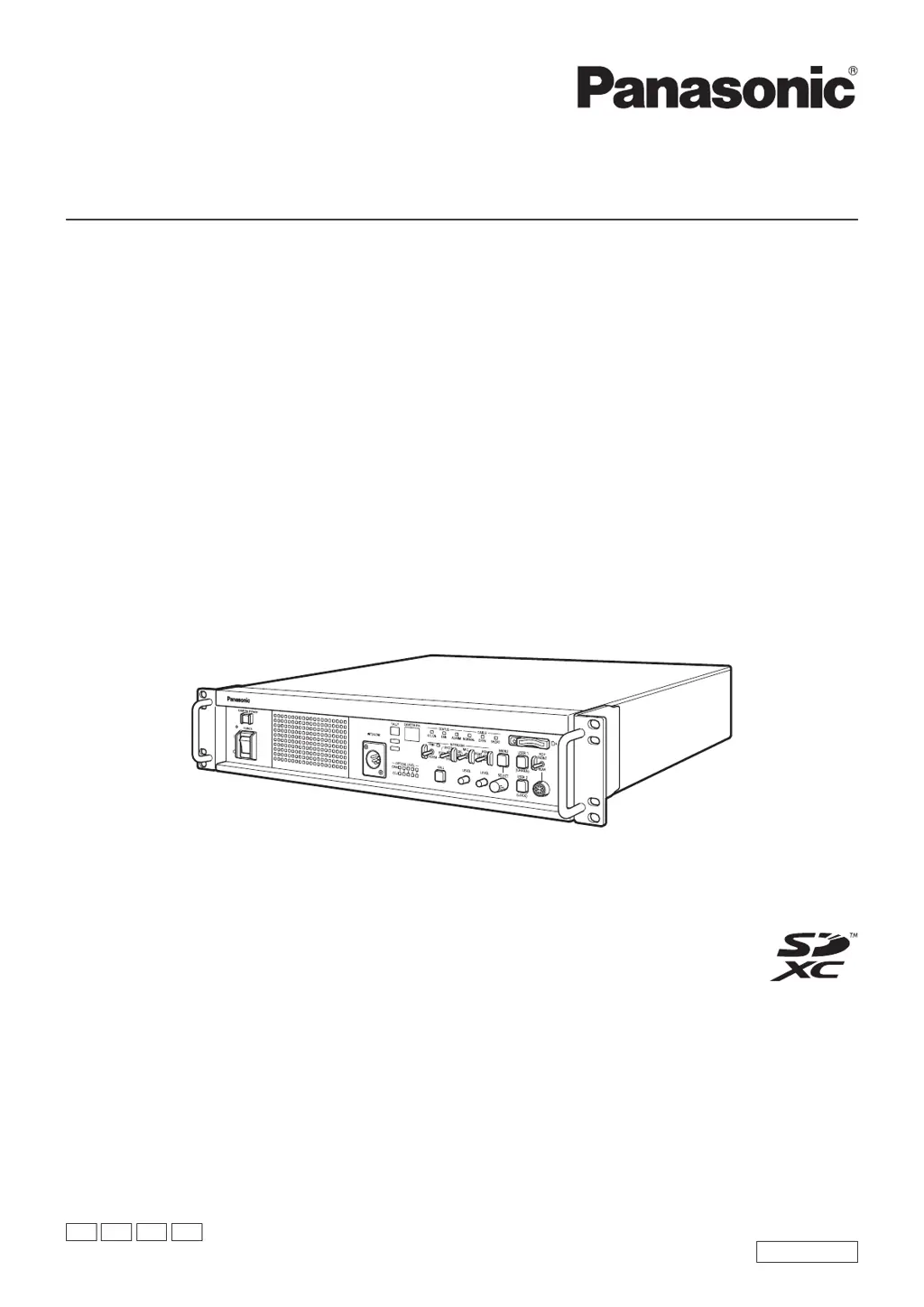
Panasonic AK-UCU600P - User Manual

Panasonic AK-UCU600P
136 pages
Print Icon
To Next Page IconTo Next Page
Loading...
Operating Instructions
Camera Control Unit
Please carefully read this manual, and save this manual for future use.
Before using this product, be sure to read “Read this first!” (pages 2 to 6).
ENGLISH
DVQP1734ZA
W0318TY0 -FJ
Model No. AK-UCU600P
Model No. AK-UCU600PS
Model No. AK-UCU600E
Model No. AK-UCU600ES
PJ PSJ EJ ESJ

Table of Contents

Questions and Answers

  • W
    williamsallisonAug 12, 2025
    Why do screen displays take a while to appear on Panasonic AK-UCU600P?
    • K
      Krista AndersonAug 12, 2025
      If screen displays are slow to appear on your Panasonic Control Unit, consider the following: * If the unit on the same local network is being accessed via proxy, configure the web browser settings so that access is not performed via proxy. * If multiple users are accessing the unit's IP images simultaneously, this can cause delays and decrease the IP image frame rate.
  • G
    gabriellefrankAug 17, 2025
    What to do if I cannot perform operation from an ROP connected with an IP connection on Panasonic Control Unit?
    • M
      Michael RodriguezAug 17, 2025
      If you cannot perform operations from a ROP (Remote Operation Panel) connected via IP to your Panasonic Control Unit, check the following: * Make sure the power is on. If the [POWER] lamp is off, the unit is not turned on. * Ensure a valid IP address is set on the unit. * Verify the correct unit is selected for operation. * Confirm the ROP is connected correctly; refer to the ROP's operating instructions. * The ROP's version may need an upgrade to support the unit; consult your dealer.
  • M
    Mrs. Jackie KimAug 22, 2025
    Why does the authentication screen appear repeatedly on Panasonic AK-UCU600P?
    • A
      Andrew FitzpatrickAug 22, 2025
      If the authentication screen appears repeatedly on your Panasonic Control Unit, it might be due to: * A change in the username or password. If you change the credentials while accessing the unit from a separate web browser, close the web browser and re-initiate access. * A change in the user authentication method. If you modify the [User auth.] - [Authentication] setting, close the web browser and access the unit again.
  • M
    michael09Aug 27, 2025
    How to fix the issue when it is not possible to download the setting files from Panasonic Control Unit?
    • A
      Albert MitchellAug 27, 2025
      If you cannot download setting files on your Panasonic Control Unit, verify that the file download function is enabled in Internet Explorer (Windows). Go to [Tools] - [Internet Options], click the [Security] tab, and then click the [Custom level] button. In the [Security Settings] dialog box, enable the [File download] and [Automatic prompting for file downloads] options.
  • H
    Heather ParkerNov 1, 2025
    Why I cannot access Panasonic AK-UCU600P Control Unit from a web browser?
    • G
      garrett57Nov 1, 2025
      If you cannot access the Panasonic Control Unit from a web browser, consider these possible solutions: * Ensure you are using a category 5 or higher LAN cable for the connection. * Verify the [LINK] LED of the [LAN] connector is lit. If not, check the LAN cable for bad contact and ensure proper connections. The network of the connection destination might not be operating correctly. * Confirm the unit's power is on by checking the [POWER] lamp. * Check if a valid IP address is set on the unit. * Ensure you are accessing the correct IP address. On Windows, use the command prompt to ping the unit's IP address. On Mac, use the OS X terminal to ping the IP address. A reply indicates no issues. If no reply, reboot the unit and change the IP address using the Easy IP Setup Software wit...
  • A
    Andrew DavisNov 6, 2025
    What to do if setting values of [Setup] screen are not updated on Panasonic AK-UCU600P?
    • N
      Nichole WilliamsNov 6, 2025
      If the setting values of the [Setup] screen are not being updated or displayed correctly on your Panasonic Control Unit, try the following: * Press the [F5] key on your keyboard to refresh the settings (Windows). * Press [Command] + [R] on your keyboard to refresh the settings (Mac). * Clear temporary internet files: * On Mac, go to Safari, select [Safari] - [Empty Cache], and click the [Delete] button under [Browsing history]. * On Windows, go to Internet Explorer, select [Tools] - [Internet Options], and click [Empty] in the pop-up screen. * In Internet Explorer, ensure [Check for newer versions of stored pages] is set to [Every time I visit the webpage]. * A port of the unit may be filtered by the firewall function of the antivirus software. Change the HTTP port n...

Panasonic AK-UCU600P Specifications

General IconGeneral
ModelAK-UCU600P
CategoryControl Unit
Operating Temperature0 °C to 40 °C (32 °F to 104 °F)
Video Format4K, HD
Prompter Output3G-SDI x 1
Audio Inputs4 x XLR
Audio Outputs2 x XLR
Reference Signal InputTri-level sync, black burst
Control InterfaceRS-422
LAN Interface1000Base-T/100Base-TX/10Base-T
Power SupplyAC 100V-240V, 50/60Hz
Storage Temperature-20°C to 60°C (-4°F to 140°F)

Related product manuals