EasyManua.ls Logo

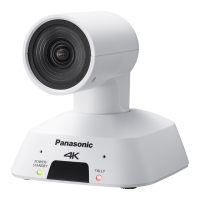
Panasonic AW-UE4KG - User Manual

Panasonic AW-UE4KG
84 pages
Print Icon
To Next Page IconTo Next Page
Loading...
DVQP2109ZA
AV0619MY0 -PS
ENGLISH
Model No.
AW-UE4KG
Model No.
AW-UE4WG
Operating Instruction
Operations and Settings
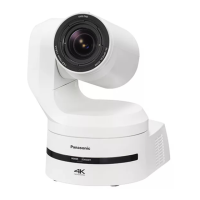
4K Integrated Camera
Operations and Settings
Operating Instructions
This "Operations and Settings" describes how to operate the unit and how to
establish its settings.
For more information on how to perform basic operation and installation, refer to
the Operating Instructions "Basics".

Table of Contents

Questions and Answers

  • A
    Alison BaileyAug 7, 2025
    How to fix Panasonic AW-UE4KG Digital Camera cannot access from a web browser?
    • D
      Danielle ReidAug 7, 2025
      If you cannot access the Panasonic Digital Camera from a web browser, ensure that a LAN cable of category 5e or above is connected to the LAN connector for IP control. Check if the [LINK] LED of the LAN connector is lit. If not, there may be a problem with the LAN connection or the network at the destination. Also, verify that the unit's power is on, as indicated by the status display lamp.
  • P
    Patricia RomanAug 12, 2025
    Why Panasonic Digital Camera cannot access from a web browser?
    • K
      kbranchAug 12, 2025
      If you cannot access the Panasonic Digital Camera from a web browser, several network settings could be the cause. First, verify that a valid IP address has been set for the unit. Ensure that you are accessing the correct IP address; you can test the connection using the ping command in Windows or OS X terminal. Also, check that the same IP address isn't being used by another device. Confirm that the subnet mask setting matches the network subnet of the connection destination. If using a web browser, check if the 'Use a proxy server' setting is enabled and adjust accordingly. Finally, verify that the correct default gateway has been set for the unit.
  • D
    Dr. Tyler BrownAug 17, 2025
    How to troubleshoot Panasonic AW-UE4KG Digital Camera no power?
    • B
      Brent CooperAug 17, 2025
      If your Panasonic Digital Camera is not turning on, ensure that the network cable for the PoE (IEEE802.3af) compatible power supply device and the unit are properly connected. Power may not be supplied if the total power limit is exceeded on power supply devices that allow connections to multiple PoE terminals.
  • A
    Amber GuerreroAug 22, 2025
    How to troubleshoot cannot operate Panasonic AW-UE4KG?
    • M
      mwagnerAug 22, 2025
      If you cannot operate the Panasonic Digital Camera, first check if the power is on. An off or orange status display lamp indicates the unit is not powered. Then, verify that the unit you want to operate has been properly selected.
  • S
    Shelby HahnAug 27, 2025
    What to do if Panasonic AW-UE4KG Digital Camera cannot operate using the wireless remote control?
    • T
      Taylor RobinsonAug 27, 2025
      If you are unable to operate the Panasonic Digital Camera using the wireless remote control, start by replacing the batteries. Also, ensure the correct Remote Control ID is selected in the menu settings. Check if there is a fluorescent light or plasma monitor near the unit that might be interfering with the wireless remote control signal.
  • A
    Ana HenrySep 1, 2025
    Why Panasonic AW-UE4KG turns in the opposite direction?
    • V
      victoriagarciaSep 1, 2025
      If the Panasonic Digital Camera turns in the opposite direction to the one operated, ensure that the Install Position setting has been selected correctly.

Summary

Network Security

Operating Precautions

Names and Functions of Parts

Wireless Remote Control Operations

Network Settings

Easy IP Setup Software Configuration

Guides users on using the Easy IP Setup Software to set network parameters.

Initial Account Setup

Basic Shooting Operation

Camera Unit Power Management

Powering the Camera Unit On

Step-by-step guide to turning the camera unit on using the wireless remote.

Powering the Camera Unit Off

Step-by-step guide to turning the camera unit off using the wireless remote.

Priority Mode Configuration

Camera Unit Selection and Scene Modes

Camera Operation Controls

Controlling Camera Direction

Details on how to pan and tilt the camera using the remote control.

Zoom In;Out Function

Explains how to use the zoom function for magnification and reduction of the image.

Troubleshooting Basic Shooting

Advanced Operations

White Balance Adjustment

Automatic White Balance (AWB A;B)

Guide to performing automatic white balance adjustments using preset memories A or B.

Auto Tracking White Balance (ATW)

Explains the automatic correction of white balance based on light source or color temperature changes.

Image Adjustment Settings

Image Quality and White Balance

Image Enhancements

System Menu

Priority Mode Configuration

How to set priority modes for different video output applications.

Web Screen Startup Procedure

Connecting via Web Browser

Web Live Screen Operation

Web Screen Configuration

Basic Settings Configuration

Selecting Priority Mode

Configures the priority output of video, choosing between HDMI, USB, IP, or Standard.

Image and Audio Settings

System Settings Configuration

User Management Settings

Network Configuration

Network Settings (IPv4;IPv6)

Configuration of IPv4 and IPv6 network settings, including DHCP and static IP.

RTMP Transmission Settings

Configuration for RTMP transmission settings for streaming video.

Maintenance Settings

Firmware Upgrade Procedure

Instructions for downloading and installing firmware updates for the unit.

Default Reset Procedure

Resets unit settings to factory defaults, excluding network and user management data.

Troubleshooting Operations

Operational Problems and Solutions

General troubleshooting guidance for various operational issues.

Video Display Issues

Troubleshooting steps for video-related problems like no display or incorrect display.

Panasonic AW-UE4KG Specifications

General IconGeneral
Type-
Megapixel- MP
PTZ controlYes
White balanceATW
Gain control typeAuto
Optical sensor size1/2.3 \
Minimum illumination4 lx
Closest focusing distance0.7 m
Horizontal field of view (tele)108 °
Horizontal field of view (wide)111 °
Input current1 A
DC input voltage5 V
Power source typeDC, PoE
Storage temperature (T-T)-20 - 50 °C
Operating temperature (T-T)0 - 40 °C
Operating relative humidity (H-H)20 - 90 %
Supported protocolsIPv4\\t TCP/IP, UDP/IP, HTTP, RTSP, RTP, RTP/RTCP, DHCP, DNS, ICMP, ARP, RTMP, RTMPS IPv6 TCP/IP, UDP/IP, HTTP, RTSP, RTP, RTP/RTCP, DNS, ICMPv6
Maximum frame rate60 fps
Video formats supportedH.264, H.265, M-JPEG
Maximum video resolution3840 x 2160 pixels
Supported graphics resolutions640 x 360, 1280 x 720 (HD 720), 1920 x 1080 (HD 1080), 3840 x 2160
Product colorBlack
Package typeBox
Weight and Dimensions IconWeight and Dimensions
Depth139 mm
Width123 mm
Height131 mm
Weight500 g

Related product manuals