EasyManua.ls Logo

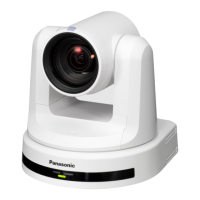
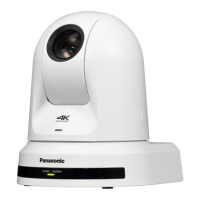
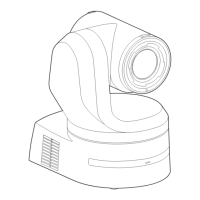
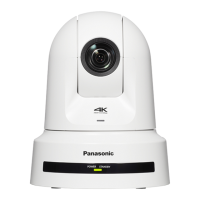
Panasonic AW-UE80WP - User Manual

Panasonic AW-UE80WP
168 pages
Print Icon
To Next Page IconTo Next Page
Loading...
DVQP2625ZA
W0222GU0 -FJ
ENGLISH
Model No.
AW‑UE80WP
Model No.
AW‑UE80KP
Model No.
AW‑UE80WE
Model No.
AW‑UE80KE
Model No.
AW‑UE80WED
Model No.
AW‑UE80KED
Operating Instructions
4K Integrated Camera
Before operating this product, please read the instructions carefully and save this manual for future use.
Please carefully read the “Read this first!” (pages 2 to 5) of this Manual before use.
PJ
EJ ED

Table of Contents

Questions and Answers

  • J
    jessica79Sep 12, 2025
    Why is my Panasonic Security Camera not auto focusing?
    • A
      Anthony FowlerSep 12, 2025
      If your Panasonic Security Camera is not auto focusing, check if the focus is set to manual. Auto focusing starts as soon as the focus is set to auto. In some situations, it may be hard to focus at the auto setting, so select the manual setting and focus manually.
  • L
    lacevedoAug 25, 2025
    What to do if my Panasonic Digital Camera cannot access from a web browser?
    • M
      matthew05Aug 25, 2025
      If you cannot access your Panasonic Digital Camera from a web browser, ensure a category 5e or above LAN cable is connected to the LAN connector. Check if the [LINK] LED of the LAN connector is lit; if not, there may be a problem with the LAN connection or the network. Verify the camera's power is on. Ensure a valid IP address is set in the unit and that you are accessing the correct IP address. If using HTTPS, access via "https://" with the port number. Confirm the IP address isn't being used by another unit and that the subnet mask matches the network subnet. If a proxy server is set in your web browser, configure it to not use a proxy for the camera's IP address. Finally, verify the default gateway setting is correct, consulting with your network administrator if needed.
  • M
    Mary FosterAug 25, 2025
    How to fix Panasonic AW-UE80WP Digital Camera that cannot operate using the wireless remote control?
    • C
      Crystal PhillipsAug 26, 2025
      If your Panasonic Digital Camera isn't responding to the wireless remote, first check the batteries. Ensure they haven't run down and are installed with the correct polarity. If the status display lamp doesn't blink when operating the remote near the signal light-sensing area, replace the batteries. Also, verify that the IR ID switches are correctly set. Finally, consider if a nearby fluorescent light or plasma monitor is interfering with the remote's signal.
  • K
    Kyle SmithSep 23, 2025
    Why Panasonic Security Camera images from multiple cameras appear sequentially?
    • N
      nicholaswilliamsSep 23, 2025
      When multiple web browsers are running to display H.264 images, images from multiple Panasonic Security Cameras may appear sequentially in a single web browser due to the combination of the personal computer's display adaptor and the driver. Update the first display adaptor to the latest version. If this does not resolve the problem, right-click on the desktop, select [Display settings] from the menu, click [Advanced display settings], select the [Troubleshooting] tab, and click [Change Settings]. Change to [Hardware acceleration] setting to [disable] at the far left, and click [OK].
  • J
    James HannaSep 12, 2025
    How to update settings on Panasonic Security Camera web setting screen?
    • R
      Ruth AlvaradoSep 12, 2025
      If the settings on the web setting screen [Setup] of your Panasonic Security Camera are not updated or displayed properly, try the following: * For Windows: Press the [F5] key to request the settings be acquired. * For Mac: Press the [Command] + [R] keys to request the settings be acquired. You can also try to delete temporary internet files. For Windows, go to Internet Explorer, select Tools - Internet Options, click the General tab, and delete temporary internet files and website files under Browsing history. For Mac, select Develop - Empty Cache in Safari and confirm.
  • N
    Natalie StrongSep 17, 2025
    Why Panasonic Security Camera images are not displayed?
    • R
      randywilliamsSep 18, 2025
      If your Panasonic Security Camera images are not displayed, ensure the plug-in viewer software is installed. If [Check for newer versions of stored pages] is not set to [Every time I visit the webpage] in the temporary Internet file settings, IP images may not appear in the live screen [Live]. To fix this, in Internet Explorer, go to Tools - Internet Options, click the General tab, and under Browsing history, click Settings. In the Temporary Internet Files dialog box, select the [Every time I visit the webpage] option.
  • C
    Cynthia VillanuevaSep 5, 2025
    Why Panasonic Digital Camera brightness changes cyclically or the colors change, and horizontal stripes can be seen passing across the screen?
    • S
      Scott Proctor Jr.Sep 5, 2025
      The brightness changes cyclically, colors change, and horizontal stripes appear on the screen of your Panasonic Digital Camera because these phenomena (flicker) may occur under the illumination produced by fluorescent lighting, mercury bulbs, or other types of discharge tubes.
  • A
    Adam StevensSep 5, 2025
    Why Panasonic Digital Camera images are distorted?
    • H
      Hannah BartlettSep 5, 2025
      The images from your Panasonic Digital Camera may be distorted if the transmission path is congested and proper transmission is not possible. The images may also be distorted if video packet shuffling occurs on the transmission path.
  • H
    Heather McdonaldSep 18, 2025
    Why Panasonic Security Camera authentication screen appears repeatedly?
    • A
      allenbrianSep 18, 2025
      If the authentication screen appears repeatedly on your Panasonic Security Camera, it might be because the user name or password has been changed. If you change the user name and password of the user currently logged in from a separate web browser while the unit is being accessed, the authentication screen appears each time the screen display is changed. Close the web browser and initiate access to the unit again. Also, if you change the [User auth.] - [Authentication] setting, close the web browser and initiate access again.
  • J
    Jeremy SmithAug 30, 2025
    Why does my Panasonic AW-UE80WP turn in the opposite direction to the one operated?
    • C
      Christopher NormanAug 30, 2025
      If your Panasonic Digital Camera turns in the opposite direction to the one operated, check if the stand-alone (Desktop) installation setting has been selected correctly. If the unit is connected to a controller, the reversal setting may have been established at the controller.

Panasonic AW-UE80WP Specifications

General IconGeneral
Camera TypePTZ Camera
Sensor Type1/2.5-Type MOS Sensor
Optical Zoom20x
Digital Zoom10x
Pan/Tilt RangePan: ±170°, Tilt: -30° to +90°
Video OutputHDMI, 3G-SDI, IP
IP ConnectivityYes
Operating Temperature0 °C to 40 °C (32 °F to 104 °F)
Effective Pixels8.3 Megapixels
Minimum Illumination0.5 lx (F1.8, 50 IRE)
Shutter Speed1/30 to 1/10, 000 sec
Gain0 dB to 36 dB
White BalanceAuto
Pan/Tilt SpeedPan: 0.1° to 60°/sec, Tilt: 0.1° to 60°/sec
Resolution4K (3840 x 2160)
Frame Rateup to 60 fps
Audio Input3.5 mm stereo mini jack
Network ProtocolsRTSP, RTMP, NDI|HX
Power SupplyAC 100-240V
Storage Temperature-20°C to 60°C (-4°F to 140°F)

Related product manuals