EasyManua.ls Logo

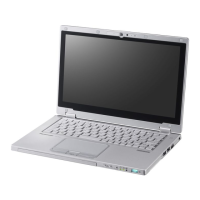
Panasonic CF-AX3 Series - User Manual

Panasonic CF-AX3 Series
56 pages
Print Icon
To Next Page IconTo Next Page
Loading...
OPERATING INSTRUCTIONS
Personal Computer
Model No.
CF-AX3
series
Please read these instructions carefully before using this product, and save this manual for future use.
Getting Started
Useful Information
Troubleshooting
Appendix Read Me First
Contents
Introduction ....................................................
13
Description of Parts .......................................
15
First-time Operation .......................................
18
Turning On / Turning Off ................................
24
Switching the Display Mode ..........................
25
Useful Information
Handling and Maintenance ............................
26
Installing Software .........................................
32
Troubleshooting
Troubleshooting (Basic) .................................
38
Appendix
LIMITED USE LICENSE AGREEMENT ........
44
Specications ................................................
46
Standard Limited Warranty ............................
51
Getting Started
Safety Precautions ...........................................
2
Regulatory Information .....................................
8
Read Me First
CF-AX3mk2_EU_M.indb 1 2013/11/18 12:12:47

Questions and Answers

  • D
    Darlene JonesAug 20, 2025
    What to do if I have forgotten my Panasonic Laptop password?
    • J
      Jeanette SnyderAug 20, 2025
      If you've forgotten the password for your Panasonic Laptop, contact Panasonic Technical Support. If you have another account with Administrator authority, log-on with it, then delete the password for the problem account. If you have a password reset disk, click [Reset password] displayed after the password input error, then follow the on-screen instructions and set a new password. If you cannot do either of the above, you will need to reinstall and setup Windows.
  • R
    Robert BaxterAug 22, 2025
    What to do if the battery indicator is blinking on my Panasonic Laptop?
    • J
      Justin GreenAug 22, 2025
      If the battery indicator on your Panasonic Laptop is blinking red, quickly save your data and power off your computer. Then, remove the battery pack and disconnect the AC adapter before reconnecting them.
  • T
    Tonya BruceAug 25, 2025
    How to fix a Panasonic CF-AX3 Laptop that won't turn on?
    • T
      Tracey JohnsonAug 25, 2025
      If your Panasonic Laptop doesn't power on and the power status indicator or battery indicator is not lit, try the following: * Connect the AC adapter. * Insert a fully charged battery. * Remove the battery pack and the AC adapter, then connect them again. * If the CPU temperature is high, wait until the computer cools down, and then turn the power on again. * Pull out the AC cord and wait for more than 1 minute to reconnect the AC cord.
  • E
    Edwin ForbesAug 26, 2025
    Why is there no display on my Panasonic CF-AX3 Laptop?
    • J
      Jose HahnAug 26, 2025
      If your Panasonic Laptop is not displaying anything on the screen, try the following: * Press Fn + F3 (or + P) to switch the display if the external display is selected. * If the display is turned off by the power-saving function, press any key like Ctrl to resume. * If the computer entered sleep or hibernation by the power-saving function, slide the power switch to resume.
  • J
    John LynnAug 27, 2025
    What to do if Windows does not start up on Panasonic CF-AX3 Laptop?
    • B
      Benjamin LaneAug 27, 2025
      If Windows doesn't start up on your Panasonic Laptop, try these steps: * Remove all peripheral devices (e.g. USB memory). * If the power status indicator is lit, slide the power switch for four seconds or longer to turn off, then turn on again. * Start up in Safe Mode, and check the error details. * Press F9 in the Setup Utility to return the Setup Utility settings (excluding the passwords) to the default values. Start the Setup Utility and make the settings again. * Check the [UEFI Boot] setting of the Setup Utility. [UEFI Boot] should be set to [Enabled] / [Disabled].
  • E
    Evan BrownAug 30, 2025
    How to fix 'The user name or password is incorrect' error on Panasonic CF-AX3?
    • A
      Andre KingAug 30, 2025
      If you cannot log on to Windows on your Panasonic Laptop and receive the message 'The user name or password is incorrect', and your user name (account name) includes an '@' mark, and if another user account exists, log on to Windows using another user account, and delete the account that includes '@'. Then create a new account. If no other account exists, you need to reinstall Windows.
  • K
    kristinmcdonaldAug 31, 2025
    Why does my Panasonic CF-AX3 say 'Remove disks or other media'?
    • R
      Robert LeeSep 1, 2025
      If your Panasonic Laptop displays the message 'Remove disks or other media. Press any key to restart' or a similar message, it may be due to a floppy disk in the drive or USB memory that does not contain system startup information. Remove the floppy disk and USB memory, then press any key. If a device is connected to the USB port, disconnect the device, or set [USB Port] or [Legacy USB Support] to [Disabled] in the [Advanced] menu of the Setup Utility. It may also be a flash memory drive failure, in which case you should perform the installation and return the flash memory drive to its condition at the time of purchase.
  • M
    Mark EvansSep 2, 2025
    How to correct the date and time on my Panasonic Laptop?
    • H
      hallnancySep 3, 2025
      If the date and time are incorrect on your Panasonic Laptop, make the correct settings. Open the Control Panel, click [Clock, Language, and Region] - [Date and Time]. Click [Change time zone…]. Select the time zone, then click [OK]. Click [Change date and time…], then set the date and time. If the problem persists, the internal clock battery may need to be replaced. When the computer is connected to LAN, check the date and time of the server. Note that the 2100 A.D. or later year will not be correctly recognized on this computer.
  • H
    hudsonashleySep 5, 2025
    Why is the screen disordered on my Panasonic Laptop?
    • J
      Joseph FitzpatrickSep 5, 2025
      If the screen on your Panasonic Laptop is disordered, restarting the computer may help, as changing the number of display colors and resolution can affect the screen. Also, if the refresh rate of the internal LCD may be 40 Hz, change the refresh rate of the internal LCD.
  • T
    Tara MoranSep 6, 2025
    What does it mean when the battery indicator is red on my Panasonic CF-AX3?
    • D
      Donna ReedSep 7, 2025
      If the battery indicator on your Panasonic Laptop lights up red, it means the battery level is very low (approximately 9% or less). Connect the AC adapter. You can continue to use the computer when the indicator light is orange.

Summary

Read Me First

Safety Precautions

Covers potential hazards, injury, and property damage precautions.

Regulatory Information

Information on wireless LAN/Bluetooth regulations and user guidelines.

Getting Started

Introduction

Welcome message, terms, and illustrations explanation.

Description of Parts

Identifies and explains various external and internal computer components.

First-time Operation

Step-by-step guide for initial setup, battery installation, and OS setup.

Turning On; Turning Off

Procedures for safely powering the computer on and off.

Switching the Display Mode

Instructions for changing between laptop and tablet operational modes.

Useful Information

Handling and Maintenance

Guidelines for proper care, environmental conditions, and cleaning.

Installing Software

Process for reinstalling the operating system and performing updates.

Troubleshooting

Starting Up

Solutions for power-on issues, boot failures, and password problems.

Display Issues

Troubleshooting steps for disordered screens, no display, and image rotation.

Battery Status

Explains battery indicator lights and troubleshooting steps.

Appendix

LIMITED USE LICENSE AGREEMENT

Terms and conditions for software usage and licensing.

Specifications

Technical details, hardware configurations, and features of the computer.

Standard Limited Warranty

Details of the product warranty coverage, limitations, and exclusions.

Panasonic CF-AX3 Series Specifications

General IconGeneral
BrandPanasonic
ModelCF-AX3 Series
CategoryLaptop
LanguageEnglish

Related product manuals