EasyManua.ls Logo

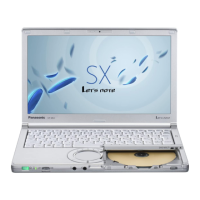
Panasonic CF-SX2 SERIES - User Manual

Panasonic CF-SX2 SERIES
200 pages
Go to English
Print Icon
To Next Page IconTo Next Page
Loading...
日本語
取扱説明書
ENGLISH
OPERATING INSTRUCTIONS
৿࿒፩ၭ
໪ቂངಖ༚
ⅺ㋤ʑᄽ
Ⴝ྆ḻ
㩆቗⪞
▖⮓☎Ὧ☆
ภาษาไทย
คำแนะนำในการปฏิบัติงาน
Indonesia
PETUNJUK PENGOPERASIAN
Tiếng Vit
Chú ý v an toàn và Thông tin quan trng
Please read these instructions carefully before using this product, and save this manual for future use.
ợ䒌㚐ḋ␥ᶯ↱濇孛Ḹ个敩孟㚐ợ䒌存㕲󰵫濇ⷚ⤉ⓨὁ⪼㚐ㆯ󱂑ṉ⡫⭪㛉⌦佧Ɂ
ᮢ቏ᮟٴʠԊŊ⦼˝₳〇⩊቏Ⴝ྆ḻŊʏۧΎએ቏⦦ᆙሬ˫Ј૽א≙ȯ
ᶢ#⣆㔲⟮#⅖❓㘂⎆໚#⢮♺#⠞#᪎ጞ♦⟮#⡂#⠧♞#ᶞ⎆ඊ#Ⳣඊ❓⟦ᤆ#ᶞඪ㘂⚖#ᓺ⎗⎆⛎ 1
กรุณาอ่านคำแนะนำเหล่านี้อย่างละเอียดก่อนใช้งานผลิตภัณฑ์นี้ และเก็บรักษาคู่มือนี้เอาไว้เพื่อการใช้งานในอนาคต
Bacalah petunjuk ini dengan cermat sebelum menggunakan produk ini dan simpanlah manual ini untuk digunakan
lagi di masa mendatang.
保証書別添付
このたびはパナソニック製品をお買い上げいただき、まことにありがとうございます。
・取扱説明書をよくお読みのうえ、正しく安全にお使いください。
・ご使用前に『安全上のご注意』
2〜6 ページ)を必ずお読みください。
保証書は「お買い上げ日販売店名」などの記入を確かめ、取扱説明書とともに大切に保管してください。
Personal Computer /
צᄔ໮৓ི঩
/
Τːヅ〉
/
㡦➎ᗺ#㏞㧒㘚
/
เครื่องคอมพิวเตอร์ส่วนบุคคล
/
Komputer Pribad /
パーソナルコンピューター
Model No./
ࠣ⚦
/
ᾒᡢ#ⅲ㬢
/
หมายเลขรุ่น
/
Model No./
品番
CF-SX2
Series
ᄲ
CF-SX2JD / CF-SX2JU
Ⴜள

Questions and Answers

  • L
    lhesterAug 18, 2025
    What to do if I forgot my Panasonic Desktop password?
    • D
      Douglas BoyleAug 19, 2025
      If you've forgotten your Panasonic Desktop password, here are some options: * If you have another account with administrator rights, log in with that and remove the password for the account you're having trouble with. * If you have a password reset disk, click 'Reset password' after entering the wrong password and follow the instructions. * As a last resort, you may need to reinstall Windows.
  • C
    Christina StrongAug 21, 2025
    Why can't I boot from internal CD/DVD drive on Panasonic CF-SX2 Desktop?
    • T
      tallenAug 21, 2025
      If you cannot boot from the internal CD/DVD drive on your Panasonic Desktop, check the following: * Ensure the bootable CD/DVD is correctly inserted. * In the Setup Utility, confirm that [Optical Drive] is set to [Enabled] in the [Advanced] menu. * In the Setup Utility, confirm that [Optical Drive Power] is set to [On] in the [Main] menu. * In the Setup Utility, confirm that [Boot Option #1] is set to [CD/DVD Drive] in the [Boot] menu. * Note that you cannot boot from the internal CD/DVD drive when an external CD/DVD drive is connected.
  • N
    Natalie RamirezAug 23, 2025
    After adding RAM, why nothing is displayed on the screen of Panasonic CF-SX2?
    • M
      Mary BurchAug 23, 2025
      If nothing is displayed on the screen after adding or changing the RAM module on your Panasonic Desktop, turn off the computer, remove the RAM module, and confirm whether the RAM module has conformed to specification.
  • S
    Stephanie JenkinsAug 26, 2025
    Why Panasonic CF-SX2 computer does not power on?
    • J
      Jaime HutchinsonAug 26, 2025
      If your Panasonic Desktop computer isn't powering on and the power or battery indicator isn't lit, try these steps: * Connect the AC adapter. * Insert a fully charged battery. * Remove and reconnect the battery pack and AC adapter. * If you've added RAM, remove it to see if it's the correct type. * Let the computer cool down if the CPU temperature is high. * Unplug the AC cord, wait a minute, and plug it back in.
  • K
    Kristina MillerAug 28, 2025
    How to fix Panasonic Desktop when Windows does not start up?
    • N
      Noah GalvanAug 28, 2025
      If Windows isn't starting up on your Panasonic Desktop, try these steps: * Remove all peripheral devices, such as USB memory. * If the power indicator is on, hold the power switch for four seconds to turn off the computer, then turn it back on. * Start up in Safe Mode to check the error details. * In the Setup Utility, press F9 to reset the settings (excluding passwords) to their default values.
  • C
    Christina MayerAug 30, 2025
    What does "Remove disks or other media. Press any key to restart” mean on Panasonic Desktop?
    • D
      Danielle RamosAug 30, 2025
      If you see a message like “Remove disks or other media. Press any key to restart” on your Panasonic Desktop, it means: * Remove any floppy disks or USB memory devices and press any key. * Disconnect any devices connected to the USB port. * If the problem continues after removing the disk, it might indicate a hard disk failure, requiring reinstallation to restore the hard disk to its original condition.
  • W
    Whitney JenkinsSep 1, 2025
    How to fix incorrect date and time on Panasonic Desktop?
    • A
      Angela RichardsonSep 1, 2025
      If the date and time are incorrect on your Panasonic Desktop, you can: * Make the correct settings. * Check the date and time of the server. Note: This computer may not correctly recognize dates in the year 2100 A.D. or later.
  • J
    jasonsmithSep 3, 2025
    Why Panasonic CF-SX2 computer will not automatically enter sleep or hibernation?
    • C
      Christopher MartinSep 3, 2025
      If your Panasonic Desktop isn't automatically going into sleep or hibernation mode: * If connected to a network via wireless LAN, ensure access point settings are configured. * If not using wireless LAN, disable the wireless LAN function. * Ensure no software is regularly accessing the hard disk.
  • E
    Emily GibbsSep 6, 2025
    What to do if Panasonic CF-SX2 displays password input screen again after entering the password?
    • A
      Anthony McdonaldSep 6, 2025
      If the password input screen reappears after entering your password on your Panasonic Desktop: * If the NumLk indicator is lit, press NumLk to disable the ten-key mode. * If the Caps Lock indicator is lit, press Caps Lock to disable the Caps Lock mode.
  • M
    Miguel HarrisSep 8, 2025
    Why does '[Enter Password]' not appear when resuming from sleep/hibernation on Panasonic CF-SX2 Desktop?
    • Z
      zamoraomarSep 8, 2025
      If '[Enter Password]' doesn't appear when resuming your Panasonic Desktop from sleep or hibernation: * Select [Enabled] in [Password On Resume] in the [Security] menu of the Setup Utility. * Note that the Windows password can be used instead of the password set in the Setup Utility.

Summary

Introduction

Terms and illustrations in these instructions

Explains simplified illustrations and terminology used in the manual.

Disclaimer

States that specifications and manuals are subject to change without notice.

Trademarks

Lists registered trademarks used in the manual.

Read Me First

Information to the User

Provides information about the product and its health effects.

Regulatory Information

States the company is not responsible for interference caused by unauthorized modifications.

Lithium Battery!

Discusses the internal lithium battery and warnings for replacement.

CD;DVD Drive Caution

Warns about the laser used in the CD/DVD drive.

Safety Precautions

Lists essential safety precautions for using the product.

India Only

Specific recycling information for India.

Singapore Only

Specific recycling information for Singapore.

Precautions

Details important precautions for safe operation and handling.

Precautions (Battery Pack)

Lists precautions for handling and using the battery pack.

Description of Parts

First-time Operation

Preparation

Lists accessories to check and the license agreement to read.

To change the partition structure

Explains how to shrink a partition and create a new one.

To turn on the CD;DVD drive

Instructions on how to enable the CD/DVD drive.

Battery duration

Provides estimated battery life for different operating modes.

On-screen Manual

Handling and Maintenance

Operation Environment

Details the recommended operating environment and conditions.

Handling Cautions

Provides specific cautions for handling the computer and its components.

Maintenance

Instructions on how to clean the LCD panel, touch pad, and other parts.

Reinstalling Software

Using Recovery Disc

Describes how to reinstall the OS using a recovery disc.

Troubleshooting (Basic)

Starting Up

Covers basic troubleshooting steps for startup issues.

Entering Password

Addresses issues related to password input and login.

Shutting down

Troubleshooting steps if Windows does not shut down properly.

Display

Addresses display-related issues like black screen or disorder.

Battery

Explains battery indicator lights and related troubleshooting.

Touch Pad

Troubleshoots issues with the touch pad not working or inputting.

On-screen Document

How to view PDF documents if they are not displayed.

Others

Troubleshooting for general issues like no response or CD/DVD drive recognition.

LIMITED USE LICENSE AGREEMENT

Specifications

Main Specifications

Lists the main technical specifications of the computer.

Wireless LAN

Details specifications for wireless LAN connectivity.

Bluetooth

Details specifications for Bluetooth connectivity.

Wireless WAN <Only for model with wireless WAN>

Details specifications for wireless WAN connectivity.

Separately sold products

Lists optional accessories available for purchase.

MEMO

Safety Precautions

Chú ý

Panasonic CF-SX2 SERIES Specifications

General IconGeneral
SeriesCF-SX2
Memory4GB
Storage128GB SSD
Display12.1-inch
Operating SystemWindows 7 Professional

Related product manuals