EasyManua.ls Logo

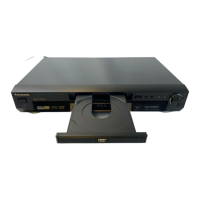
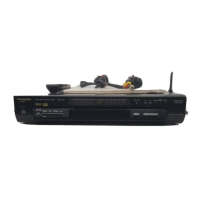
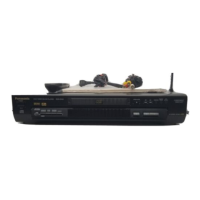
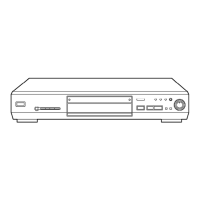
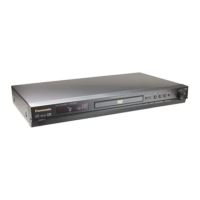
Panasonic DVD-RP62 - User Manual

Panasonic DVD-RP62
24 pages
Print Icon
To Next Page IconTo Next Page
Loading...
P PC
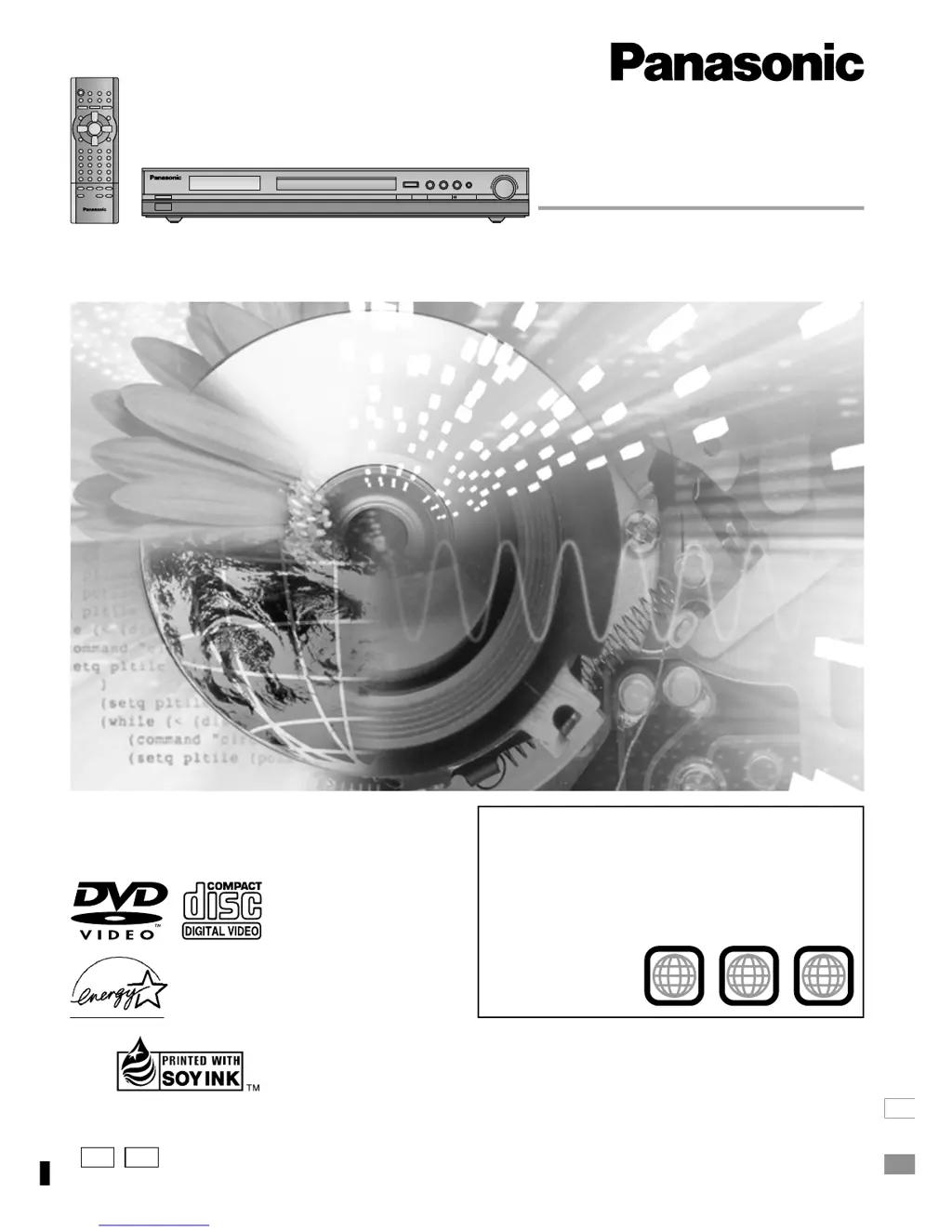
DVD/CD PLAYER
Operating Instructions
Model No. DVD-RP62
The warranty can be found on page 22.
En la página 23 hay una guía de referencia rápida en
español.
RQT6526-P
Before connecting, operating or adjusting this
product, please read these instructions completely.
Please keep this manual for future reference.
As an
E
NERGY
S
TAR Partner,
Panasonic has determined that
this product meets the
E
NERGY
S
TAR
guidelines for energy efficiency.
®
®
Region number supported by this player
Region numbers are allocated to DVD players and
software according to where they are sold.
The region number of this player is “1”.
The player will play DVDs marked with labels
containing “1” or “ALL”.
2
4
1
1
ALL
Example:
[For[U.S.A.[only[
This manual was printed with soy based ink.

Questions and Answers

  • A
    Aaron HardingAug 7, 2025
    Why is there no sound coming from my Panasonic DVD Player?
    • W
      westangelaAug 8, 2025
      If you're experiencing no sound, distorted sound, or piercing noise from the speakers connected to your Panasonic DVD Player, start by checking all the connections to ensure they are secure. Verify the volume level on all connected equipment, including your television or stereo system. Make sure the input settings on your TV and stereo system are correctly configured for the DVD player's output. If the 'ADVANCED SURROUND' feature is causing distortion, turn it off. If you're using the DIGITAL AUDIO OUT terminal, double-check that the 'Dolby Digital' and 'DTS Digital Surround' settings are correctly configured in the Audio menu of the SETUP menu.
  • J
    James HendersonAug 19, 2025
    Why Panasonic DVD-RP62 DVD Player no power?
    • J
      jeffrey55Aug 20, 2025
      If your Panasonic DVD Player has no power or automatically switches to standby mode, ensure the AC power supply cord is securely inserted into the household AC outlet. Note that the unit automatically enters standby after approximately 30 minutes in stop mode to conserve power; turn the power back on. The unit might have been switched to standby by the SLEEP timer.
  • O
    Olivia JohnsonAug 26, 2025
    What does 'No DISC' mean on my Panasonic DVD-RP62 DVD Player?
    • K
      Kristen JonesAug 26, 2025
      If your Panasonic DVD Player displays “NoPLAY”, “CHECK DISC”, “H??” (where ?? is a number), or “NoDISC”, it indicates a problem with the disc or the unit's ability to read it. First, ensure that you're using a disc that the unit can play. If the disc is dirty, wipe it clean. If an error code like “H??” appears, try resetting the unit by turning it to standby mode and then back on, or by disconnecting and reconnecting the AC power cord. If the error persists, take note of the service number and contact a qualified service person. If the display shows “NoDISC”, make sure you have inserted a disc correctly.
  • M
    Mark MillerOct 31, 2025
    What to do if Panasonic DVD-RP62 buttons are not responding?
    • M
      martintimothyOct 31, 2025
      If your Panasonic DVD Player isn't responding to button presses or the remote, several factors could be at play. The disc itself might prohibit certain operations. Try another disc. Also, external factors like lightning or static electricity might interfere with the unit's operation. To resolve this, reset the unit by switching it to standby mode and then back on, or by disconnecting and reconnecting the AC power cord. Ensure the batteries in the remote are correctly installed and not depleted. Point the remote control directly at the signal sensor on the DVD player. If condensation has formed inside the unit, wait 1 to 2 hours for it to evaporate. Make sure you are using discs that are supported by the unit and that DVDs are from the correct region. Clean the disc if it's dirty, and ensur...
  • M
    martinjoshuaNov 12, 2025
    How to fix distorted picture on Panasonic DVD-RP62?
    • A
      Anthony NolanNov 12, 2025
      If you're experiencing picture distortion, no picture, or an abnormal picture display with your Panasonic DVD Player, begin by checking all connections and ensuring your television is turned on and set to the correct video input. Note that some distortion is normal during SEARCH. Navigate to the Video menu in the SETUP menus to adjust the 'TV Aspect' setting to match your television's aspect ratio; you might also need to adjust the screen mode on your TV. If your TV cannot adjust the aspect ratio when progressive output is enabled, press [PROGRESSIVE OUT] on the DVD player to switch to interlace output. Ensure that the 4:3 TV ZOOM function is off. Note that progressive video output requires a compatible television. If ghosting occurs with progressive output, turn it off by pressing [PROGRE...

Summary

Safety Warnings and Precautions

Electrical and Laser Safety

Essential safety warnings regarding laser, electric shock, and potential product damage.

Important Safety Instructions

Installation and Environment

Guidelines for connecting power, installing the unit, and environmental considerations.

Disc Compatibility and Handling

Control Reference Guide

Remote Control Operation

Overview of the remote control, its buttons, and battery usage.

Connecting to a Television

Quick Setup Guide

Initial Setup Wizard

Guide for performing initial settings like language, aspect ratio, and progressive output.

Basic Playback Operations

Convenient Playback Features

Enhancing Movie Experience

Changing Settings

Common Procedures and Digital Output

Home Theater Setup

Troubleshooting Guide

Power and Operation Problems

Solutions for common power, operation, and remote control problems.

Picture and Sound Issues

Troubleshooting steps for distorted pictures, no picture, or sound issues.

Limited Warranty and Customer Service

Panasonic DVD-RP62 Specifications

General IconGeneral
TypeDVD player
Video OutputComposite, S-Video, Component
Remote ControlYes
Progressive ScanYes
Power Consumption15 W
Disc Formats SupportedDVD-Video, DVD-R, DVD-RW, CD, CD-R, CD-RW
Audio OutputDigital Optical
Dimensions430 x 240 mm

Related product manuals