EasyManua.ls Logo

Panasonic KX-TG242SK - User Manual

Panasonic KX-TG242SK
56 pages
Print Icon
To Next Page IconTo Next Page
Loading...
Operating Instructions
Digital Corded/Cordless Answering System
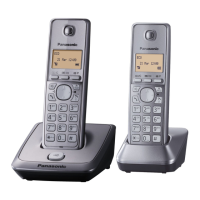
Model shown is KX-TG4771.
Model No. KX-TG4771
KX-TG4772
KX-TG242SK
KX-TG4773
KX-TG243SK
Before initial use, see “Getting Started” on
page 8.
Thank you for purchasing a Panasonic product.
Please read these operating instructions before using the unit and save them for future
reference.
Consulte “Guía Rápida Española”, página 47.
For assistance, visit our Web site: http://www.panasonic.com/help for customers in the
U.S.A. or Puerto Rico.
Please register your product: http://www.panasonic.com/prodreg
TG477x(en-en)_1130_ver021.pdf 1 2011/11/30 15:57:53

Questions and Answers

  • B
    Brittany WelchSep 23, 2025
    Why does the receiver volume on my Panasonic KX-TG242SK reset to level 4?
    • W
      William CurtisSep 23, 2025
      The receiver volume returns to level 4 after you hang up. Press MjN or MkN to adjust the volume every time or as needed.
  • C
    Christopher SmithAug 23, 2025
    Why can't I hear a dial tone on my Panasonic Cordless Telephone?
    • S
      Sheena MartinezAug 23, 2025
      If you cannot hear a dial tone on your Panasonic Cordless Telephone, it may be due to the base unit’s AC adaptor or telephone line cord not being properly connected. Check these connections. You can also disconnect the base unit from the telephone line and connect the line to a known working telephone. If the working telephone operates properly, contact our service personnel to have the unit repaired. If the working telephone does not operate properly, contact your service provider/ telephone company.
  • L
    Lynn SmithAug 25, 2025
    What to do if my Panasonic Cordless Telephone does not work?
    • T
      Todd VaughanAug 26, 2025
      If your Panasonic Cordless Telephone is not working, ensure the batteries are installed correctly. Fully charge the batteries. Check all connections. Unplug the base unit’s AC adaptor to reset the unit, then reconnect it. It is also possible that the handset has not been registered to the base unit, so register the handset.
  • M
    Michelle McneilAug 27, 2025
    Why does my Panasonic KX-TG242SK Cordless Telephone handset not ring?
    • J
      Jeremy HunterAug 27, 2025
      If your Panasonic Cordless Telephone handset does not ring, ensure that the ringer volume is not turned off and adjust it. Also, check if silent mode is turned on and turn it off.
  • J
    Jocelyn NewtonAug 27, 2025
    Why is there noise or cutting in and out on my Panasonic KX-TG242SK?
    • J
      Jenna FosterAug 27, 2025
      If you are hearing noise or the sound cuts in and out while using your Panasonic Cordless Telephone, it might be due to electrical interference. Try repositioning the base unit and using the handset away from sources of interference. If you have DSL/ADSL service, consider connecting a DSL/ADSL filter between the base unit and the telephone line jack. Also, ensure you are close enough to the base unit.
  • T
    Travis GrossSep 17, 2025
    Why can't I operate the answering system remotely on my Panasonic KX-TG242SK Cordless Telephone?
    • D
      dannywilliamsSep 18, 2025
      If you cannot operate the answering system remotely on your Panasonic Cordless Telephone, the remote access code may not be set. Set the remote access code. You may be entering the wrong remote access code. If you have forgotten your remote access code, enter the remote access code setting to check your current code. The answering system may be turned off, so turn it on.
  • D
    Dale SheaSep 14, 2025
    Why can't I dial the phone number edited in the caller list on my Panasonic Cordless Telephone?
    • D
      David FriedmanSep 14, 2025
      If you cannot dial the phone number edited in the caller list on your Panasonic Cordless Telephone, the phone number you dialed might have been edited incorrectly (for example, the long distance “1” or the area code is missing). Edit the phone number with another pattern.
  • A
    aaronwarrenSep 15, 2025
    Why is the 2nd caller's information not displayed during an outside call on my Panasonic Cordless Telephone?
    • R
      Rodney BergSep 15, 2025
      If the 2nd caller’s information is not displayed during an outside call on your Panasonic Cordless Telephone, you must first contact your service provider/ telephone company and subscribe to the desired service. After subscribing, you may need to contact your service provider/telephone company again to activate this specific service, even if you already subscribed to both Caller ID and Call Waiting with Caller ID services.
  • T
    Taylor SimpsonSep 6, 2025
    Why can't I make a call on my Panasonic KX-TG242SK?
    • L
      Lisa JuarezSep 6, 2025
      If you cannot make a call with your Panasonic Cordless Telephone, the dialing mode may be set incorrectly. Change the setting.
  • A
    Adam WatsonSep 3, 2025
    Why does my Panasonic KX-TG242SK Cordless Telephone still flash after fully charging the batteries?
    • J
      Jennifer VasquezSep 3, 2025
      If you fully charged the batteries of your Panasonic Cordless Telephone, but the phone still flashes, displays a battery icon, or the operating time seems shorter, clean the battery ends and the charge contacts with a dry cloth and charge again. It may also be time to replace the batteries.

Summary

Introduction

Model composition

Details the components included for different model numbers.

Accessory information

Lists and quantifies the supplied accessories for various models.

Additional;replacement accessories

Lists optional accessories and their order numbers for purchase.

Expanding your phone system

Explains how to expand the phone system with optional handsets.

Important Information

For your safety

Provides essential safety precautions to prevent injury and property loss.

Installation and location

Advises on proper installation and location of the telephone equipment.

Battery

Details battery type, handling, and charging recommendations.

Important safety instructions

Lists essential safety precautions to reduce risks like fire and electric shock.

For best performance

Provides tips for optimal base unit placement and environmental conditions.

Environment

Advises on keeping the product away from noise sources and extreme conditions.

Routine care

Guides on how to clean and care for the product's exterior.

Other information

Contains miscellaneous important notes and cautions.

Notice for product disposal, transfer, or return

Recommends erasing private information before disposing of the product.

Specifications

Lists the technical specifications of the DECT 6.0 system.

Operating conditions

Specifies the recommended operating temperature and humidity ranges.

Getting Started

Setting up

Guides on connecting the base unit, charger, and installing batteries.

Connections

Details how to connect the base unit to power and the phone line.

Battery installation

Explains how to correctly install the rechargeable batteries.

Battery charging

Describes the process and expected duration for charging batteries.

Note when setting up

Provides important details and tips for initial setup procedures.

Intelligent eco mode

Explains the eco mode feature for reducing power consumption.

Controls

Base unit

Identifies and labels the controls on the base unit.

Handset

Identifies and labels the controls on the handset.

Control type

Explains the soft keys and navigator key functions.

Display

Lists and explains the display icons and messages for the base unit and handset.

Belt clip

Shows how to attach and remove the belt clip.

Initial settings

Initial settings

Guides on essential first-time setup procedures for the unit.

Making;Answering Calls

Making calls

Details how to make calls using the base unit, handset, or redial list.

Adjusting the receiver or speaker volume

How to adjust audio volume levels during calls.

Pause (for PBX;long distance service users)

Explains how to insert a pause for PBX or long-distance services.

Answering calls

Details how to answer incoming calls using the base unit or handset.

Auto talk

Explains the auto-answer feature.

Adjusting the ringer volume

How to adjust ringer volume levels.

Temporary ringer off

How to temporarily silence the ringer.

Useful features during a call

Introduces features used during a call.

Hold

Explains how to place a call on hold.

Handset

Explains how to place a call on hold using the handset.

Mute

How to mute the microphone during a call.

Flash

Explains the use of the flash button for special features.

For call waiting or Call Waiting Caller ID service users

Information for users of call waiting services.

Temporary tone dialing (for rotary;pulse service users)

How to temporarily switch dialing mode.

Handset clarity booster

Explains the feature to improve sound clarity.

Handset equalizer

Explains the feature to clarify voice sound.

Call share

Explains how to join existing calls or create conference calls.

Shared Phonebook

Shared phonebook

Introduces the shared phonebook for making calls without manual dialing.

Adding entries

Step-by-step guide to add new entries to the phonebook.

Character table for entering names

Shows how to enter characters using the dial keypad.

Groups

Explains how to use groups to organize phonebook entries.

Changing group names

How to rename the default group names.

Finding and calling from a phonebook entry

Instructions on how to find and call contacts from the phonebook.

Editing entries

How to modify existing phonebook entries.

Erasing entries

How to remove entries from the phonebook.

Chain dial

How to dial numbers stored in the phonebook during a call.

Programming

Programmable settings

Explains how to customize unit features through programming.

Display the menu tree and direct command code table

Provides a table of menu options, codes, and page references.

Base unit

Lists programmable settings for the base unit.

Handset

Lists programmable settings for the handset.

Main menu: “V.M. access (V.M.: Voice mail)

How to access and listen to voice mail messages.

Main menu: Intercom

How to use the intercom function.

Main menu: Set date & time

How to set the date, time, and alarm.

Main menu: “Initial setting

Covers ringer settings, silent mode, and date/time adjustments.

Main menu: 2 Customer support

How to display customer support web address.

Call block

How to block unwanted calls.

Voice mail

Settings related to voice mail service.

Message alert

How to enable/disable the message indicator alert.

LCD contrast

How to adjust the display contrast.

Key tone

How to turn key tones on/off.

Caller ID edit

How to edit caller ID information.

Auto talk

How to turn auto talk on/off.

Set tel line

Settings for telephone line type and flash time.

Call sharing

How to enable/disable call sharing.

Registration

How to register/deregister handsets.

Change language

How to change display and voice prompt languages.

Special programming

Alarm

How to set and manage alarm functions for each handset.

Silent mode

How to set periods of silence for incoming calls.

Turning silent mode on;off

Steps to enable or disable silent mode.

Changing the start and end time

How to define the start and end times for silent mode.

Changing the handset name

How to customize names for individual handsets.

Call block (Caller ID subscribers only)

Call block (Caller ID subscribers only)

Detailed instructions for blocking calls using Caller ID.

Registering a unit

Information on adding more handsets.

Caller ID Service

Using Caller ID service

Explains the requirements and basic functionality of Caller ID.

Missed calls

How missed calls are indicated and cleared.

Phonebook name display

How phonebook names are displayed with incoming calls.

Talking Caller ID

How the unit announces the caller's name or number.

Ringer ID

How to assign different ringers to caller groups.

Caller list

Information about accessing and using the caller list.

Editing a callers phone number before calling back

How to edit numbers in the caller list before dialing.

Caller ID number auto edit feature

Explains the automatic editing of caller ID numbers.

Erasing selected caller information

How to delete specific entries from the caller list.

Erasing all caller information

How to clear the entire caller list.

Storing caller information to the phonebook

How to save caller information into the phonebook.

Answering System

Answering system

Overview of the answering system's functions.

Memory capacity (including your greeting message)

Details the total recording capacity and message limit.

Turning the answering system on;off

How to turn the answering system on and off.

Call screening

How to listen to callers leaving messages.

Greeting message

Information about greeting messages.

Recording your greeting message

Step-by-step guide to record a personal greeting.

Using a pre-recorded greeting message

Explains the use of built-in pre-recorded greetings.

Resetting to a pre-recorded greeting message

How to revert to pre-recorded greetings.

Playing back the greeting message

How to listen to the greeting message.

Listening to messages using the base unit

How to play back messages using the base unit.

Operating the answering system during playback

Controls available during message playback.

Calling back (Caller ID subscribers only)

How to call back callers while listening to messages.

Erasing all messages

How to delete all recorded messages.

Listening to messages using the handset

How to play back messages using a handset.

Remote operation

Allows remote access to the answering system.

Answering system settings

Allows customization of answering system behavior.

Callers recording time

How to set the maximum recording time per caller.

Selecting Greeting only

How to set the system to only play greetings, not record messages.

Message alert

How to enable/disable the message indicator alert.

Voice Mail Service

Voice mail service

Explains the voice mail service provided by the telephone company.

Storing the voice mail (VM) access number

How to store the voice mail access number for automatic dialing.

To erase the voice mail access number

How to remove the stored voice mail access number.

Voice mail (VM) tone detection

How the unit detects voice mail tones.

Turning VM tone detection on;off

How to enable or disable VM tone detection.

Listening to voice mail messages

How the unit indicates new voice mail messages.

Base unit

How to listen to voice mail messages using the base unit.

Intercom;Locator

Intercom

How to make intercom calls between units.

Handset locator

How to find a misplaced handset.

Transferring calls, conference calls

How to transfer calls or set up conference calls.

Answering a transferred call

How to answer a transferred call.

Useful Information

Wall mounting

Instructions for mounting the base unit on a wall.

Error messages

Lists common error messages and their causes/solutions.

Troubleshooting

Addresses common problems and their solutions.

Programmable settings

Troubleshooting tips for programmable settings.

Battery recharge

Troubleshooting tips related to battery charging.

Making;answering calls, intercom

Troubleshooting tips for call and intercom functions.

Caller ID;Talking Caller ID

Troubleshooting tips for Caller ID features.

Answering system

Troubleshooting tips for the answering system.

Liquid damage

Advice on handling liquid damage and drying the unit.

FCC and other information

Details FCC compliance, registration, and REN information.

FCC RF Exposure Warning

Information regarding FCC RF exposure limits and safe usage.

Notice

Note about FCC ID location.

Compliance with TIA-1083 standard

Information on TIA-1083 standard compliance for hearing aids.

Appendix

Customer services

Contact information for customer service and assistance.

Warranty (For United States and Puerto Rico)

Details the terms and coverage of the product's limited warranty.

Limited Warranty Limits And Exclusions

Specifies what is covered and excluded by the limited warranty.

When you ship the product

Final instructions for shipping the product for service.

Panasonic KX-TG242SK Specifications

General IconGeneral
Caller IDYes
Handset LocatorYes
Call WaitingYes
DisplayLCD
RedialYes
Phonebook Capacity50
SpeakerphoneYes
IntercomYes
Conference CallYes

Related product manuals