EasyManua.ls Logo

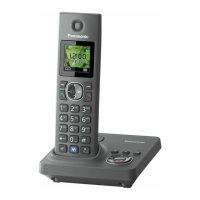
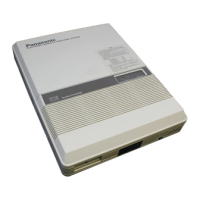
Panasonic KX-TGA760 - User Manual

Panasonic KX-TGA760
32 pages
Print Icon
To Next Page IconTo Next Page
Loading...
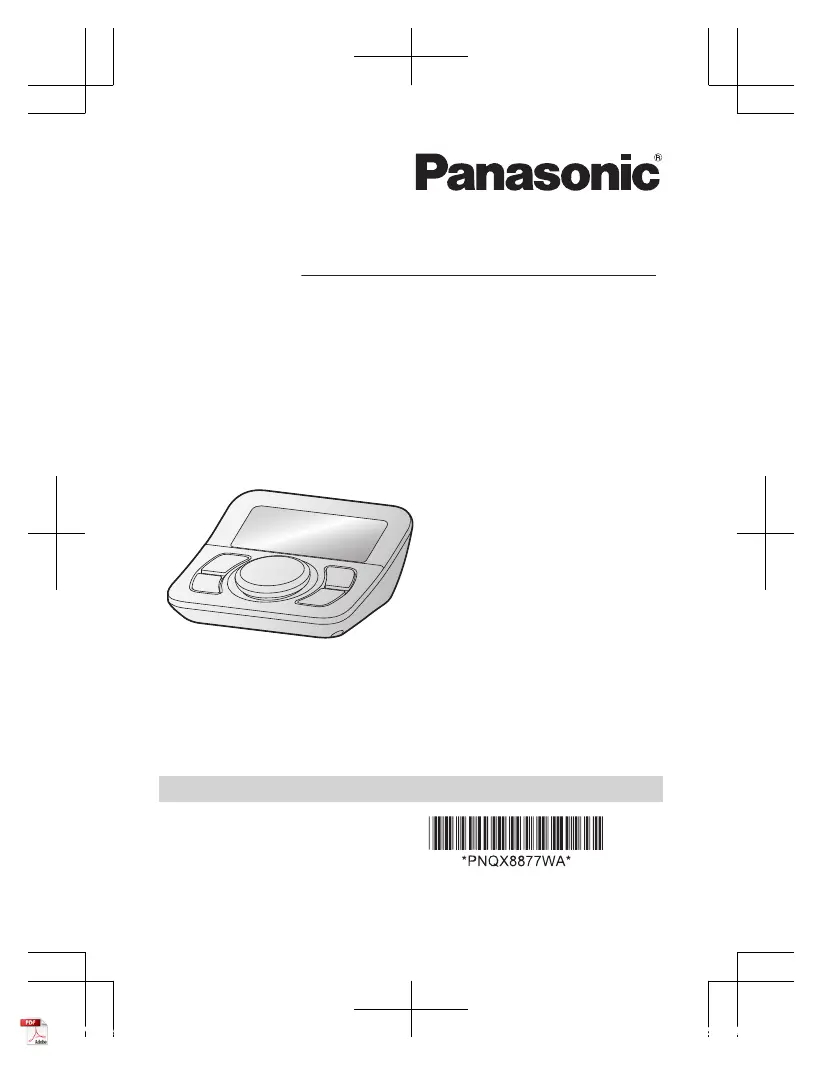
Operating Instructions
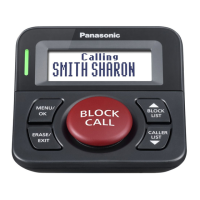
Call Block Button
Model No.
KX-TGA710
KX-TGA760
KX-TG3101
Thank you for purchasing a Panasonic product.
Please read these operating instructions before using the unit and save
them for future reference.
For assistance, visit our Web site: http://shop.panasonic.com/
support for customers in the U.S.A.
Please register your product: http://shop.panasonic.com/support
Printed in Malaysia
PNQX8877WA PP1218MU3061
KX-TGA7xx_(en-en)_0623_ver301.pdf 1 6/23/2021 6:48:18 PM

Questions and Answers

  • D
    deangregoryAug 18, 2025
    What to do if my Panasonic Cordless Telephone is not working?
    • R
      Ronald BuchananAug 18, 2025
      If your Panasonic Cordless Telephone is not working, try the following: * Check the connections as described on page 8. * Unplug the AC adapter to reset the unit, then reconnect it.
  • B
    Brian MooreAug 21, 2025
    How to enable caller ID on external phone Panasonic Cordless Telephone?
    • T
      Tina ThomasAug 21, 2025
      To display caller information on your external phone using a Panasonic Cordless Telephone, turn on the through mode: Press MENU, then navigate to “Through mode”, select “On”, and press OK. Exit the menu. Note that enabling through mode will cause your external phone to ring once even if the number is on the block list.
  • C
    Cody ColeAug 23, 2025
    Why is caller ID not showing on my Panasonic Cordless Telephone?
    • L
      Lisa Mendez MDAug 23, 2025
      There are several reasons why caller information might not be displayed on your Panasonic Cordless Telephone: * You may need to subscribe to Caller ID service from your phone service provider. * If connected to additional equipment like a Caller ID box or cordless telephone line jack, plug the unit directly into the wall jack. * If using DSL/ADSL, connect a DSL/ADSL filter between the unit and the telephone line jack. * The name display service may not be available in your area; check with your provider.
  • S
    Sheila RichAug 26, 2025
    What to do if liquid got into Panasonic Cordless Telephone?
    • J
      jessica57Aug 26, 2025
      If liquid has entered your Panasonic Cordless Telephone, disconnect the AC adapter and telephone line cord. Allow the unit to dry completely before reconnecting them. If the unit still doesn't work, contact an authorized service center.
  • C
    charleswrightAug 28, 2025
    What to do if caller ID is not showing on my Panasonic KX-TGA760?
    • L
      Lindsey JimenezAug 28, 2025
      If the caller ID isn't showing on your Panasonic Telephone Accessories, first ensure you've subscribed to Caller ID service with your phone service provider. If you have additional phone equipment like a Caller ID box or cordless phone line jack connected, plug the unit directly into the wall jack. For DSL/ADSL service users, connecting a DSL/ADSL filter between the unit and the telephone line jack is recommended. Also, the name display service may not be available in some areas, so check with your provider.
  • B
    Benjamin ScottAug 31, 2025
    How to fix a Panasonic KX-TGA760 Telephone Accessories unit that does not work?
    • B
      brownbradleyAug 31, 2025
      If your Panasonic Telephone Accessories unit isn't working, begin by checking all connections. If the connections are correct, try resetting the unit by unplugging the AC adapter, then reconnecting it to see if it resolves the issue.
  • S
    sean90Sep 2, 2025
    How to display caller information on external phone connected to Panasonic Telephone Accessories?
    • B
      beverlyballSep 2, 2025
      To display caller information on your external phone connected to Panasonic Telephone Accessories, turn on the through mode. Use the following steps: press MENU, then press 2, then press the navigation button, select “Through mode”, press OK, press the navigation button, select “On”, press OK, and finally press EXIT. Note that if you turn on the through mode, your external phone rings once even if you registered the phone number in the block list.
  • K
    Kristopher ThompsonSep 5, 2025
    What to do if moisture entered Panasonic KX-TGA760 Telephone Accessories?
    • C
      Craig BrewerSep 5, 2025
      If liquid or moisture has entered your Panasonic Telephone Accessories unit, immediately disconnect the AC adapter and telephone line cord. Allow the unit to dry completely before reconnecting both cords. If, after drying and reconnecting, the unit still doesn't function correctly, contact an authorized service center.
  • C
    Crystal TaylorSep 7, 2025
    Why is caller information not displayed on my Panasonic KX-TGA760?
    • A
      Anthony RileySep 7, 2025
      To restore caller ID display on your Panasonic Telephone Accessories, ensure you have subscribed to Caller ID service with your phone service provider. Also, if the unit is connected to additional telephone equipment, such as a Caller ID box or cordless telephone line jack, plug the unit directly into the wall jack. If you are using a DSL/ADSL service, connecting a DSL/ADSL filter between the unit and the telephone line jack is recommended. Finally, the name display service may not be available in some areas, so contact your phone service provider to verify availability.
  • E
    Emily EvansSep 9, 2025
    What to do if liquid entered Panasonic KX-TGA760 Telephone Accessories?
    • M
      Michelle DavisSep 9, 2025
      If liquid or moisture has entered your Panasonic Telephone Accessories, disconnect the AC adapter and telephone line cord from the unit immediately. Allow the unit to dry completely before reconnecting the AC adapter and telephone line cord. If, after drying and reconnecting, the unit still does not function properly, contact an authorized service center.

Panasonic KX-TGA760 Specifications

General IconGeneral
BrandPanasonic
ModelKX-TGA760
CategoryTelephone Accessories
LanguageEnglish

Related product manuals