55
Various Settings
For Automatic Change of the Brightness
of the VCR Display When the VCR Is
Switched Off
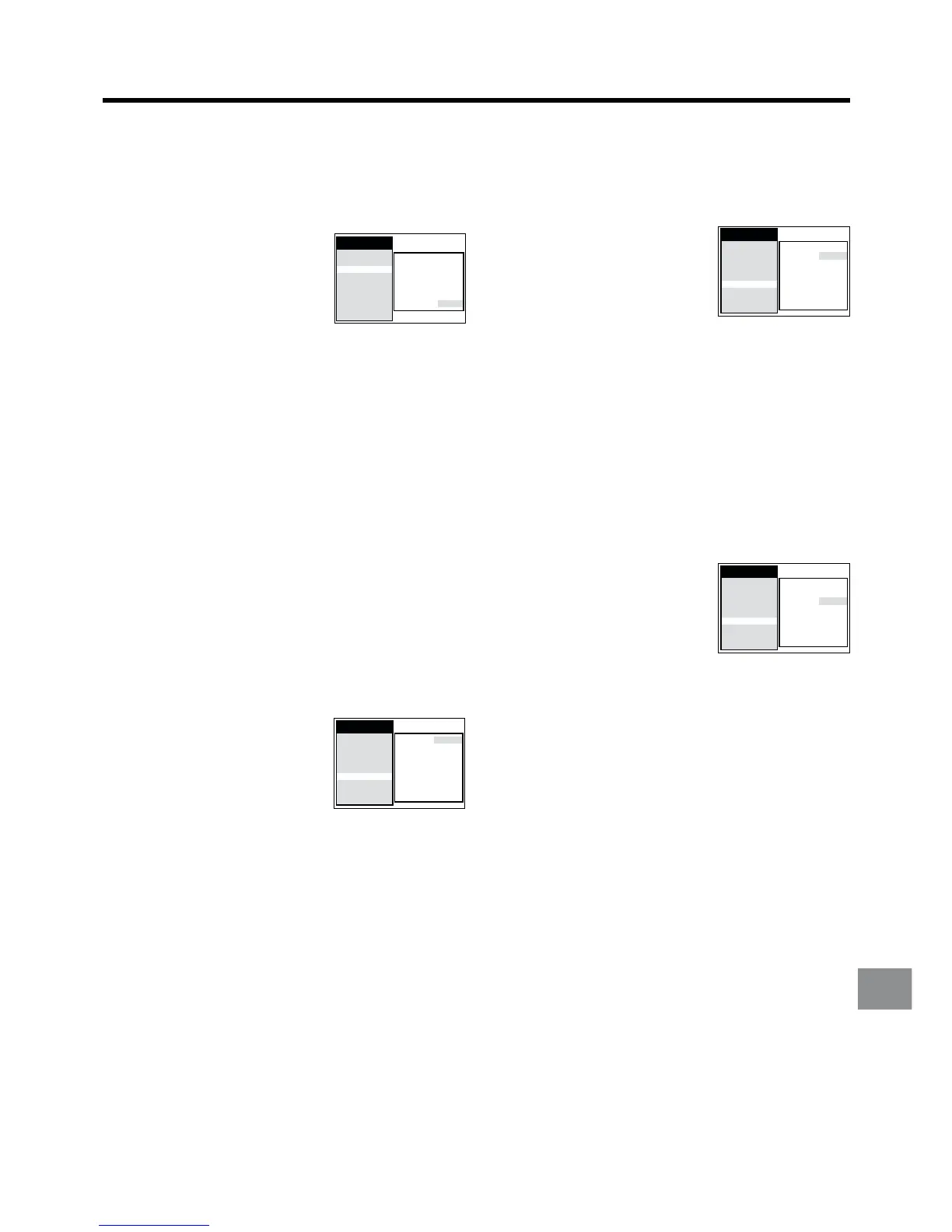
1 Press the MENU button U to display the Main menu on
the TV screen.
2 Press the Cursor buttons
(3421) R to select “Display”
and “VCR display” in this order.
Then, select the “VCR display”
field.
3 Press the Cursor buttons (34) R to select the desired
condition.
≥ When the VCR is switched off, the brightness of the
VCR display is as follows:
ON: Indications are brightly lit.
OFF: Indications are not lit.
DIMMED: Indications are dimly lit.
4 Press the OK button T to conclude the setting.
5 Press the EXIT button S to exit the On Screen Display.
Settings for the Main Menu Item
“Functions”
To Set the Type of External Source
Equipment that Is Connected to the AV2
21-pin Scart Socket
1 Press the MENU button U to display the Main menu on
the TV screen.
2 Press the Cursor buttons
(3421) R to select
“Functions” and “AV2” in this
order. Then, select the “AV2”
field.
3 Press the Cursor buttons (34) R to select the type of
external source equipment which is connected to the
VCR’s AV2 21-pin socket.
≥ Set the external source equipment as follows:
DECODER: When a decoder is connected.
TIMER: When an external equipment with a timer
function is connected for the linked timer
recordings.
(See page 22.)
EXT: When another VCR or a satellite receiver
is connected.
4 Press the OK button T to conclude the setting.
5 Press the EXIT button S to exit the On Screen Display.
Channel Guide
: OFF
OSD :4:3
Subtitles :OFF
Power save :OFF
VCR display :
DIMMED
Main menu
Timer record
Tape Library
Display
Tuning
Clock
Functions
Language
Country
Satellite
To Set the Colour TV System Used During
Playback or Recording from an External
Source
1 Press the MENU button U to display the Main menu on
the TV screen.
2 Press the Cursor buttons
(3421) R to select
“Functions” and “TV system” in
this order. Then, select the
“TV system” field.
3 Press the Cursor buttons (34) R to select the type of
colour TV system (AUTO, PAL or MESECAM) to be
used during playback or during recording from an
external source.
4 Press the OK button T to conclude the setting.
5 Press the EXIT button S to exit the On Screen Display.
To Set the Colour Mode for Playback
1 Press the MENU button U to display the Main menu on
the TV screen.
2 Press the Cursor buttons
(3421) R to select
“Functions” and “Colour mode”
in this order. Then, select the
“Colour mode” field.
3 Press the Cursor buttons (34) R to select the desired
Colour mode for playback.
COLOUR: Normally select this setting.
B/W: To play back a cassette recorded in black
and white.
4 Press the OK button T to conclude the setting.
5 Press the EXIT button S to exit the On Screen Display.
Main menu
AV2:
DECODER
TV system: AUTO
Colour mode: COLOUR
Picture: AUTO
Remote: VCR 1
Edit: OFF
Audio mode: NORMAL
S-VHS P.B.:AUTO
Timer record
Tape Library
Display
Tuning
Clock
Functions
Language
Country
Satellite
Main menu
AV2:
DECODER
TV system: AUTO
Colour mode: COLOUR
Picture: AUTO
Remote: VCR 1
Edit: OFF
Audio mode: NORMAL
S-VHS P.B.:AUTO
Timer record
Tape Library
Display
Tuning
Clock
Functions
Language
Country
Satellite
Main menu
AV2:
DECODER
TV system: AUTO
Colour mode: COLOUR
Picture: AUTO
Remote: VCR 1
Edit: OFF
Audio mode: NORMAL
S-VHS P.B.:AUTO
Timer record
Tape Library
Display
Tuning
Clock
Functions
Language
Country
Satellite



 To Next Page