7
RQT0A22
Network settings
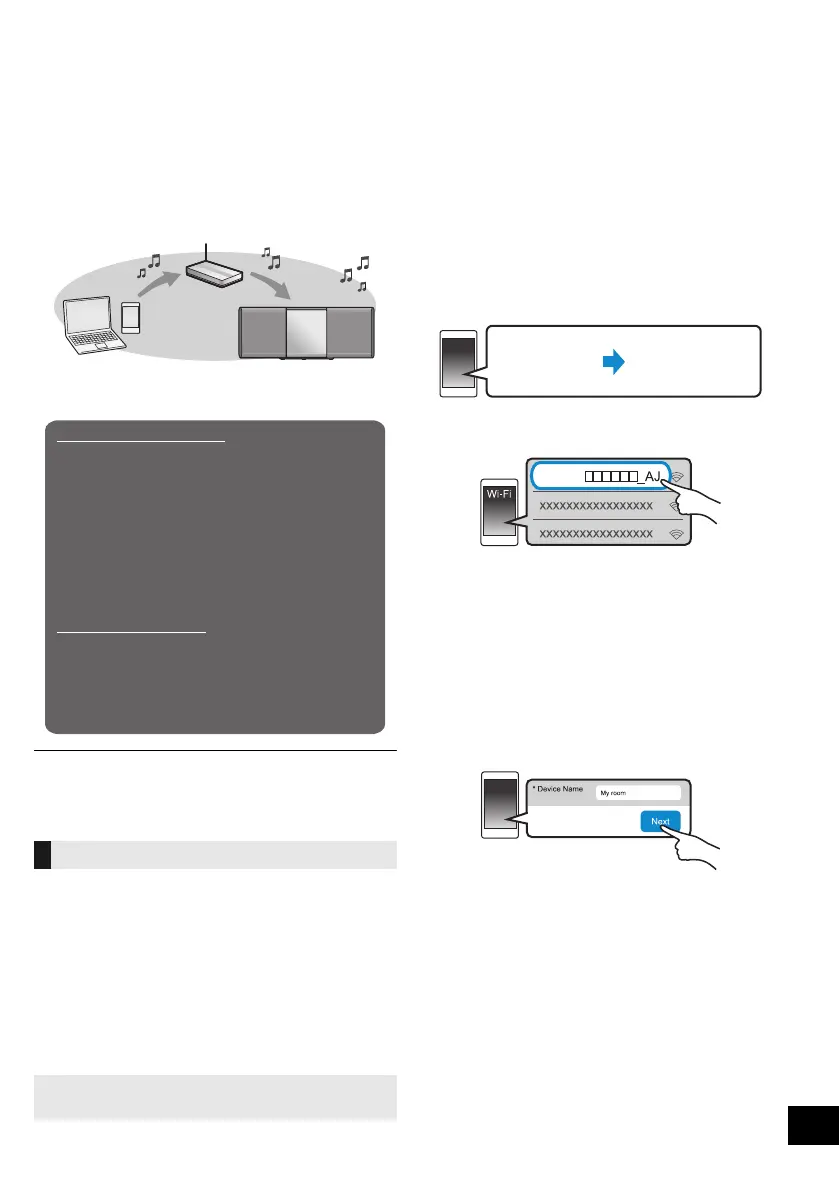
You can stream music from an iOS device (iPhone/
iPad/iPod), an Android
TM
device or a PC (Windows) to
this system’s speakers by using the Qualcomm
®
AllPlay
TM
smart media platform or DLNA feature. To
use these features, this system must join the same
network as the compatible device.
Qualcomm
®
AllPlay
TM
smart media platform is a product of
Qualcomm Connected Experiences, Inc.
≥ Please update the system’s software after the
network settings are complete. (l 18)
Choose a network setting method from the
following.
≥ The setting will be cancelled after the set time limit. In that
case, try the setting again.
To cancel this setting in the middle, press [∫].
This system has built-in Wi-Fi
®
and can be connected
to a wireless router.
Preparation
≥ Place this system as close to the wireless router as
possible.
≥ Do not connect a LAN cable. Doing so will disable
the Wi-Fi
®
function.
1 Turn this system on.
2 Proceed to “Method 1” or “Method 2”.
≥
The following explanations are based on a smartphone.
1 Press [RADIO/EXT-IN] on the remote control
repeatedly to select “NETWORK”.
2 Press [SETUP] on the remote control repeatedly to
select “NET SETUP” and then press [OK].
3 Press [3, 4] on the remote control to select
“MANUAL” and then press [OK].
4 Press [3, 4] on the remote control to select
“OK? YES” and then press [OK].
≥ After pressing [OK] to confirm "OK? YES", the
previous network connection you have set with this unit
will be cleared.
“SETTING” blinks on the display.
5 Go to Wi-Fi settings on your compatible device.
6 Select “ALL5CD _AJ” to connect to this
system.
≥ “ ” stands for a character that is unique to each set.
≥ This can take up to 1 minute to appear in your Wi-Fi list.
≥ If this operation does not work correctly, please repeat it
several times.
≥ Make sure that DHCP is enabled for the network setting
on your compatible device.
≥ iOS device: The settings page will be automatically
displayed in the Internet browser.
≥ Except iOS device: Open the Internet browser and
refresh the page to display the settings page.
≥ If the settings page is not displayed, type
“http://172.19.42.1/” into the URL address field.
7 Type a device name and then select “Next”.
≥ The device name will be displayed as this system's
name on the network.
≥ Maximum characters that can be shown: 32
≥ The device name is set when “Next” is selected.
≥
You can also change the device name after the network
connection is set up. (
l
9, “To make network-related settings”)
8
Select your network name (SSID) and type the password.
≥ Check the wireless router for the network name (SSID)
and the password.
≥ A list of network names (SSIDs) will be appeared when
you select the “Network Name” box.
≥ To show the characters typed in the “Password” box,
select “Show Password”.
≥ If your network requires specific settings, deselect
“DHCP” to disable DHCP.
– You can use specific IP address, subnet mask,
default gateway, primary DNS, etc.
Wireless LAN connection
Method 1:
Using an Internet browser
Wireless LAN connection
Method 1: “Using an Internet browser”
(l below)
• You can access this unit’s network settings from
the Internet browser on your smartphone or PC,
etc.
Method 2: “Using WPS (Wi-Fi Protected
Setup
TM
)” (l 8)
• If your wireless router supports WPS, you can set
up a connection by either pressing the WPS
button, or entering the WPS PIN code.
Wired LAN connection
Method 3: “Using a LAN cable” (l 8)
• You can make a stable connection to the network
with a LAN cable.
ALL5CD
SC-ALL5CD-EGEBGN~RQT0A22.book 7 ページ 2015年7月17日 金曜日 午前11時30分




 To Next Page