EasyManua.ls Logo

Panasonic SC-VK725D - User Manual

Panasonic SC-VK725D
112 pages
Print Icon
To Next Page IconTo Next Page
Loading...
Operating Instructions
DVD Stereo System
Model No. SC-VK725D/SC-VK825D/
SC-VK925D
Before connecting, operating or adjusting this
product, please read the instructions completely.
Please keep this manual for future reference.
Region number
The player plays DVD-Video marked with labels
containing the region number "2" or "ALL".
Example:
2
3
4
2
RQT8251-G
L0605NC0
GC
En Pe Ar
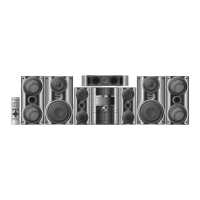
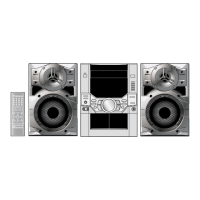
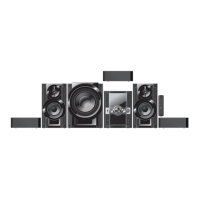
The above illustration of the unit is an example and shows SC-VK725D.
RQT8251(Cv)new 6/7/05, 3:24 PM1

Questions and Answers

Summary

Region Number

Safety Precautions

Placement

Set the unit up on an even surface away from direct sunlight, high temperatures, high humidity, and excessive vibration.

Voltage

Do not use high voltage power sources. This can overload the unit and cause a fire.

Power Cord Protection

Ensure the AC power cord is connected correctly and not damaged. Poor connection and lead damage can cause fire or electric shock.

Foreign Matter Precautions

Do not let metal objects fall inside the unit. Do not let liquids get into the unit.

Service Instructions

Do not attempt to repair this unit by yourself. Refer servicing to qualified personnel.

Accessories

AC Power Supply Cord

The included AC power supply cord is for use with this unit only. Do not use it with other equipment.

Batteries for Remote Control

Batteries for remote control.

Speaker Cords

1 x short cord: For center speaker, 2 x long cords: For surround speakers.

Video Cable

1 Video cable

AM Loop Antenna

1 AM loop antenna

FM Indoor Antenna

1 FM indoor antenna

Disc Information

Discs That Can Be Played

Lists disc types and their compatibility with the unit, including logos and remarks.

Discs That Cannot Be Played

Lists incompatible disc types such as CDV, SACD, and Photo CD.

Playing DVDs and Video CDs

Notes on how disc playback can be controlled by the producer and reading disc instructions.

Audio Format of DVDs

Symbols indicating that the unit automatically recognizes and decodes discs with these audio formats.

To Clean Discs

Instructions on how to clean discs using a soft, damp cloth and then wiping dry.

Disc Handling Precautions

Precautions against labels, writing, cleaning sprays, scratch-proof protectors, warped discs, etc.

Video Systems

Information on PAL and NTSC compatibility with televisions and the unit's conversion capabilities.

Simple Setup

STEP 1: Positioning

Guidance on speaker placement for front, center, and surround speakers for optimal sound.

Positioning for Best Effect

Tips on speaker placement related to bass and sound field, including flat secure bases and corner placement.

Troubleshooting Irregular TV Coloring

Advice on what to do if irregular coloring appears on the television due to speaker placement.

Caution on Speaker Usage

Warning about using only recommended systems to avoid damage and fire risk. Consult a service person if needed.

Attaching Speakers to a Wall

Instructions on how to attach surround and center speakers to a wall securely.

STEP 2: Speaker Connections

Connecting Center and Surround Speakers

Diagrams and instructions for connecting center and surround speakers to the correct terminals.

Connecting Front Speakers and Subwoofer

Diagrams and instructions for connecting front speakers and subwoofer to the correct terminals.

Connecting Front Speakers (VK825 D)

Diagrams for connecting front speakers to the VK825D model.

STEP 3: Video Connections

Connecting to TVs with Component Video IN

Instructions and diagrams for connecting to TVs with component video input terminals.

Connecting to TVs with VIDEO IN Terminal

Instructions and diagrams for connecting to TVs with a standard video input terminal.

Connecting to TVs with S-VIDEO IN Terminal

Instructions and diagrams for connecting to TVs with an S-Video input terminal.

S-VIDEO OUT Terminal Explanation

Explanation of how the S-VIDEO OUT terminal achieves a more vivid picture by separating chrominance and luminance signals.

COMPONENT VIDEO OUT Terminals Explanation

Explanation of component video output terminals for interlace or progressive output and purer picture quality.

Enjoying Progressive Video

Instructions on connecting to component video input terminals on a compatible television to enjoy progressive video.

STEP 4: Radio and Power Supply Connections

AM Loop Antenna Connection

Instructions on how to stand the AM loop antenna up on its base for best reception.

FM Indoor Antenna Connection

Instructions on how to tape the FM indoor antenna where reception is best.

AC Power Supply Cord Connection

Instructions to connect the AC power supply cord only after all other connections are complete.

Conserving Power

Information on unit power consumption and how to unplug from the socket to save power.

STEP 5: The Remote Control

Remote Control Batteries

Instructions on inserting batteries, matching poles (+ and –), and not using rechargeable types.

Using the Remote Control Effectively

Tips on aiming the remote control sensor, avoiding obstacles, and maximum range.

STEP 6: QUICK SETUP

STEP 7: Setting the Time

DEMO Function

Control Reference Guide

Main Unit Controls

Diagram labeling and page references for all buttons and indicators on the main unit.

Center Console Controls

Diagram labeling and page references for buttons on the center console.

Control Reference Guide (Remote Control)

Remote Control Buttons

Diagram labeling and page references for all buttons on the remote control.

Discs - Basic Play

Opening the Disc Tray

Instructions on how to open the disc tray, load discs, and handle double-sided discs.

Changing Discs

Instructions on how to change discs in other trays or remove a disc while another is playing.

Starting Disc Playback

How to select a disc tray and start playback using numbered buttons or the DVD/CD button.

Checking Disc Location

How to check the location of loaded discs using the DISC CHECK button.

Stopping Playback

How to stop playback, memorize the position for resume, and clear the position.

Skip, Search, and Slow-Motion Play

Instructions on how to skip tracks, search, and play in slow motion using specific buttons.

Discs - Basic Play (Continued)

Main Unit Display Information

Details on how the unit's display shows time, information, SLIDE mode, and playback status.

Subtitles and Information Screen

How to select subtitles on/off, subtitle language, and display information using SHIFT + SUBTITLE.

Enjoying Progressive Video

How to enable progressive video playback by pressing SHIFT + PROGRESSIVE.

Entering Numbers

Instructions on how to enter numbers using numbered buttons for disc selection, PBC, WMA/MP3/JPEG/MPEG4/DivX.

Pausing Playback

How to pause playback and restart it using the PAUSE button and DVD/CD button.

Skip Frame-by-Frame

How to advance playback frame-by-frame during pause using the ;/: buttons.

Accessing Disc Menus

How to show disc top menus or programs for DVD-V/DVD-A and RAM DVD-RW VR discs.

Discs - Convenient Functions

Reviewing Titles to Play (Advanced Disc Review)

Browsing disc contents and starting playback from a selected position using Intro or Interval Mode.

CD Sequential Play (CD MODE)

Feature for playing multiple music CDs sequentially, skipping non-CD applicable discs.

Quick Replay

How to skip back a few seconds of playback using SHIFT + QUICK REPLAY.

Skipping 30 Seconds Forward

How to restart playback approximately 30 seconds later to skip commercials or unwanted content.

Disc Information

How to select discs after checking loaded discs using the Disc information screen.

Displaying Current Playback Condition (QUICK OSD)

How to display current playback condition (Basics or Details) using the QUICK OSD button.

Discs - Convenient Functions (Continued)

Changing the Zoom Ratio

How to expand letterbox pictures to fit the screen using SHIFT + ZOOM for preset aspect ratios or Auto.

Fine Adjustments (Manual Zoom)

How to fine-tune zoom using the ;/: buttons after selecting preset aspect ratio or Auto.

Changing the Play Speed

How to select playback speed (Normal, Fast, or Slow) using SHIFT + PLAY SPEED.

Angle Selection and Still Picture Rotation;Advance

How to select angles for DVD-V, advance stills for DVD-A, and rotate stills for JPEG.

Changing Soundtracks

How to select soundtracks for DVD-V, DivX, and VCD discs using SHIFT + AUDIO.

Changing Subtitles

How to select subtitles on/off or choose subtitle language for DVD-V and DivX discs using SHIFT + SUBTITLE.

Repeat Play

How to set playback to repeat a section, title, group, disc, or program using the REPEAT button.

Discs - Using Navigation Menus

Playing Data Discs

How to play JPEG, MPEG4, and DivX video contents on DVD-RAM or HighMAT discs without the HighMAT function.

Playing Items in Order (Playback Menu)

How to select 'All', 'Audio', 'Picture', or 'Video' from the playback menu to play items in order.

Playing from the Selected Item (Navigation Menu)

How to select groups or content from a navigation menu and play specific items.

Using the Submenu

How to access the submenu using the FUNCTIONS button and navigate items within it.

Searching by Content or Group Title

How to highlight a title and use the Find function to search for content or group titles.

Playing from Selected Track in CD

How to select tracks from a CD Text display and start playback.

Discs - Using Navigation Menus (Continued)

Playing HighMAT Discs

How to play WMA, MP3, and JPEG discs using TOP MENU and ENTER.

Selecting from the List

How to navigate through Playlist, Group, and Content lists using MENU and ;/: buttons.

Playing RAM;DVD-RW (DVD-VR) Discs

How to play programs or playlists from RAM/DVD-RW (DVD-VR) discs using DIRECT NAVIGATOR or PLAYLIST.

Playing Scenes One by One

How to play scenes sequentially from a playlist menu by selecting 'Scene List'.

Tips for Making Data Discs

Advice on naming folders/files, adhering to UDF standards, and avoiding multi-session for optimal playback.

Naming Folders and Files

Guidance on naming folders and files for proper treatment as groups and contents on the unit.

Discs - Program;Random Play

Program Play (Up to 32 Items)

How to program up to 32 items from a disc or multiple discs for playback.

Exiting Program;Random Play Mode

How to exit program or random play mode by pressing the PLAY MODE button.

Random Play

How to play items on a disc or selected items randomly.

ALL-DISC Random Play

How to play all items on all discs in random order when CD mode is on.

Discs - Using On-Screen Menus

Main Menu

How to start from a specific item, skip incrementally/decrementally, search by time, and change time display.

Other Settings

Accessing settings for Play Menu, Repeat, A-B Repeat, Marker, Advanced Disc Review, Picture Mode, etc.

Transfer Mode

Setting the transfer mode for DivX contents, selecting Auto, Video, or source select (DivX) for optimal picture.

Source Select (DivX)

Selecting the source for DivX contents, choosing between Auto, I (Interlace), or P (Progressive).

Audio Menu

Accessing settings for Dolby Pro Logic II, Dialogue Enhancer, Multi Re-master, and Sound Enhancement.

Discs - Changing the Player Settings

Setup Menu

How to access the setup menu using SHIFT + SETUP and navigate through tabs like Audio, Subtitle, Menus, Advanced Disc Review, Ratings.

“Disc” Tab Settings

Settings within the 'Disc' tab, including Audio language, Subtitle language, Menus language, Advanced Disc Review, Ratings.

Other Settings

Settings for Information, Subtitle Position, Subtitle Brightness, Just Fit Zoom, Manual Zoom, Bit Rate Display, GUI See-through, GUI Brightness, Quick OSD.

QUICK SETUP (Re-initialize Setting)

How to re-initialize all settings to factory preset by returning all values in the Setup menus off and on again.

Discs - Changing the Player Settings (Continued)

“Video” Tab Settings

Video settings including TV Aspect, TV Type, Time Delay, Still Mode, NTSC Disc Output, Picture/Video Output, Dynamic Range Compression.

Speaker Settings

How to set the delay time for center and surround speakers to match distances from the seating position.

“Audio” Tab Settings

Audio settings including Menu Language, On-Screen Messages, and Background during Play for JPEG, MPEG4, DivX.

The Radio

Manual Tuning

How to select FM or AM and tune frequencies manually or using auto-tuning.

Troubleshooting Excessive FM Noise

How to display 'MONO' to reduce noise in FM reception when it is weak.

AM Allocation Setting

How to change the AM frequency step from 9 kHz to 10 kHz for broadcasts allocated to 10 kHz steps.

Preset Tuning

Methods for preset tuning: Automatic presetting and Manual presetting for FM and AM bands.

Selecting Channels

How to select preset channels using numbered buttons or cursor buttons.

Cassette Tapes

Cassette Tape Playback

Instructions on playing normal position tapes, inserting cassettes, starting play, and selecting reverse mode.

Stopping Tape Playback

How to stop tape playback using the STOP button.

Selecting Reverse Mode

How to select one-side play, both sides play, or both sides play repeatedly using the PLAY MODE button.

Fast Forward or Rewind

How to fast-forward or rewind tapes using the respective buttons.

Selecting Between Loaded Decks

How to select between decks 1 and 2 for consecutive tape listening.

Recording

Instructions on selecting tapes, inserting cassettes, selecting sources (radio, disc, tape-to-tape), and starting recording.

Stopping Recording

How to stop recording using the STOP button.

Tape Finishes Before Disc

What happens when the tape finishes before the disc playback, and how to stop it.

Erasure Prevention

How to prevent accidental erasure by breaking out the tab or covering holes with adhesive tape.

To Erase a Tape

Instructions on how to erase a tape by inserting it into deck 2 and pressing REC.

Enjoying Karaoke

Vocal Mute Function

How to mute the vocal portion of a track using SHIFT + V.MUTE, for sources not formatted for karaoke.

Note on Vocal Mute

Note that strange sound might be heard during playback when using vocal mute.

Audio Mode Function

How to set the audio source after switching off vocal mute using SHIFT + AUDIO.

Before Enjoying Karaoke

Steps to prepare for karaoke, including lowering microphone volume, connecting microphone, and using a dynamic microphone.

Enjoying Karaoke Function

Step 1: Select Source and Start Play

How to select the source and start playback for karaoke.

Step 2: Singing and Adjusting Volume

How to start singing and adjust volume using the main unit's volume and microphone level controls.

Turning Vocals On and Off

How to turn vocals on and off for DVD-V sources using SHIFT + AUDIO and selecting the mode.

Changing the Key

How to raise or lower the key by a halftone using SHIFT + i or SHIFT + I buttons.

Canceling Key Change

How to cancel key change by pressing SHIFT + I or SHIFT + i to display '0'.

Adjusting the Echo Effect

How to adjust the echo effect by pressing SHIFT + ECHO and cycling through levels.

Recording Your Karaoke Performance

Preparations and steps to record karaoke performance using discs, tape, radio, or external sources.

Stopping Recording

How to stop recording using the STOP button.

Recording Your Voice

Preparations and steps to record your voice using the REC button and adjusting volume.

Sound Field and Sound Quality

Down-Mixing

How to output down-mixed 2-channel signals when necessary using SHIFT + MIX 2CH.

Dolby Pro Logic II

Using Dolby Pro Logic II, an advanced decoder for 5-channel surround from stereo sources, with MOVIE, MUSIC, or OFF modes.

Center Focus

How to make the center speaker sound seem like it's coming from within the television using SHIFT + C.FOCUS.

Super Surround

How to activate Super Surround using the SUPER SRND button for MUSIC, MOVIE, or PARTY modes.

Sound Field Control

How to select sound field settings like HEAVY, CLEAR, SOFT, DISCO, LIVE, HALL, or EQ-OFF using the SOUND EQ button.

Sound Field and Sound Quality (Continued)

Using the Manual Equalizer (MANUAL EQ)

How to create custom sound effects by adjusting Bass, Mid, and Treble levels using the –MANUAL EQ button.

Using the Super Sound Equalizer

How to activate the Super Sound Equalizer for more powerful sound using the S.SOUND EQ button.

Super Woofer

How to turn the Super Woofer on or off using SHIFT + S.WOOFER.

Subwoofer Level

How to adjust the subwoofer level (SUB W1-SUB W4) using SHIFT + SUBWOOFER.

Speaker Level Adjustments

How to adjust speaker levels for appropriate surround effects using SHIFT + TEST and VOLUME buttons.

Multi Re-master - Enjoying More Natural Sound

How to get more natural sound by adding higher frequency signals not recorded on the disc using SHIFT + M.RE-MASTER.

Using the Timers

The Play;Record Timer

How to set timers for waking up (play timer) or recording radio/aux source (record timer).

Canceling the Timer

How to cancel the timer indicator by pressing rPLAY/REC.

Changing Timer Settings (Unit On)

How to change play/record times, source, or volume while the unit is on.

Checking Timer Settings

How to check play/record time, source, and volume settings by selecting rPLAY or rREC.

Important Note After Setting Timers

Note to check correct tape/disc loading and unit power status after setting timers.

The Sleep Timer

How to set the sleep timer to turn the unit off after a set time (minutes) using SHIFT + SLEEP.

Canceling the Sleep Timer

How to cancel the sleep timer by selecting SLEEPOFF.

Confirming Remaining Sleep Timer Time

How to check the remaining sleep timer time, which is shown for about 5 seconds.

Changing Sleep Timer Setting

How to change the sleep timer setting by selecting a new setting.

Other Functions

Muting the Volume

How to mute the volume to minimum using the MUTING button and how to cancel it.

Auto-Off Function

How the unit turns off automatically if left unused for ten minutes when disc or tape is selected as source.

Canceling Auto-Off Function

How to cancel the auto-off function by pressing SHIFT + AUTO OFF again.

Dimming the Display

How to dim the display brightness and return to original brightness using SHIFT + DIMMER.

Changing Sound Range Display

How to view sound range levels in Normal, Peak-hold, Aurora, or Reflection display types using DISPLAY –DEMO.

Using Other Equipment

Using Headphones

How to connect headphones, reduce volume, and adjust headphone volume.

Operating a Television

How to turn the TV on/off, switch video input mode, change channels, and adjust volume using the remote.

Using a Subwoofer (VK725 D)

How to connect an active subwoofer and adjust its volume.

Using Other Equipment (Continued)

Using an External Unit

How to playback sound from external units like video cassette recorders, tape decks, or laser disc players through the unit's speakers.

Connecting a Record Player

Recommendations for using record players with or without a built-in phono equalizer.

Optional Antenna Connections

Instructions for connecting FM and AM outdoor antennas for improved radio reception.

FM Outdoor Antenna Connection

Instructions for connecting an FM outdoor antenna, including disconnecting the indoor antenna and professional installation.

AM Outdoor Antenna Connection

Instructions for connecting an AM outdoor antenna, including running a vinyl wire and leaving the loop antenna connected.

About DivX VOD Content

Glossary

Troubleshooting Guide

Unresponsive or Inoperable Functions

Troubleshooting for no response from buttons, remote control issues, and unit switching to standby.

Specific Operation Undesirable or Unexpected

Troubleshooting for slow play start, incorrect folder display, menu screen during skip/search, missing PBC menu, program/random play issues.

Subtitle Issues

Troubleshooting for wrong subtitle position, missing subtitles, or subtitles not displaying depending on the disc.

Marker Issues

Troubleshooting for inability to add markers or when disc elapsed play time doesn't appear.

A-B Repeat Issues

Troubleshooting for A-B repeat automatically setting point B or canceling when SHIFT+QUICK REPLAY is pressed.

Troubleshooting Guide (Continued)

Sound Issues

Troubleshooting for distorted sound, effects not working, humming during play, no sound, and issues with WMA playback.

Picture Abnormal or Un-viewable Issues

Troubleshooting for distorted picture, incorrect picture size, DivX file stops, faded colors, incorrect menus, or screen stripes.

Progressive Video Issues

Troubleshooting for ghosting with progressive output or picture not in progressive output.

Radio Reception Issues

Troubleshooting for flickering 'ST' indicator, distorted sound, beat sound, or low hum during AM broadcasts.

Cassette Deck Issues

Troubleshooting for poor sound quality or inability to record.

Troubleshooting Guide (Continued)

Unit Display Issues

Troubleshooting for display lighting up continuously in standby, dark display, or specific error messages like 'NO PLAY', 'NO DISC', 'F61', 'DVD U11', 'ERROR', 'DVD HMM'.

Television Display Issues

Troubleshooting for region code messages, no on-screen display, incompatible group/content, protected content, no audio, dirty disc, authorization errors, or expired rented movies.

Memory Reset (Initialization)

Instructions on how to reset the unit to factory preset values by disconnecting and reconnecting the AC power cord while holding a button.

Tray;Disc Handling Procedure

Opening;Closing a Disc Tray

Instructions on how to open and close the disc tray using the OPEN/CLOSE button.

Inserting a Disc Correctly

Instructions on how to insert discs correctly into the tray, placing only one disc, and ensuring the label side faces up.

Maintenance

Cleaning the Unit

Instructions to clean the unit by wiping with a soft, dry cloth, and avoiding alcohol or paint thinners.

Caution on Lens Cleaners

Warning against using commercial lens cleaners as they may cause malfunction.

Cleaning Cassette Deck Heads

Instructions on cleaning cassette deck heads regularly using a cleaning tape for better playback and recording.

Specifications

Amplifier Section

Specifications for VK725D, VK825D, VK925D amplifier section, including RMS output power and PMPO output power.

FM;AM Tuner and Terminals Section

Specifications for preset stations, FM/AM frequency range, sensitivity, S/N ratio, and antenna terminals.

Audio Performance (Amplifier)

Specifications for amplifier input sensitivity and impedance, Aux, phone jack, and mic jack.

Cassette Deck Section

Specifications for cassette deck type, track system, heads, recording system, tape speed, frequency response, S/N ratio, and wow/flutter.

Disc Section

Details on which discs can be played (DVD, CD, WMA, MP3, JPEG, MPEG4, DivX, HighMAT) and specifications for pickup, audio output, and video system.

Speaker Section

VK725 D Front Speakers (SB-VK72)

Specifications for VK725D front speakers, including type, units, impedance, input power, output sound pressure, crossover frequency, frequency range, dimensions, and mass.

VK725 D Surround Speakers (SB-PS72)

Specifications for VK725D surround speakers, including type, units, impedance, input power, output sound pressure, frequency range, dimensions, and mass.

VK725 D Center Speaker (SB-PC72)

Specifications for VK725D center speaker, including type, units, impedance, input power, output sound pressure, crossover frequency, frequency range, dimensions, and mass.

VK825 D Front Speakers (SB-VK82)

Specifications for VK825D front speakers, including type, units, impedance, input power, output sound pressure, crossover frequency, frequency range, dimensions, and mass.

VK825 D Surround Speakers (SB-PS82)

Specifications for VK825D surround speakers, including type, units, impedance, input power, output sound pressure, crossover frequency, frequency range, dimensions, and mass.

VK825 D Center Speaker (SB-PC82)

Specifications for VK825D center speaker, including type, units, impedance, input power, output sound pressure, crossover frequency, frequency range, dimensions, and mass.

VK825 D Subwoofer (SB-WVK82)

Specifications for VK825D subwoofer, including type, units, impedance, input power, output sound pressure, frequency range, dimensions, and mass.

VK925 D Front Speakers (SB-VK92)

Specifications for VK925D front speakers, including type, units, impedance, input power, output sound pressure, crossover frequency, frequency range, dimensions, and mass.

VK925 D Surround Speakers (SB-PS92)

Specifications for VK925D surround speakers, including type, units, impedance, input power, output sound pressure, crossover frequency, frequency range, dimensions, and mass.

VK925 D Center Speaker (SB-PC92)

Specifications for VK925D center speaker, including type, units, impedance, input power, output sound pressure, crossover frequency, frequency range, dimensions, and mass.

VK925 D Subwoofers (SB-WVK92)

Specifications for VK925D subwoofers, including type, units, impedance, input power, output sound pressure, frequency range, dimensions, and mass.

General Specifications

General specifications including power supply, power consumption, dimensions, mass, operating temperature, and humidity range.

Summary

Region Number

Safety Precautions

Placement

Set the unit up on an even surface away from direct sunlight, high temperatures, high humidity, and excessive vibration.

Voltage

Do not use high voltage power sources. This can overload the unit and cause a fire.

Power Cord Protection

Ensure the AC power cord is connected correctly and not damaged. Poor connection and lead damage can cause fire or electric shock.

Foreign Matter Precautions

Do not let metal objects fall inside the unit. Do not let liquids get into the unit.

Service Instructions

Do not attempt to repair this unit by yourself. Refer servicing to qualified personnel.

Accessories

AC Power Supply Cord

The included AC power supply cord is for use with this unit only. Do not use it with other equipment.

Batteries for Remote Control

Batteries for remote control.

Speaker Cords

1 x short cord: For center speaker, 2 x long cords: For surround speakers.

Video Cable

1 Video cable

AM Loop Antenna

1 AM loop antenna

FM Indoor Antenna

1 FM indoor antenna

Disc Information

Discs That Can Be Played

Lists disc types and their compatibility with the unit, including logos and remarks.

Discs That Cannot Be Played

Lists incompatible disc types such as CDV, SACD, and Photo CD.

Playing DVDs and Video CDs

Notes on how disc playback can be controlled by the producer and reading disc instructions.

Audio Format of DVDs

Symbols indicating that the unit automatically recognizes and decodes discs with these audio formats.

To Clean Discs

Instructions on how to clean discs using a soft, damp cloth and then wiping dry.

Disc Handling Precautions

Precautions against labels, writing, cleaning sprays, scratch-proof protectors, warped discs, etc.

Video Systems

Information on PAL and NTSC compatibility with televisions and the unit's conversion capabilities.

Simple Setup

STEP 1: Positioning

Guidance on speaker placement for front, center, and surround speakers for optimal sound.

Positioning for Best Effect

Tips on speaker placement related to bass and sound field, including flat secure bases and corner placement.

Troubleshooting Irregular TV Coloring

Advice on what to do if irregular coloring appears on the television due to speaker placement.

Caution on Speaker Usage

Warning about using only recommended systems to avoid damage and fire risk. Consult a service person if needed.

Attaching Speakers to a Wall

Instructions on how to attach surround and center speakers to a wall securely.

STEP 2: Speaker Connections

Connecting Center and Surround Speakers

Diagrams and instructions for connecting center and surround speakers to the correct terminals.

Connecting Front Speakers and Subwoofer

Diagrams and instructions for connecting front speakers and subwoofer to the correct terminals.

Connecting Front Speakers (VK825 D)

Diagrams for connecting front speakers to the VK825D model.

STEP 3: Video Connections

Connecting to TVs with Component Video IN

Instructions and diagrams for connecting to TVs with component video input terminals.

Connecting to TVs with VIDEO IN Terminal

Instructions and diagrams for connecting to TVs with a standard video input terminal.

Connecting to TVs with S-VIDEO IN Terminal

Instructions and diagrams for connecting to TVs with an S-Video input terminal.

S-VIDEO OUT Terminal Explanation

Explanation of how the S-VIDEO OUT terminal achieves a more vivid picture by separating chrominance and luminance signals.

COMPONENT VIDEO OUT Terminals Explanation

Explanation of component video output terminals for interlace or progressive output and purer picture quality.

Enjoying Progressive Video

Instructions on connecting to component video input terminals on a compatible television to enjoy progressive video.

STEP 4: Radio and Power Supply Connections

AM Loop Antenna Connection

Instructions on how to stand the AM loop antenna up on its base for best reception.

FM Indoor Antenna Connection

Instructions on how to tape the FM indoor antenna where reception is best.

AC Power Supply Cord Connection

Instructions to connect the AC power supply cord only after all other connections are complete.

Conserving Power

Information on unit power consumption and how to unplug from the socket to save power.

STEP 5: The Remote Control

Remote Control Batteries

Instructions on inserting batteries, matching poles (+ and –), and not using rechargeable types.

Using the Remote Control Effectively

Tips on aiming the remote control sensor, avoiding obstacles, and maximum range.

STEP 6: QUICK SETUP

STEP 7: Setting the Time

DEMO Function

Control Reference Guide

Main Unit Controls

Diagram labeling and page references for all buttons and indicators on the main unit.

Center Console Controls

Diagram labeling and page references for buttons on the center console.

Control Reference Guide (Remote Control)

Remote Control Buttons

Diagram labeling and page references for all buttons on the remote control.

Discs - Basic Play

Opening the Disc Tray

Instructions on how to open the disc tray, load discs, and handle double-sided discs.

Changing Discs

Instructions on how to change discs in other trays or remove a disc while another is playing.

Starting Disc Playback

How to select a disc tray and start playback using numbered buttons or the DVD/CD button.

Checking Disc Location

How to check the location of loaded discs using the DISC CHECK button.

Stopping Playback

How to stop playback, memorize the position for resume, and clear the position.

Skip, Search, and Slow-Motion Play

Instructions on how to skip tracks, search, and play in slow motion using specific buttons.

Discs - Basic Play (Continued)

Main Unit Display Information

Details on how the unit's display shows time, information, SLIDE mode, and playback status.

Subtitles and Information Screen

How to select subtitles on/off, subtitle language, and display information using SHIFT + SUBTITLE.

Enjoying Progressive Video

How to enable progressive video playback by pressing SHIFT + PROGRESSIVE.

Entering Numbers

Instructions on how to enter numbers using numbered buttons for disc selection, PBC, WMA/MP3/JPEG/MPEG4/DivX.

Pausing Playback

How to pause playback and restart it using the PAUSE button and DVD/CD button.

Skip Frame-by-Frame

How to advance playback frame-by-frame during pause using the ;/: buttons.

Accessing Disc Menus

How to show disc top menus or programs for DVD-V/DVD-A and RAM DVD-RW VR discs.

Discs - Convenient Functions

Reviewing Titles to Play (Advanced Disc Review)

Browsing disc contents and starting playback from a selected position using Intro or Interval Mode.

CD Sequential Play (CD MODE)

Feature for playing multiple music CDs sequentially, skipping non-CD applicable discs.

Quick Replay

How to skip back a few seconds of playback using SHIFT + QUICK REPLAY.

Skipping 30 Seconds Forward

How to restart playback approximately 30 seconds later to skip commercials or unwanted content.

Disc Information

How to select discs after checking loaded discs using the Disc information screen.

Displaying Current Playback Condition (QUICK OSD)

How to display current playback condition (Basics or Details) using the QUICK OSD button.

Discs - Convenient Functions (Continued)

Changing the Zoom Ratio

How to expand letterbox pictures to fit the screen using SHIFT + ZOOM for preset aspect ratios or Auto.

Fine Adjustments (Manual Zoom)

How to fine-tune zoom using the ;/: buttons after selecting preset aspect ratio or Auto.

Changing the Play Speed

How to select playback speed (Normal, Fast, or Slow) using SHIFT + PLAY SPEED.

Angle Selection and Still Picture Rotation;Advance

How to select angles for DVD-V, advance stills for DVD-A, and rotate stills for JPEG.

Changing Soundtracks

How to select soundtracks for DVD-V, DivX, and VCD discs using SHIFT + AUDIO.

Changing Subtitles

How to select subtitles on/off or choose subtitle language for DVD-V and DivX discs using SHIFT + SUBTITLE.

Repeat Play

How to set playback to repeat a section, title, group, disc, or program using the REPEAT button.

Discs - Using Navigation Menus

Playing Data Discs

How to play JPEG, MPEG4, and DivX video contents on DVD-RAM or HighMAT discs without the HighMAT function.

Playing Items in Order (Playback Menu)

How to select 'All', 'Audio', 'Picture', or 'Video' from the playback menu to play items in order.

Playing from the Selected Item (Navigation Menu)

How to select groups or content from a navigation menu and play specific items.

Using the Submenu

How to access the submenu using the FUNCTIONS button and navigate items within it.

Searching by Content or Group Title

How to highlight a title and use the Find function to search for content or group titles.

Playing from Selected Track in CD

How to select tracks from a CD Text display and start playback.

Discs - Using Navigation Menus (Continued)

Playing HighMAT Discs

How to play WMA, MP3, and JPEG discs using TOP MENU and ENTER.

Selecting from the List

How to navigate through Playlist, Group, and Content lists using MENU and ;/: buttons.

Playing RAM;DVD-RW (DVD-VR) Discs

How to play programs or playlists from RAM/DVD-RW (DVD-VR) discs using DIRECT NAVIGATOR or PLAYLIST.

Playing Scenes One by One

How to play scenes sequentially from a playlist menu by selecting 'Scene List'.

Tips for Making Data Discs

Advice on naming folders/files, adhering to UDF standards, and avoiding multi-session for optimal playback.

Naming Folders and Files

Guidance on naming folders and files for proper treatment as groups and contents on the unit.

Discs - Program;Random Play

Program Play (Up to 32 Items)

How to program up to 32 items from a disc or multiple discs for playback.

Exiting Program;Random Play Mode

How to exit program or random play mode by pressing the PLAY MODE button.

Random Play

How to play items on a disc or selected items randomly.

ALL-DISC Random Play

How to play all items on all discs in random order when CD mode is on.

Discs - Using On-Screen Menus

Main Menu

How to start from a specific item, skip incrementally/decrementally, search by time, and change time display.

Other Settings

Accessing settings for Play Menu, Repeat, A-B Repeat, Marker, Advanced Disc Review, Picture Mode, etc.

Transfer Mode

Setting the transfer mode for DivX contents, selecting Auto, Video, or source select (DivX) for optimal picture.

Source Select (DivX)

Selecting the source for DivX contents, choosing between Auto, I (Interlace), or P (Progressive).

Audio Menu

Accessing settings for Dolby Pro Logic II, Dialogue Enhancer, Multi Re-master, and Sound Enhancement.

Discs - Changing the Player Settings

Setup Menu

How to access the setup menu using SHIFT + SETUP and navigate through tabs like Audio, Subtitle, Menus, Advanced Disc Review, Ratings.

“Disc” Tab Settings

Settings within the 'Disc' tab, including Audio language, Subtitle language, Menus language, Advanced Disc Review, Ratings.

Other Settings

Settings for Information, Subtitle Position, Subtitle Brightness, Just Fit Zoom, Manual Zoom, Bit Rate Display, GUI See-through, GUI Brightness, Quick OSD.

QUICK SETUP (Re-initialize Setting)

How to re-initialize all settings to factory preset by returning all values in the Setup menus off and on again.

Discs - Changing the Player Settings (Continued)

“Video” Tab Settings

Video settings including TV Aspect, TV Type, Time Delay, Still Mode, NTSC Disc Output, Picture/Video Output, Dynamic Range Compression.

Speaker Settings

How to set the delay time for center and surround speakers to match distances from the seating position.

“Audio” Tab Settings

Audio settings including Menu Language, On-Screen Messages, and Background during Play for JPEG, MPEG4, DivX.

The Radio

Manual Tuning

How to select FM or AM and tune frequencies manually or using auto-tuning.

Troubleshooting Excessive FM Noise

How to display 'MONO' to reduce noise in FM reception when it is weak.

AM Allocation Setting

How to change the AM frequency step from 9 kHz to 10 kHz for broadcasts allocated to 10 kHz steps.

Preset Tuning

Methods for preset tuning: Automatic presetting and Manual presetting for FM and AM bands.

Selecting Channels

How to select preset channels using numbered buttons or cursor buttons.

Cassette Tapes

Cassette Tape Playback

Instructions on playing normal position tapes, inserting cassettes, starting play, and selecting reverse mode.

Stopping Tape Playback

How to stop tape playback using the STOP button.

Selecting Reverse Mode

How to select one-side play, both sides play, or both sides play repeatedly using the PLAY MODE button.

Fast Forward or Rewind

How to fast-forward or rewind tapes using the respective buttons.

Selecting Between Loaded Decks

How to select between decks 1 and 2 for consecutive tape listening.

Recording

Instructions on selecting tapes, inserting cassettes, selecting sources (radio, disc, tape-to-tape), and starting recording.

Stopping Recording

How to stop recording using the STOP button.

Tape Finishes Before Disc

What happens when the tape finishes before the disc playback, and how to stop it.

Erasure Prevention

How to prevent accidental erasure by breaking out the tab or covering holes with adhesive tape.

To Erase a Tape

Instructions on how to erase a tape by inserting it into deck 2 and pressing REC.

Enjoying Karaoke

Vocal Mute Function

How to mute the vocal portion of a track using SHIFT + V.MUTE, for sources not formatted for karaoke.

Note on Vocal Mute

Note that strange sound might be heard during playback when using vocal mute.

Audio Mode Function

How to set the audio source after switching off vocal mute using SHIFT + AUDIO.

Before Enjoying Karaoke

Steps to prepare for karaoke, including lowering microphone volume, connecting microphone, and using a dynamic microphone.

Enjoying Karaoke Function

Step 1: Select Source and Start Play

How to select the source and start playback for karaoke.

Step 2: Singing and Adjusting Volume

How to start singing and adjust volume using the main unit's volume and microphone level controls.

Turning Vocals On and Off

How to turn vocals on and off for DVD-V sources using SHIFT + AUDIO and selecting the mode.

Changing the Key

How to raise or lower the key by a halftone using SHIFT + i or SHIFT + I buttons.

Canceling Key Change

How to cancel key change by pressing SHIFT + I or SHIFT + i to display '0'.

Adjusting the Echo Effect

How to adjust the echo effect by pressing SHIFT + ECHO and cycling through levels.

Recording Your Karaoke Performance

Preparations and steps to record karaoke performance using discs, tape, radio, or external sources.

Stopping Recording

How to stop recording using the STOP button.

Recording Your Voice

Preparations and steps to record your voice using the REC button and adjusting volume.

Sound Field and Sound Quality

Down-Mixing

How to output down-mixed 2-channel signals when necessary using SHIFT + MIX 2CH.

Dolby Pro Logic II

Using Dolby Pro Logic II, an advanced decoder for 5-channel surround from stereo sources, with MOVIE, MUSIC, or OFF modes.

Center Focus

How to make the center speaker sound seem like it's coming from within the television using SHIFT + C.FOCUS.

Super Surround

How to activate Super Surround using the SUPER SRND button for MUSIC, MOVIE, or PARTY modes.

Sound Field Control

How to select sound field settings like HEAVY, CLEAR, SOFT, DISCO, LIVE, HALL, or EQ-OFF using the SOUND EQ button.

Sound Field and Sound Quality (Continued)

Using the Manual Equalizer (MANUAL EQ)

How to create custom sound effects by adjusting Bass, Mid, and Treble levels using the –MANUAL EQ button.

Using the Super Sound Equalizer

How to activate the Super Sound Equalizer for more powerful sound using the S.SOUND EQ button.

Super Woofer

How to turn the Super Woofer on or off using SHIFT + S.WOOFER.

Subwoofer Level

How to adjust the subwoofer level (SUB W1-SUB W4) using SHIFT + SUBWOOFER.

Speaker Level Adjustments

How to adjust speaker levels for appropriate surround effects using SHIFT + TEST and VOLUME buttons.

Multi Re-master - Enjoying More Natural Sound

How to get more natural sound by adding higher frequency signals not recorded on the disc using SHIFT + M.RE-MASTER.

Using the Timers

The Play;Record Timer

How to set timers for waking up (play timer) or recording radio/aux source (record timer).

Canceling the Timer

How to cancel the timer indicator by pressing rPLAY/REC.

Changing Timer Settings (Unit On)

How to change play/record times, source, or volume while the unit is on.

Checking Timer Settings

How to check play/record time, source, and volume settings by selecting rPLAY or rREC.

Important Note After Setting Timers

Note to check correct tape/disc loading and unit power status after setting timers.

The Sleep Timer

How to set the sleep timer to turn the unit off after a set time (minutes) using SHIFT + SLEEP.

Canceling the Sleep Timer

How to cancel the sleep timer by selecting SLEEPOFF.

Confirming Remaining Sleep Timer Time

How to check the remaining sleep timer time, which is shown for about 5 seconds.

Changing Sleep Timer Setting

How to change the sleep timer setting by selecting a new setting.

Other Functions

Muting the Volume

How to mute the volume to minimum using the MUTING button and how to cancel it.

Auto-Off Function

How the unit turns off automatically if left unused for ten minutes when disc or tape is selected as source.

Canceling Auto-Off Function

How to cancel the auto-off function by pressing SHIFT + AUTO OFF again.

Dimming the Display

How to dim the display brightness and return to original brightness using SHIFT + DIMMER.

Changing Sound Range Display

How to view sound range levels in Normal, Peak-hold, Aurora, or Reflection display types using DISPLAY –DEMO.

Using Other Equipment

Using Headphones

How to connect headphones, reduce volume, and adjust headphone volume.

Operating a Television

How to turn the TV on/off, switch video input mode, change channels, and adjust volume using the remote.

Using a Subwoofer (VK725 D)

How to connect an active subwoofer and adjust its volume.

Using Other Equipment (Continued)

Using an External Unit

How to playback sound from external units like video cassette recorders, tape decks, or laser disc players through the unit's speakers.

Connecting a Record Player

Recommendations for using record players with or without a built-in phono equalizer.

Optional Antenna Connections

Instructions for connecting FM and AM outdoor antennas for improved radio reception.

FM Outdoor Antenna Connection

Instructions for connecting an FM outdoor antenna, including disconnecting the indoor antenna and professional installation.

AM Outdoor Antenna Connection

Instructions for connecting an AM outdoor antenna, including running a vinyl wire and leaving the loop antenna connected.

About DivX VOD Content

Glossary

Troubleshooting Guide

Unresponsive or Inoperable Functions

Troubleshooting for no response from buttons, remote control issues, and unit switching to standby.

Specific Operation Undesirable or Unexpected

Troubleshooting for slow play start, incorrect folder display, menu screen during skip/search, missing PBC menu, program/random play issues.

Subtitle Issues

Troubleshooting for wrong subtitle position, missing subtitles, or subtitles not displaying depending on the disc.

Marker Issues

Troubleshooting for inability to add markers or when disc elapsed play time doesn't appear.

A-B Repeat Issues

Troubleshooting for A-B repeat automatically setting point B or canceling when SHIFT+QUICK REPLAY is pressed.

Troubleshooting Guide (Continued)

Sound Issues

Troubleshooting for distorted sound, effects not working, humming during play, no sound, and issues with WMA playback.

Picture Abnormal or Un-viewable Issues

Troubleshooting for distorted picture, incorrect picture size, DivX file stops, faded colors, incorrect menus, or screen stripes.

Progressive Video Issues

Troubleshooting for ghosting with progressive output or picture not in progressive output.

Radio Reception Issues

Troubleshooting for flickering 'ST' indicator, distorted sound, beat sound, or low hum during AM broadcasts.

Cassette Deck Issues

Troubleshooting for poor sound quality or inability to record.

Troubleshooting Guide (Continued)

Unit Display Issues

Troubleshooting for display lighting up continuously in standby, dark display, or specific error messages like 'NO PLAY', 'NO DISC', 'F61', 'DVD U11', 'ERROR', 'DVD HMM'.

Television Display Issues

Troubleshooting for region code messages, no on-screen display, incompatible group/content, protected content, no audio, dirty disc, authorization errors, or expired rented movies.

Memory Reset (Initialization)

Instructions on how to reset the unit to factory preset values by disconnecting and reconnecting the AC power cord while holding a button.

Tray;Disc Handling Procedure

Opening;Closing a Disc Tray

Instructions on how to open and close the disc tray using the OPEN/CLOSE button.

Inserting a Disc Correctly

Instructions on how to insert discs correctly into the tray, placing only one disc, and ensuring the label side faces up.

Maintenance

Cleaning the Unit

Instructions to clean the unit by wiping with a soft, dry cloth, and avoiding alcohol or paint thinners.

Caution on Lens Cleaners

Warning against using commercial lens cleaners as they may cause malfunction.

Cleaning Cassette Deck Heads

Instructions on cleaning cassette deck heads regularly using a cleaning tape for better playback and recording.

Specifications

Amplifier Section

Specifications for VK725D, VK825D, VK925D amplifier section, including RMS output power and PMPO output power.

FM;AM Tuner and Terminals Section

Specifications for preset stations, FM/AM frequency range, sensitivity, S/N ratio, and antenna terminals.

Audio Performance (Amplifier)

Specifications for amplifier input sensitivity and impedance, Aux, phone jack, and mic jack.

Cassette Deck Section

Specifications for cassette deck type, track system, heads, recording system, tape speed, frequency response, S/N ratio, and wow/flutter.

Disc Section

Details on which discs can be played (DVD, CD, WMA, MP3, JPEG, MPEG4, DivX, HighMAT) and specifications for pickup, audio output, and video system.

Speaker Section

VK725 D Front Speakers (SB-VK72)

Specifications for VK725D front speakers, including type, units, impedance, input power, output sound pressure, crossover frequency, frequency range, dimensions, and mass.

VK725 D Surround Speakers (SB-PS72)

Specifications for VK725D surround speakers, including type, units, impedance, input power, output sound pressure, frequency range, dimensions, and mass.

VK725 D Center Speaker (SB-PC72)

Specifications for VK725D center speaker, including type, units, impedance, input power, output sound pressure, crossover frequency, frequency range, dimensions, and mass.

VK825 D Front Speakers (SB-VK82)

Specifications for VK825D front speakers, including type, units, impedance, input power, output sound pressure, crossover frequency, frequency range, dimensions, and mass.

VK825 D Surround Speakers (SB-PS82)

Specifications for VK825D surround speakers, including type, units, impedance, input power, output sound pressure, crossover frequency, frequency range, dimensions, and mass.

VK825 D Center Speaker (SB-PC82)

Specifications for VK825D center speaker, including type, units, impedance, input power, output sound pressure, crossover frequency, frequency range, dimensions, and mass.

VK825 D Subwoofer (SB-WVK82)

Specifications for VK825D subwoofer, including type, units, impedance, input power, output sound pressure, frequency range, dimensions, and mass.

VK925 D Front Speakers (SB-VK92)

Specifications for VK925D front speakers, including type, units, impedance, input power, output sound pressure, crossover frequency, frequency range, dimensions, and mass.

VK925 D Surround Speakers (SB-PS92)

Specifications for VK925D surround speakers, including type, units, impedance, input power, output sound pressure, crossover frequency, frequency range, dimensions, and mass.

VK925 D Center Speaker (SB-PC92)

Specifications for VK925D center speaker, including type, units, impedance, input power, output sound pressure, crossover frequency, frequency range, dimensions, and mass.

VK925 D Subwoofers (SB-WVK92)

Specifications for VK925D subwoofers, including type, units, impedance, input power, output sound pressure, frequency range, dimensions, and mass.

General Specifications

General specifications including power supply, power consumption, dimensions, mass, operating temperature, and humidity range.

Panasonic SC-VK725D Specifications

General IconGeneral
BrandPanasonic
ModelSC-VK725D
CategoryStereo System
LanguageEnglish

Related product manuals