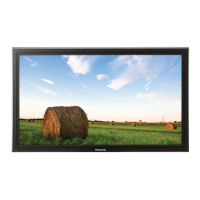
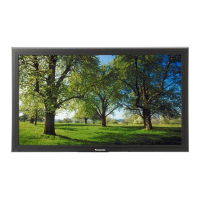
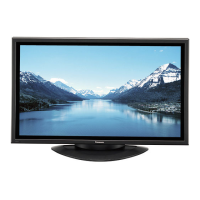
This document serves as the operating instructions for the Panasonic TH-42PF20E and TH-50PF20E High Definition Plasma Displays. It provides comprehensive guidance on setup, connections, basic controls, menu operations, network functions, and maintenance, ensuring safe and optimal use of the device.
The Panasonic Plasma Display is designed for high-definition visual output, suitable for various applications from home entertainment to professional presentations. It offers a range of input options, including PC IN, AV IN (VIDEO), COMPONENT/RGB IN, HDMI, and DVI-D IN, allowing connection to a wide array of video equipment such as PCs, VCRs, DVD players, and RGB camcorders. The display also features a SERIAL terminal for control via a computer and a LAN port for network control, enhancing its versatility in integrated systems.
Function Description
The core function of this device is to display high-definition video and images from various sources. It supports a broad spectrum of input signals, including NTSC, PAL, PAL60, SECAM, and Modified NTSC color systems, as well as various scanning formats (e.g., 480i/p, 575i/p, 720p, 1080i/p). For PC signals, it is compatible with VGA, SVGA, XGA, SXGA, and UXGA (compressed) resolutions, accommodating horizontal scanning frequencies from 15 to 110 kHz and vertical scanning frequencies from 48 to 120 Hz.
The display can be controlled using the provided remote control transmitter or through direct buttons on the main unit. The remote control offers functions such as power on/off, input selection, volume adjustment, aspect ratio control, picture and sound settings, and access to on-screen menus. The main unit includes a power on/off switch, a power indicator, volume adjustment buttons, and an input selection button.
An important feature is the ability to connect optional accessories, such as speakers (TY-SP42P8W-K/TY-SP50P8W-K), pedestals (TY-ST20-K/TY-ST58PF20), wall-hanging brackets (TY-WK42PV20/TY-WK42PR20), ceiling-hanging brackets (TY-CE42PS20), and various terminal boards (e.g., BNC Dual Video, HD-SDI, Dual Link HD-SDI, Dual HDMI, Ir Through, DVI-D, AV Terminal Box). These accessories expand the display's functionality and installation flexibility.
The network function allows the display to be controlled remotely via a computer connected to a network, using commands similar to those used for serial control. This is particularly useful in professional environments where centralized control of multiple displays is required.
Usage Features
- Power Management: The display can be powered on/off using the main power switch or the remote control. It features a power indicator that changes color to indicate different states (e.g., green for power-on, red for standby, orange for specific power management modes). The "OFF TIMER" function allows users to set a fixed period after which the display will switch to standby.
- Input Selection: Users can easily switch between different input signals (PC, VIDEO, COMPONENT, HDMI, DVI, SLOT INPUT) using the INPUT button on the remote control or the main unit.
- On-Screen Menu Displays: The display offers an intuitive on-screen menu system for adjusting various settings. These menus are categorized into "Pos./Size," "Picture," "Sound," and "Setup."
- Pos./Size: Adjusts screen position, size, dot clock, clock phase, and pixel mode.
- Picture: Controls picture mode, contrast, brightness, color, hue, sharpness, white balance, and color management. It also includes advanced settings for black extension, input level, gamma, AGC, and detailed white balance adjustments.
- Sound: Manages sound mode, bass, mid, treble, balance, surround sound, and audio output settings.
- Setup: Provides options for screensaver, extended life settings, input label customization, power save features, auto power off, OSD language, multi-display setup, multi-PIP setup, portrait setup, timer settings, and network setup.
- Multi-PIP Functionality: The "MULTI PIP" setup allows for advanced display configurations, including blend PIP, transparency, and insert options, enhancing multitasking capabilities.
- Portrait Mode: For vertical installations, the "Display orientation" setting in the Setup menu can be changed to "Portrait," and the power switch for upward direction should be turned up.
- Image Retention Prevention: The display incorporates a function that slightly darkens the screen during extended display of still pictures to prevent permanent image retention on the plasma panel. However, users are advised to avoid displaying still pictures for prolonged periods.
- Serial and Network Control: The SERIAL terminal and LAN port enable external control of the display, supporting commands for power on/off, volume adjustment, input selection, and screen mode selection. This is ideal for integration into automated systems.
Maintenance Features
- Cleaning: The display panel has a special treatment and should be cleaned gently with a soft, lint-free cloth. For dirtier surfaces, a cloth soaked in diluted neutral detergent and then wiped dry is recommended. Harsh chemicals, insect sprays, solvents, or thinners should be avoided as they can damage the surface. The cabinet can be cleaned with a soft, dry cloth, or a cloth dampened with diluted neutral detergent.
- Power Cable Maintenance: The power cable should be cleaned regularly to prevent dust buildup, which can lead to insulation damage and fire hazards. The power supply plug should be disconnected from the wall outlet before cleaning.
- Fuse Replacement: The moulded three-pin mains plug contains a 10 amp fuse. Instructions are provided for replacing the fuse, emphasizing the use of approved replacement fuses and ensuring the fuse cover is refitted.
- Battery Replacement: The remote control requires two R6 batteries. Instructions are given for replacing batteries, along with precautions for safe battery use, such as replacing both batteries simultaneously with new ones and avoiding mixing battery types.
- Safety Precautions: The manual outlines critical safety precautions, including warnings against exposing the appliance to dripping or splashing, removing the cover, defeating the earthing pin, and using damaged power cords. It also advises against placing objects on top of the display or covering ventilation holes to prevent overheating, fire, or electric shock. In case of problems like smoke or abnormal odors, users are instructed to immediately unplug the display and contact a Panasonic dealer for repairs.
The Panasonic Plasma Display is designed for reliable performance and user convenience, with comprehensive instructions to ensure a safe and enjoyable viewing experience.



 To Next Page

 General