EasyManua.ls Logo

Panasonic TH-50PF30U - User Manual

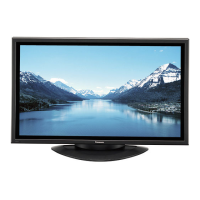
Panasonic TH-50PF30U
72 pages
Print Icon
To Next Page IconTo Next Page
Loading...
TH-42PF30U
TH-50PF30U
Model No.
Operating Instructions
High De nition Plasma Display
English
Before connecting, operating or adjusting this product,
please read these instructions completely.
Please keep this manual for future reference.

Table of Contents

Other manuals for Panasonic TH-50PF30U

Questions and Answers

  • E
    Evan JacksonAug 3, 2025
    What to do if the indicator lamp will not light when the Panasonic 3D glasses are turned ON?
    • J
      John RogersAug 3, 2025
      If the indicator lamp doesn't light up when you turn on your Panasonic 3D glasses, it likely means the battery is low or completely drained. Try replacing the battery or charging the 3D glasses to resolve this issue.
  • C
    Cynthia LopezAug 8, 2025
    How to fix the issue when I cannot see 3D images on my Panasonic Monitor?
    • C
      candersonAug 8, 2025
      If you're unable to see 3D images on your Panasonic Monitor, here are a few things to check: * First, ensure that your 3D eyewear is switched on. * Next, verify that “3D EYEWEAR” in the “3D SETTINGS” menu is set to “ON”. * Some 3D image signals might not be automatically recognized, so manually set “3D INPUT FORMAT” in “3D SETTINGS” to match the picture format. * Make sure there are no obstructions between the infrared sensors on the display and the 3D eyewear. * Confirm you are within the operational area for using the 3D eyewear. * Finally, if you have different levels of eyesight between your eyes, take steps to correct your vision (e.g., wear glasses) as 3D images may be difficult or impossible to see otherwise.
  • B
    Brianna CaldwellAug 12, 2025
    Why does my Panasonic 3D Eyewear turn off automatically?
    • M
      Maxwell MartinezAug 12, 2025
      If your Panasonic 3D eyewear turns off automatically, make sure there are no obstructions between the infrared sensors on the display and the 3D eyewear. Also, ensure that the 3D eyewear is within the specified coverage area.
  • K
    Krystal BryantAug 16, 2025
    How to fix Panasonic TH-50PF30U when I cannot see 3D images?
    • L
      Lisa FigueroaAug 16, 2025
      If you're having trouble viewing 3D images on your Panasonic Monitor, here are a few things to check: * Ensure the 3D Eyewear is switched on. * Verify that '3D EYEWEAR' in '3D SETTINGS' is set to 'ON'. * Some 3D image signals may not be automatically recognized, so set '3D INPUT FORMAT' in '3D SETTINGS' to match the picture format. * Make sure there are no obstructions between the infrared sensors on the display and the 3D Eyewear. * Confirm you are within the available area for using the 3D Eyewear. * If you have different eyesight levels between your eyes, correct your vision with glasses before use, as 3D images may be difficult or impossible to see otherwise.
  • J
    Jose MckeeAug 21, 2025
    What to do if Panasonic TH-50PF30U Monitor 3D images are wrong?
    • J
      James ThompsonAug 21, 2025
      If the 3D images on your Panasonic Monitor appear incorrect, try switching between 'SWAPPED' and 'NORMAL' under 'LEFT/RIGHT SWAP' in '3D SETTINGS'.
  • D
    Dean McdonaldAug 26, 2025
    Why does my Panasonic Monitor 3D eyewear turn off automatically?
    • J
      Jonathan CervantesAug 26, 2025
      If your Panasonic Monitor's 3D Eyewear is turning off automatically, ensure there are no obstructions between the infrared sensors on the display and the 3D Eyewear. Also, make sure the 3D Eyewear is within the designated coverage area.
  • A
    Amy BrooksAug 29, 2025
    What to do if the indicator lamp won't light on my Panasonic TH-50PF30U 3D glasses?
    • D
      Deborah BrownAug 29, 2025
      If the indicator lamp on your 3D glasses for the Panasonic Monitor doesn't light up when turned on, the battery may be low or completely drained. Try changing the battery or charging the 3D glasses.

Summary

Operating Instructions

High Definition Plasma Display

Provides essential operational guidance for the display.

Safety Instructions and Warnings

General Safety Guidelines

Crucial safety warnings and guidelines for safe operation and setup.

Regulatory Compliance

FCC Statement and Notices

Details FCC compliance, Canadian notice, and trademark credits.

Precautions for Use

Accessory Compatibility and Usage

Guidelines for using only approved accessories to ensure stability and safety.

Setup and Maintenance

Installation and Care Guidelines

Instructions for safe setup, power cord handling, and cleaning procedures.

3 D Viewing Safety

Eyewear and Content Precautions

Safety measures for using 3D eyewear and viewing 3D content.

3 D Viewing Guidelines

Viewing Content and Eyewear Use

Advice on viewing 3D content, health considerations, and eyewear handling.

Product Accessories

Included Accessories List

Lists all items supplied with the display for setup and operation.

Connecting the Display

Speaker and AC Cord Connections

Instructions for connecting speakers and the AC power cord, including cable management.

Video and Component Connections

Connecting Various Video Sources

Guides for connecting video equipment like VCRs, DVD players, and cameras.

HDMI and DVI-D Connections

Connecting HDMI and DVI Sources

Detailed instructions for connecting devices via HDMI and DVI-D interfaces.

PC Input Connections

Connecting Computers to the Display

Steps for connecting a PC using the Mini D-sub 15P connector.

Serial Terminal Connection

Computer Control via RS-232 C

How to connect and control the display using a computer via the serial terminal.

Powering the Display

Turning the Display On and Off

Procedures for powering the display on and off using the unit and remote control.

Initial Setup

Language, Time, and Orientation Setup

Initial configuration steps for OSD language, present time, and display orientation.

Selecting Input Signals

Managing Signal Sources

How to select and switch between different input signals connected to the display.

Basic Controls

Main Unit Controls

Overview of the primary buttons and indicators on the main unit.

Remote Control Operation

Remote Transmitter Functions

Explanation of the buttons and functions on the remote control transmitter.

Aspect Ratio Controls

Adjusting Picture Aspect Ratio

How to change the picture's aspect ratio for optimal viewing.

Digital Zoom Function

Magnifying Display Content

Instructions for using the digital zoom feature to enlarge parts of the image.

3 D Viewing Setup

Connecting and Viewing 3 D Content

Steps for connecting 3D-compatible players and viewing 3D content.

Troubleshooting 3 D Display

Resolving 3 D Eyewear and Image Issues

Guidance on common problems with 3D eyewear and image display.

On-Screen Menu Operations

Navigating Menu Screens

How to access and navigate through the display's on-screen menus.

Picture Position and Size Adjustment

POS.;SIZE Menu Operations

Steps for adjusting the horizontal and vertical position and size of the picture.

Picture Adjustments

Basic Picture Quality Settings

How to adjust picture contrast, brightness, color, tint, and sharpness.

Advanced Picture Settings

Fine-tuning Picture Parameters

Detailed adjustments for black levels, gamma, and white balance for professional tuning.

Picture Profiles

Saving and Applying Picture Settings

Managing custom picture settings as profiles for easy recall.

Saving Picture Profiles

Storing Custom Picture Configurations

Step-by-step guide to saving picture adjustments into memory profiles.

Loading and Editing Profiles

Managing Stored Picture Settings

How to load saved picture profiles and edit or delete them.

Sound Adjustment

Configuring Audio Settings

Adjusting audio menu settings like bass, treble, balance, and surround sound.

Timer Setup

Setting Present Time and Timers

Instructions for setting the current time and configuring power on/off timers.

3 D Settings

Configuring 3 D Viewing Options

Settings related to 3D input format, eyewear, and safety precautions.

Screensaver Setup

Preventing Image Retention

How to activate and configure the screensaver to prevent permanent image retention.

Extended Life Settings

Reducing Image Retention

Advanced settings to extend the display's lifespan and reduce image retention.

Image Retention Reduction

Nanodrift Saver and Peak Limit

Features like Nanodrift Saver and Peak Limit to minimize image retention.

Custom Settings and Reset

Managing Retention Settings and Resetting

Applying custom settings, locking them, or resetting to factory defaults.

Power Consumption Reduction

Energy Saving Features

Settings to reduce power usage for energy efficiency and standby modes.

Input Label Customization

Renaming Input Sources

How to change the displayed names for different input signals.

Display Configuration

Language and Orientation Settings

Settings for menu language and display orientation (portrait/landscape).

Multi-Display Setup

Configuring Multi-Display Arrangements

How to set up multiple displays for a larger, unified picture.

ID Remote Control Function

Managing Remote Control IDs

Setting unique IDs for remote controls to manage multiple displays.

Portrait Mode Setup

Setting Up Vertical Display Configuration

How to set up the display for vertical orientation, including image division.

Portrait Mode Settings

Viewing Area, Location, and Sync

Adjusting viewing area, location, and AI synchronization for portrait mode.

Input Signal Selection

Component;RGB and YUV;RGB IN Select

Matching input signals for Component/RGB and DVI input terminals.

Signal Menu Settings

Configuring Signal Properties

Adjusting settings like 3D Y/C filter, color system, and pull-down for various signals.

Advanced Signal Settings

Sync, Frame Creation, and Refresh Rate

Settings for sync signals, frame creation, 3D refresh rate, and HDMI range.

Noise Reduction Settings

Adjusting Video Noise Reduction

Configuring noise reduction for video, mosquito, and block noise.

Network Setup

Configuring Network Connectivity

Steps to set up the network connection for remote control and management.

Options Adjustments

Volume and Input Lock Settings

Adjusting volume levels, input lock, and other display behaviors.

System Behavior Options

Power, ID, and Display Size Settings

Configuring power modes, remote ID, serial ID, and display size.

Advanced Display Options

Aspect Ratio, Auto Setup, and Rotation

Adjusting aspect modes, auto setup, image rotation, and power-on messages.

Scheduled Operations

Safety Precautions and Weekly Timer

Managing 3D safety display and setting up the weekly command timer.

Weekly Command Timer Setup

Programming Commands and Times

Setting specific commands and execution times for the weekly timer.

Audio Input Selection

Assigning Sound to Inputs

How to select the audio input source for different video inputs.

Touch Panel Settings

Configuring Touch Panel Operation

Settings related to touch panel mode and calibration.

Network Functionality

Network Connection and Control

Setting up network connection and controlling the display via network.

PJLink Protocol Control

Operating via PJLink Commands

Using PJLink protocol for display setup and status queries.

Web Browser Control

Accessing and Using Web Interface

Steps to access and control the display using a web browser.

Display Control via Web

Basic and Option Control Screens

Using web interface for basic controls and detailed option adjustments.

Network and Password Settings

Configuring Network and Security

Setting up network parameters and changing the web browser access password.

Troubleshooting Guide

Resolving Display Issues

Common problems, symptoms, and checks for diagnosing and fixing display issues.

List of Aspect Modes

Understanding Picture Aspect Ratios

A guide explaining different picture aspect modes and their visual effects.

Applicable Input Signals

Signal Compatibility Chart

A table detailing compatible input signals, frequencies, and formats.

Factory Reset Procedure

Restoring Default Settings

Procedure to reset the unit to its original factory settings.

Weekly Command Timer Commands

List of Executable Commands

A comprehensive list of commands available for the weekly timer.

Product Specifications

Technical Details and Dimensions

Detailed technical specifications, dimensions, and electrical requirements.

Software Information and Disclaimers

License and Customer Record

Information on software licenses, disclaimers, and customer record keeping.

Panasonic TH-50PF30U Specifications

General IconGeneral
Screen Size50 inches
Panel TypePlasma
Aspect Ratio16:9
Resolution1920 x 1080
Contrast Ratio5, 000, 000:1
Input PortsHDMI, DVI, Component, Composite
Response Time0.001 ms

Related product manuals