EasyManua.ls Logo

Panasonic TH-58PF12WK - User Manual

Panasonic TH-58PF12WK
68 pages
Print Icon
To Next Page IconTo Next Page
Loading...
Model No.
Operating Instructions
High De nition Plasma Display
TH-58PF12WK
TH-65PF12WK
Please read these instructions before operating your set
and retain them for future reference.
English
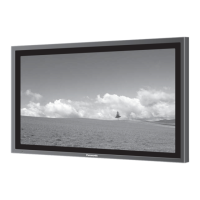
The illustration shown is an image.
TQBC2499

Table of Contents

Questions and Answers

  • T
    tom66Aug 12, 2025
    What to do if there is no picture on my Panasonic Monitor?
    • K
      karen01Aug 12, 2025
      If there is no picture on your Panasonic Monitor, the possible causes are that it is not plugged into the AC outlet or not switched on, or there are issues with the Picture and Brightness/Volume settings. Check by pressing the power switch or stand-by button on the remote control.
  • J
    Jordan StevensAug 15, 2025
    Why is my Panasonic TH-58PF12WK remote control not working?
    • S
      srichardsAug 15, 2025
      If no remote control operations can be performed on your Panasonic Monitor, possible causes are completely discharged batteries, exposure of the remote control sensor to outdoor light or strong fluorescent light, or using a remote control not specifically designed for the unit. Check the batteries and the sensor's environment, and ensure the correct remote is being used.
  • K
    Kurt BrownAug 19, 2025
    How to prevent image retention on Panasonic Monitor?
    • T
      Tracey PearsonAug 20, 2025
      To prevent image retention on your Panasonic Monitor, avoid displaying a still picture for an extended period.
  • J
    Jeffrey RodgersAug 23, 2025
    Why does my Panasonic TH-58PF12WK Monitor make a cracking sound?
    • J
      Joseph RileyAug 23, 2025
      If you sometimes hear a cracking sound from your Panasonic Monitor, and there is nothing wrong with the picture or sound, this is likely the sound of the cabinet undergoing very slight contractions in response to changes in the room temperature. This is normal.
  • J
    James CarrollAug 27, 2025
    Why my Panasonic TH-58PF12WK makes whirring sounds?
    • T
      tracy26Aug 27, 2025
      The whirring sound is caused by rotation of the fan and is not a malfunction.
  • D
    Derek MillsAug 30, 2025
    Why does the screen darken slightly on my Panasonic TH-58PF12WK?
    • C
      chunglindaAug 31, 2025
      The screen darkens slightly when bright pictures with minimal movements are shown to reduce image retention on the screen and the shortening of the screen’s service life. This is normal.
  • D
    davidholmesSep 3, 2025
    Why do the edges of the images flicker on my Panasonic TH-58PF12WK?
    • T
      Tracy HurstSep 3, 2025
      Due to the characteristics of the system used to drive the panel, the edges may appear to flicker in the fast-moving parts of the images. This is normal.
  • T
    Tamara WilliamsSep 7, 2025
    Why does brightness change in 4:3 mode on my Panasonic Monitor?
    • C
      craig55Sep 7, 2025
      When viewing the side panels at the “High” or “Mid” setting, the brightness on both sides may change depending on the kind of program shown.

Summary

Important Safety Notices

Safety Precautions and Warnings

General safety advice and precautions for safe operation.

Cautions for Usage and Maintenance

Specific warnings for operation and cleaning procedures.

Accessories and Setup

Included Accessories List

Details of items supplied with the display.

Remote Control Battery Installation

Steps for inserting batteries into the remote.

Connecting the Display

PC Input Terminals Connection

How to connect external computers via PC input.

Serial Terminals Connection

Connecting for computer control via serial interface.

HDMI and Component;RGB Connections

Connecting HDMI, Component, and RGB sources.

Powering On and Initial Setup

Powering On and Off Procedures

Steps to turn the display on and off.

First-Time Unit Setup

Initial configuration like language and time.

Basic Controls and Navigation

Main Unit Controls Overview

Buttons and indicators on the display unit.

Remote Control Functions

Detailed guide to remote control buttons.

Picture Aspect Ratio Controls

Aspect Mode Selection

Choosing different screen display ratios.

Panasonic Auto Aspect Mode

Automatic adjustment of picture aspect ratio.

Multi-Picture Display (MULTI PIP)

Configuring MULTI PIP Settings

Setting up dual-screen display functions.

Selecting Display Modes

Choosing various screen layouts for PIP.

Digital Zoom Function

Using Digital Zoom

How to enlarge specific parts of the image.

On-Screen Menu Navigation

Menu Access and Operation

Steps to display and navigate menus.

On-Screen Menu Overview

General structure and available settings.

Picture Position and Size Adjustment

Auto Setup for Screen Positioning

Automatic adjustment of picture position and size.

Manual Position and Size Tuning

Fine-tuning picture placement and dimensions.

1:1 Pixel Mode Configuration

Pixel mapping settings for clarity.

Picture Adjustments

Picture Mode Presets

Selecting predefined picture quality settings.

Advanced Picture Settings

Detailed adjustments for contrast, brightness, etc.

Picture Profiles Management

Saving and Loading Picture Profiles

Storing and recalling custom picture settings.

Editing Saved Profiles

Renaming or deleting stored profiles.

Sound Adjustments

SDI Sound Output Configuration

Managing audio output for SDI signals.

Timer and Scheduling Functions

Present Time Setup

Setting the unit's current time.

Timer Setup

Programming scheduled power on/off.

Screensaver for Image Retention

Screensaver Function Selection

Choosing the type of screensaver.

Screensaver Time Configuration

Setting activation times for the screensaver.

Reducing Screen Image Retention

Extended Life Settings for Panel

Settings to prolong the display's lifespan.

NANODRIFT Saver Feature

Using the feature to prevent image burn-in.

Custom Settings and Resetting Retention

Personalizing and resetting image retention settings.

Power Consumption Reduction

Power Saving Modes

Activating energy-saving features.

Input Labels and Menu Language

Customizing Input Signal Labels

Renaming input sources for clarity.

Selecting On-Screen Menu Language

Changing the display language of menus.

Display Orientation Setup

Multi-Display Setup

Configuring Multi-Display Arrangement

Setting up displays for enlarged images.

Seam Hiding and Location Settings

Adjusting display edges and positions.

Remote Control ID Management

Setting Remote Control IDs

Managing unique IDs for remote operation.

ID Cancellation Procedure

Disabling remote control ID function.

Multi-Picture Display (PIP) Setup

PIP Display Mode Configuration

Selecting screen layouts for PIP.

Sub-Screen Transparency and Insertion

Adjusting sub-screen visibility and content.

Portrait Mode Setup

Portrait Mode Configuration

Setting up the display for vertical orientation.

Portrait Mode Edge Hiding

Hiding edges in portrait display.

Input Signal Setup

Component;RGB and YUV;RGB Signal Selection

Matching signals to input types.

Signal Menu Adjustments

Configuring signal-specific settings like filters.

Colour System and Cinema Reality

Adjusting color modes and movie playback.

Refresh Rate and Noise Reduction

Optimizing display refresh and image clarity.

Sync and SDI Through Settings

Signal synchronization and SDI pass-through options.

Network Setup and Function

Network Configuration Details

Setting up IP, Port, and LAN parameters.

Options Adjustments

Timer, Volume, and Display Options

Configuring timers, volume limits, and display behavior.

Input Lock and Button Control

Restricting input switching and button operations.

Power, Rotation, and Serial Slot Options

Power management, image rotation, and serial communication.

Weekly Command Timer Programming

Setting up timed commands for operations.

Shipping Condition (Factory Reset)

Resetting the unit to its default factory settings.

Network Functionality

Network Connection Example

Diagram illustrating network setup.

PJLink Protocol Commands

List of commands for network control.

Troubleshooting Common Issues

Picture and Sound Problem Diagnosis

Identifying and resolving common display issues.

Plasma Panel Specific Issues

Addressing problems related to the display panel.

Aspect Mode Descriptions

Applicable Input Signals

Technical Specifications

Software Information

Customer Record Section

Space for recording purchase details.

Panasonic TH-58PF12WK Specifications

General IconGeneral
Screen Size58 inches
Panel TypePlasma
Aspect Ratio16:9
Resolution1920 x 1080
Viewing Angle178°
ConnectivityHDMI, DVI, Component, Composite

Related product manuals