English - 13 -
Analogue: If Analogue broadcast search option is
turned on, the TV will search for analogue broadcasts
after other initial settings are completed.
After the initial settings are completed TV will start
to search for available broadcasts of the selected
broadcast types.
While the search continues current scan results will
be displayed at the bottom of the screen. After all the
available stations are stored, Channels menu will be
displayed. You can edit the channel list according to
your preferences using the Edit tab options or press
the Home button to quit and watch TV.
While the search continues a message may appear,
asking whether you want to sort channels according
to the LCN(*). Select Yes and press OK .
(*) LCN is the Logical Channel Number system that organizes
available broadcasts in accordance with a recognizable
channel number sequence (if available).
Note: Do not turn off the TV while initializing first time
installation. Note that, some options may not be available
depending on the country selection.
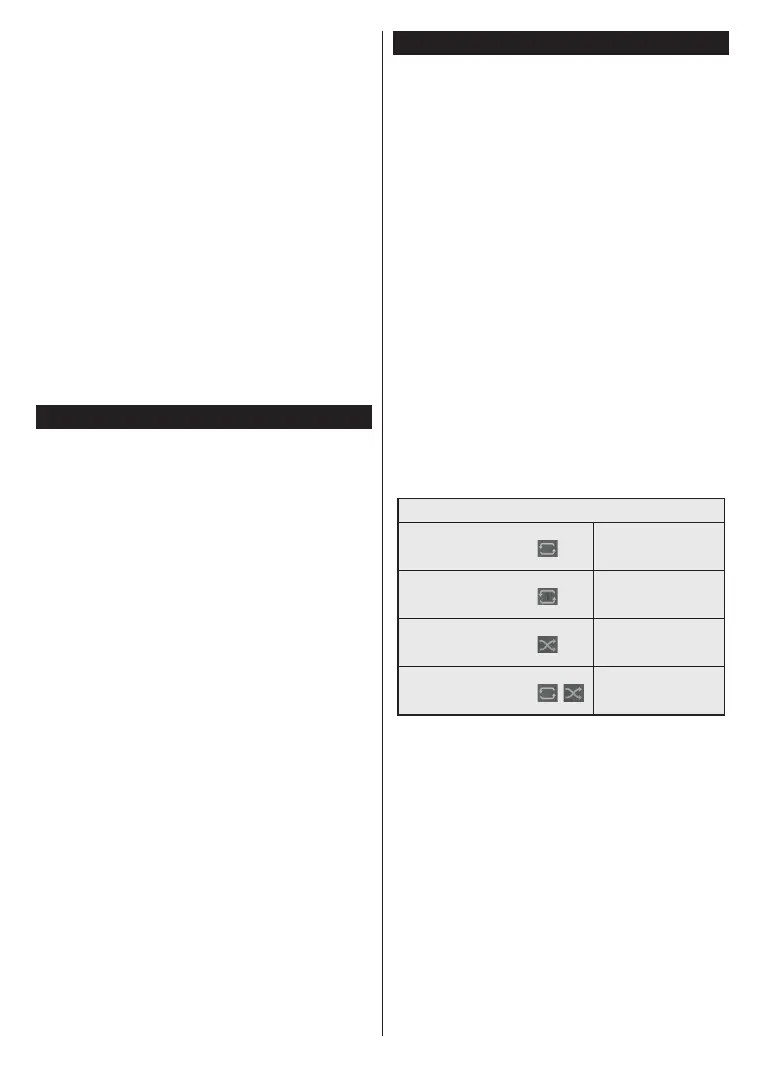
Media Playback via USB Input
You can connect 2.5” and 3.5” inch (HDD with external power
supply) external hard disk drives or USB memory stick to your
TV by using the USB inputs of the TV.
IMPORTANT!
before connecting them to the TV. Manufacturer will
Certain types of USB devices (e.g. MP3 Players)
or USB hard disk drives/memory sticks may not be
compatible with this TV. The TV supports FAT32 and
NTFS disk formatting.
Wait a little while before each plugging and unplugging
so may cause physical damage to the USB player
and the USB device itself. Do not pull out your drive
You can use USB hubs with your TV’s USB inputs.
External power supplied USB hubs are recommended
in such a case.
It is recommended to use the TV’s USB input(s)
directly, if you are going to connect a USB hard disk.
Note: When viewing image les the Media Browser menu
can only display 1000 image les stored on the connected
USB device.
Media Browser
photo files stored on a USB storage device by
connecting it to your TV. Connect a USB storage device
to one of the USB inputs located on the side of the TV.
After connecting a USB storage device to your TV
Media Browser menu will be displayed on the screen.
You can access the content of the connected USB
device any time later from the Sources menu. Select
the related USB input option from this menu and press
OKOK
to display or play it back.
You can set your Media Browser preferences by using
the Settings menu. Settings menu can be accessed
via the information bar which is displayed on the
bottom of the screen when pressed the Info button
Info button, highlight the gear wheel
symbol positioned on the right side of the information
bar and press OK. Picture Settings, Sound Settings,
Media Browser Settings and Options menus will be
available. The contents of these menus may change
Only Sound Settings menu will be available while
Loop/Shue Mode Operation
Start playback and activate
continuously played in
original order
Start playback and activate
played continuously
(repeat)
Start playback and activate
played once in random
order
Start playback and activate
,
continuously played in
the same random order
To use the functions on the information bar highlight the
symbol of the function and press OK. To change the
status of a function highlight the symbol of the function
and press OK as much as needed. If the symbol is
marked with a red cross, that means it is deactivated.



 To Next Page