English - 7 -
switch the TV into standby mode using the control unit
on the TV while the TV is in standby mode picture state.
Note: The availability of this feature depends on the TV model
and its features.
Refer to the Supported File Formats for USB Mode section
for the supported media file formats.
Standby Notifications
If the TV does not receive any input signal (e.g. from
an aerial or HDMI source) for 3 minutes, it will go
into standby. When you next switch-on, the following
message will be displayed: “TV switched to stand-by
mode automatically because there was no signal
for a long time.” You can disable this functionality
by setting the Timer of No Signal option in the
Settings>Devices menu accordingly.
The Auto Power Down option (in the Settings>System
>More menu) could have been set to a value between
1 and 8 hours by default. If this setting is not set as Off
and the TV has been left on and not been operated
during the set time, it will switch into standby mode
after the set time has expired. When you next switch-on
the TV, the following message will be displayed: “TV
switched to stand-by mode automatically because
no operation was made for a long time.” Before the
TV switches into standby mode a dialogue window will
be displayed. If you do not press any button the TV
will switch into the standby mode after a waiting period
of about 5 minutes. You can highlight Yes and press
OK to switch the TV into standby mode immediately.
If you highlight No and press OK, the TV will remain
on. You can also choose to cancel the Auto Power
Down function from this dialogue. Highlight Disable
and press OK, the TV will remain on and the function
will be set as Off. You can enable this function again by
changing the setting of the Auto Power Down option
from the Settings>System>More menu.
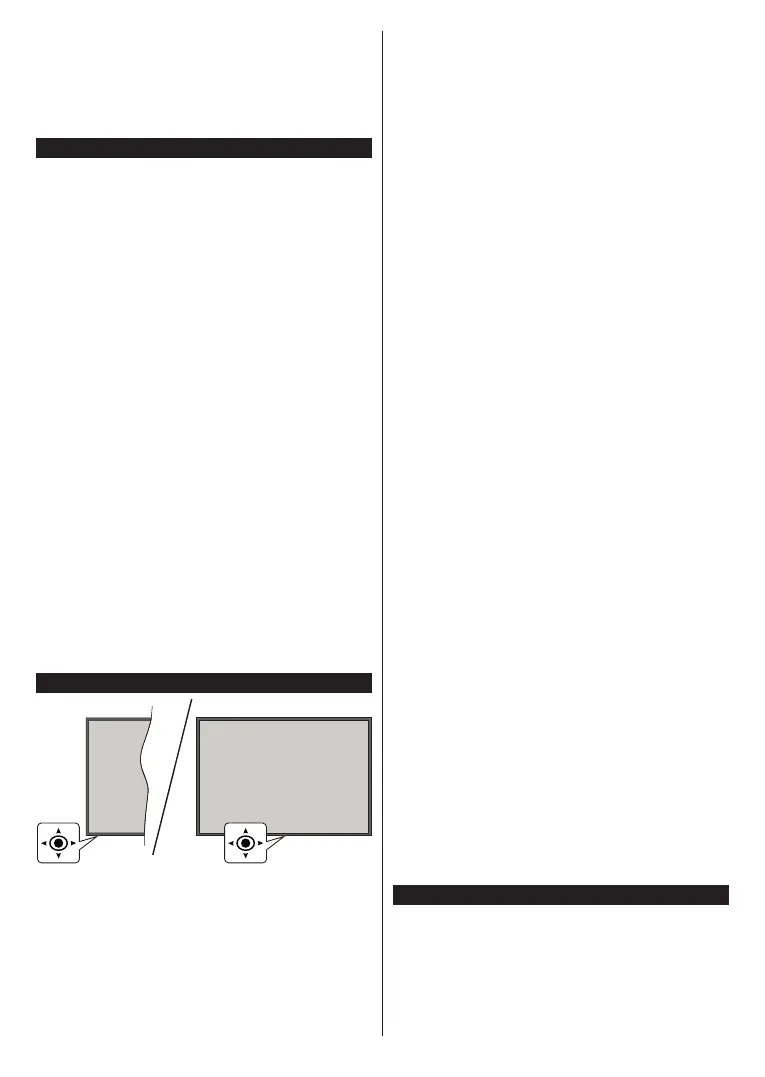
TV Control & Operation
This TV has a joystick as shown in the above drawing. It
allows you to control the Volume / Programme / Source
and Turn Off - On functions of the TV.
Note: The position of the joystick may differ depending on
the model.
To change volume: Increase or decrease the volume
by pushing the joystick right or left.
To change channel: Scroll through the stored
channels by pushing the joystick forwards or pulling
it towards yourself.
To change source: Press the centre of the joystick
in, the sources list will appear on the screen. Scroll
through the available sources by pushing the joystick
forwards or pulling it towards yourself.
To turn the TV off (Hard Standby): Press the centre
of the joystick in and hold it down for more than 3
seconds, the TV will turn into hard standby mode.
In hard standby mode the remote control will not
function and the standby LED on the TV will not lit.
The functions such as networked standby mode (if
available) and timers will be disabled. You can turn on
the TV from the hard standby only via joystick.
To turn on the TV: Press the centre of the joystick in,
the TV will turn on.
Note: Main menu OSD cannot be displayed via joystick.
Operation with the Remote Control
Press the Home button on your remote control to
display main menu. Use the directional buttons and
OK button to navigate and set. Press Back/Return,
Exit or Home button to quit a menu screen.
Input Selection
Once you have connected external systems to your
TV, you can switch to different input sources. Press the
Source button on your remote control consecutively
to select the different sources.
Changing Channels and Volume
You can change the channel and adjust the volume
by using the Programme +/- and Volume +/- buttons
on the remote.
Reset and Power Off via Standby Button
Press and hold the Standby button to see additional
actions for this button. Reset (Restart), Standby (Nor-
mal Standby), and Power off (Forced Standby) options
will be available. Highlight one and press OK to perform
the selected action. If a problem occurs that prevents
the TV from switching into standby mode properly, you
can use the Power off option to force the TV to switch
into standby mode.
If your TV stops responding to commands and the
actions menu can not be displayed
, the TV will be forced
to restart when the button is kept pressed for about 5
seconds
. This will terminate the process.
Using Main TV Menu
When the Home button is pressed, the main TV
menu will appear on the screen. You can navigate
through the menu items using the directional buttons
on the remote. To select an item or see the sub-menu
options of the highlighted menu press OK button.
When you highlight a menu option some of the sub-
menu items of this menu may appear on the upper or





 To Next Page