English
14
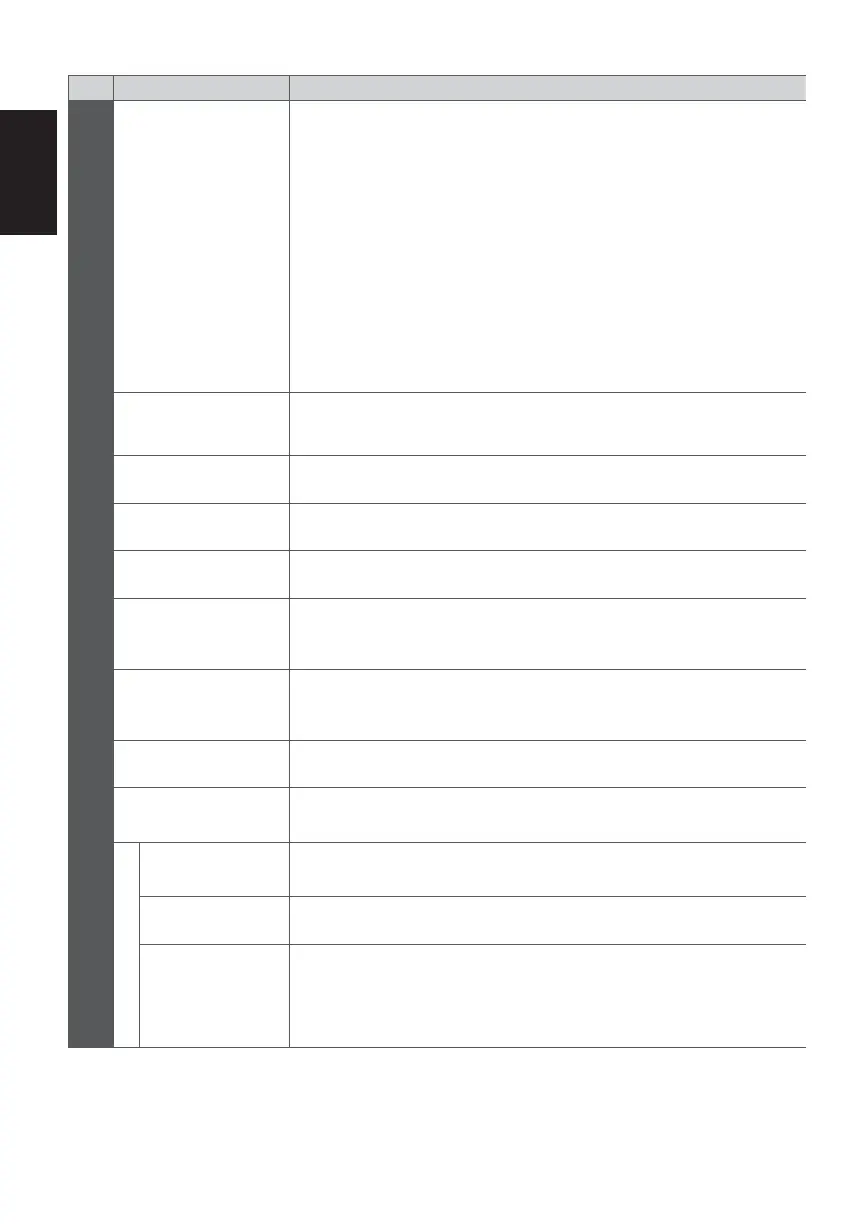
Menu list
Menu
Item Adjustments / Configurations (alternatives)
Picture
Viewing Mode
Selects your favourite picture mode for each input
[Dynamic] / [Normal] / [Cinema] / [True Cinema] / [Game]
[Dynamic]:
Improves contrast and sharpness for viewing in a bright room.
[Normal]:
Normal use for viewing in a normal lighting condition.
[Cinema]:
Improves the performance of contrast, black and colour reproduction for
watching movies in a darkened room.
[True Cinema]:
Reproduces the original image quality precisely without any revision.
[Game]:
Provides suitable images for fast response signal when playing games.
In each Viewing Mode, [Contrast], [Brightness], [Colour], [Sharpness], [Tint],
[Colour Balance], [Vivid Colour], [Eco Mode], [P-NR] and [3D-COMB] can be
adjusted and stored for each input.
Contrast, Brightness,
Colour, Sharpness
Adjusts the levels of these options according to your personal preference
Tint Adjusts the picture hue to suit your taste
Colour Balance Sets the overall colour tone of the picture [Cool] / [Normal] / [Warm]
Vivid Colour Automatically adjusts colours to vivid ones [Off] / [On]
Eco Mode
Automatic Brightness Control function
Adjusts picture settings automatically depending on ambient lighting conditions
[Off] / [On]
P-NR
Picture Noise Reduction
Reduces unwanted picture noise and flicker noise in the contoured parts of a
picture [Off] / [Min] / [Mid] / [Max]
3D-COMB Makes still or slow moving pictures more vivid [Off] / [On]
Screen Display
Turns the screen off when you select [Off]
[Off] / [On]
Advanced Settings
Refresh Rate
Changes the image processing of the panel (depending on the input signal)
[50Hz] / [100Hz]
Side Panel Adjusts the brightness of the side panel [Off] / [Low] / [Mid] / [High]
16:9 Overscan
Selects the screen area displaying the image [Off] / [On]
[On]:
Enlarges the image to hide the edge of the image.
[Off]:
Displays the image in the original size.



 To Next Page