EasyManua.ls Logo

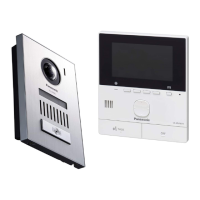
Panasonic VL-MV74 - User Manual

Panasonic VL-MV74
36 pages
Print Icon
To Next Page IconTo Next Page
Loading...
Operating Instructions
Thank you for purchasing a Panasonic product.
Please read this document before using the product and save it for future reference.
Carefully read the information found in the section titled "For your safety" in particular.
Installation Guide is supplied separately.
This system is not designed to provide complete protection from property loss. To the maximum extent permitted by
applicable law, Panasonic will not be held responsible for any damage incurred as a result of property loss.
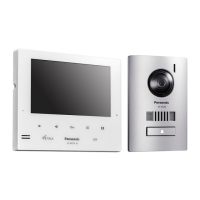
VL-SV74
VL-MV74
Model Name
Model No.
Main Monitor Station
Video Intercom System
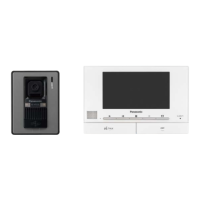
VL-MV75
VL-SV75

Other manuals for Panasonic VL-MV74

Questions and Answers

  • B
    bhillSep 23, 2025
    What to do if the main monitor of my Panasonic Intercom System does not work properly?
    • A
      Adam CollinsSep 23, 2025
      Check the power connection of your Panasonic Intercom System. If the power is connected, there may be a problem with the electrical wiring.
  • J
    Jeffrey WatersAug 25, 2025
    What to do if Panasonic Intercom System images are unclear?
    • A
      Andrew ReevesAug 25, 2025
      If the images on your Panasonic Intercom System are dirty or unclear, the doorphone's lens surface may be dirty or have water condensation. Wipe the lens with a soft, dry cloth, or wait for the condensation to evaporate.
  • M
    migueljamesAug 25, 2025
    Why is Panasonic VL-MV74 image black and white?
    • B
      Barbara ChenAug 26, 2025
      If the image of the subject is displayed in black and white (or bluish-purple) on your Panasonic Intercom System, it may be night or there may be poor light in the area around the doorphone. Turn on the LED lights when it is dark. Also, if you are using a doorphone not equipped with LED lights, it is recommended to install extra lights in the area around the doorphone.
  • A
    Angela WalshAug 27, 2025
    How to improve night vision on Panasonic VL-MV74?
    • B
      Bryan KelleyAug 27, 2025
      If images at night are dark and faces cannot be identified on your Panasonic Intercom System, ensure that “Automatic illumination” is set to “Enable”. If the doorphone's LED lights are lit, but the light from the LED lights cannot illuminate the edges of the visible area, it is recommended to install extra lights in the area around the doorphone.
  • D
    Dustin MooreAug 27, 2025
    Why can't visitor hear me on Panasonic VL-MV74?
    • B
      Bonnie CruzAug 27, 2025
      If your voice cannot be heard by the visitor on the Panasonic Intercom System, but you can hear the visitor’s voice, you might be using the "Press-to-talk" mode. When using this mode, the visitor can only hear your voice while you are pressing M N.
  • T
    Todd JamesSep 16, 2025
    What to do if Panasonic VL-MV74 doesn't work properly?
    • P
      porterbrianaSep 16, 2025
      If your Panasonic Intercom System does not work with correct operations, press the MRESETN button on the side of the main monitor with a pointed object.
  • S
    Scott PowersSep 13, 2025
    How to stop sound cutting in/out on Panasonic VL-MV74 Intercom System?
    • K
      Kelsey HernandezSep 13, 2025
      If the sound cuts in/out or fades on your Panasonic Intercom System, this may be because the area surrounding the main monitor, extension monitor, or doorphone are noisy. Try using the "Press-to-talk" mode to mitigate this issue.
  • G
    gmartinezSep 14, 2025
    How to fix white images with lines/circles on Panasonic Intercom System?
    • M
      matthew08Sep 15, 2025
      If images are white, or white lines or circles are shown on the display of your Panasonic Intercom System, strong light such as sunlight is shining into the lens of the doorphone causing images to be difficult to see. Locating the doorphone away from direct sunlight or changing the angle that the doorphone is installed may help reduce this problem.
  • H
    Heather WaltonSep 5, 2025
    What to do if Panasonic VL-MV74 doesn't work?
    • J
      James WilsonSep 6, 2025
      To solve the problem when the product does not work with correct operations, press the MRESETN button on the side of the main monitor of your Panasonic Intercom System with a pointed object.
  • M
    Maria PetersonSep 3, 2025
    Why is Panasonic Intercom System flickering?
    • E
      Evan ThompsonSep 3, 2025
      If the images on your Panasonic Intercom System are flickering, it may be due to AC (alternating current) lights such as fluorescent lights being used near the doorphone. These lights may cause flickering in dark environments.

Summary

Introduction

Model Composition

Details the composition of the main monitor and door station models.

Accessory Information

Lists and describes supplied accessories for the system.

Additional;Replacement Accessories

Lists additional and replacement accessories available for the system.

Compatible Panasonic PBXs

Lists compatible Panasonic PBX systems for integration.

General Information

Provides general information, including regional product differences and operational modes.

House and Apartment Modes

Explains the difference between House mode and Apartment mode operations.

Symbols, Expressions, and Styles

Explains symbols, expressions, and styles used within the document for clarity.

Trademarks and Registered Trademarks

Lists trademarks and registered trademarks associated with the product.

Important Information

Safety Precautions

Provides critical safety warnings and precautions to prevent injury or property damage.

Important Safety Instructions

Outlines basic safety precautions to reduce risks during product use.

Best Performance Environment

Offers advice on environmental conditions and placement for optimal product performance.

Other Important Information

Covers essential operational notes, including power disconnect and privacy considerations.

Privacy and Data Handling

Advises on privacy rights and handling of personal information.

Maintenance and Disposal

Instructions for product repair, disposal, and data erasure.

India E-Waste Compliance

Declaration of conformity with Indian E-Waste (Management) Rules.

Preparation

Device Controls

Identifies and describes the controls for the doorphone and main monitor.

Doorphone Controls

Details the physical controls and indicators on the doorphone unit.

Main;Extension Monitor Controls

Identifies and explains the buttons and display elements of the main monitor.

Display Information

Explains the main monitor's display information and status icons.

Language, Date, and Time Settings

Guides users through setting the display language, date, and time on the monitor.

Wide;Zoom and Pan;Tilt Settings

Explains how to adjust wide/zoom and pan/tilt settings for doorphone images.

Talking and Monitoring

Answering Doorphone Calls

Details how to answer, talk, and end calls from the doorphone.

Transferring Doorphone Calls

Describes how to transfer doorphone calls between the main and extension monitors.

Monitoring Outside Feed

Explains how to monitor the doorphone's audio and video feed.

Inter-Device Communication

Guides on making and receiving intercom calls between devices.

Recording and Playing

Recording Doorphone Images

Explains how the system automatically and manually records doorphone images.

Playing Recorded Images

Describes how to access and play back recorded doorphone images.

Image Playback Options

Details options like turning off the guide, protecting, deleting, and adjusting brightness for recorded images.

Using Electric Locks and Other Devices

Electric Lock Operation

Explains how to connect and configure electric locks for door/gate unlocking.

Doorbell Integration

Describes how to connect and configure a doorbell to the system.

Panasonic PBX Integration

Explains how to integrate the system with Panasonic PBXs for call handling.

Incoming Call Operations

Handling Multiple Incoming Calls

Details how the system handles and notifies about new incoming calls during an active call or monitoring.

Additional Functions

Zoom, Pan, and Tilt Adjustments

Explains how to adjust zoom, pan, and tilt for doorphone images during calls or monitoring.

Sound and Display Settings

Covers adjusting incoming call volume, doorphone volume, voice changer, and display settings.

Ringtone Configuration

Allows changing the ringtone type and volume for incoming calls.

Function Settings List

Provides a list of configurable settings for the main and extension monitors.

Ringtone Settings Management

Allows configuring ringtone volume and type for doorphone and page calls.

Connected Devices Configuration

Manages connections and settings for doorphones, electric locks, and lobby stations.

Device Registration and Cancellation

Details procedures for registering and cancelling extension monitors and other devices.

Other System Settings

Covers settings like touch sound, play lamp, deleting images, and demo mode.

Operating Instructions Download

Provides a link to download the full operating instructions from the website.

Expanding the System

Registering Extension Monitors

Step-by-step guide to registering extension monitors to the main monitor.

Cancelling Connected Devices

Explains how to cancel registration of connected devices like extension monitors.

General Information

Cleaning Instructions

Provides instructions and important precautions for cleaning the product.

Technical Specifications

Lists technical specifications for the main monitor and doorphone.

Troubleshooting

Monitor Display Troubleshooting

Lists common problems with monitor display (doorphone images) and their solutions.

Ringtone Troubleshooting

Addresses issues where the doorphone ringtone does not sound.

Call Troubleshooting

Troubleshoots issues with sound cutting out, fading, or voice not being heard.

General Troubleshooting

Covers general issues like demo mode display, product not working, and no display.

Main Monitor Error Messages

Lists error messages displayed on the main monitor and their causes/solutions.

Extension Monitor Error Messages

Lists error messages displayed on the extension monitor and their causes/solutions.

VL-V901 Basic Operations

Lobby Station Controls

Identifies the controls and features of the VL-V901 lobby station.

Lobby Station Operations

Explains how to call residents and search for them using the lobby station.

Receptionist and Door Access

Describes how to call a receptionist using the lobby station.

Main Monitor with Lobby Station

Details how the main monitor interacts with the lobby station.

Calling Extension Telephones

Guides on calling extension telephones from the main monitor.

System Conditions and Limitations

Lists system conditions and limitations, such as call handling priority and timeouts.

Panasonic VL-MV74 Specifications

General IconGeneral
BrandPanasonic
ModelVL-MV74
CategoryIntercom System
LanguageEnglish

Related product manuals