EasyManua.ls Logo

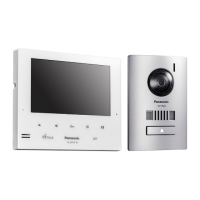
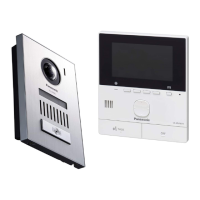
Panasonic VL-MW250BX - User Manual

Panasonic VL-MW250BX
56 pages
Print Icon
To Next Page IconTo Next Page
Loading...
Thank you for purchasing a Panasonic product.
Please read these Operating Instructions before using the unit and save for future reference.
Operating Instructions
Model Name
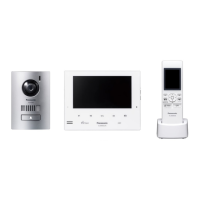
Wireless Video Intercom System Main Monitor
Model No.
VL-SW250BX
Including: VL-MW250BX
VL-W605BX
VL-V566BX
VL-MW250BX
1-62, 4-chome, Minoshima, Hakata-ku, Fukuoka 812-8531, Japan
© Panasonic System Networks Co., Ltd. 2010
PNQX2912YA
SV0910SN1090
VL-MW250BX VL-W605BX VL-V566BX
Attached Installation Guide
01VL-SW250BX.indd101VL-SW250BX.indd1 2010/09/1411:58:282010/09/1411:58:28

Table of Contents

Other manuals for Panasonic VL-MW250BX

Questions and Answers

  • S
    Sarah StevensAug 3, 2025
    What to do if my Panasonic VL-MW250BX Intercom System says 'CAN NOT CONNECT'?
    • P
      pauljonathonAug 3, 2025
      If your Panasonic Intercom System displays 'CAN NOT CONNECT', it could be due to several reasons: * The sub monitor station might be too far from the main monitor station. Try moving closer. * An object, like a concrete wall, may be obstructing the signal. Move to a location without obstacles. * Interference from a microwave or wireless LAN appliance could be the cause. Move closer to the main monitor station, use a sub monitor station away from those appliances or try again later. Consider installing a repeater (optional) to solve the problem.
  • N
    Nathaniel StokesAug 9, 2025
    Why does my Panasonic VL-MW250BX display 'REGISTRATION ERROR'?
    • L
      Lawrence MillerAug 9, 2025
      If your Panasonic Intercom System shows a 'REGISTRATION ERROR', the registration to the main monitor station may not be complete. Move closer to the main monitor station and register it again.
  • J
    Jason SuarezAug 15, 2025
    How to fix 'PROTECTED PIC REMOVE PROTECT' on my Panasonic Intercom System?
    • K
      Kathy RussellAug 15, 2025
      If your Panasonic Intercom System displays 'PROTECTED PIC REMOVE PROTECT', it means the image you're trying to erase is protected. Release the protection, and then try erasing it again.
  • R
    Robert BrownAug 21, 2025
    What to do if my Panasonic VL-MW250BX Intercom System displays 'IN USE'?
    • J
      Jonathan BowersAug 21, 2025
      If your Panasonic Intercom System displays 'IN USE', it means that either the main monitor station or the sub monitor station is currently in use. Please try again later.
  • P
    Patrick WatsonAug 27, 2025
    Why does my Panasonic Intercom System say 'PROTECT PIC FULL CAN NOT PROTECT'?
    • A
      Andrew RamirezAug 27, 2025
      The Panasonic Intercom System displays 'PROTECT PIC FULL CAN NOT PROTECT' because you have exceeded the number of images you can protect. You can protect up to 20 images. Release the protection from other images, then try again. Note that unprotected images will be overwritten by new images.

Summary

Introduction

Product names used in these Operating Instructions

Identifies the product names used for clarity in the manual.

Accessory information

Details the included items for the sub monitor station and other accessories.

Additional;replacement accessories

Lists optional and replacement accessories available for the system.

Compatible Panasonic PBXs

Information on compatible Panasonic PBX systems for integration.

Important Information

For your safety

Crucial safety precautions to prevent injury, fire, and electric shock during use.

Important safety instructions

Basic safety precautions for operating the unit to reduce risks.

For best performance

Guidelines for optimal installation location and environmental conditions.

Other information

Details on tapping, privacy rights, and product disposal recommendations.

Preparation

Location of controls

Identifies and explains the controls on the door station.

Door station image quality

Describes common image phenomena that are not malfunctions.

Main monitor station

Identifies and explains the controls and features of the main monitor station.

Monitor display (Main monitor station)

Explains the icons and indicators shown on the main monitor station's display.

Sub monitor station

Identifies and explains the controls and features of the sub monitor station.

Monitor display (Sub monitor station)

Explains the icons and indicators shown on the sub monitor station's display.

Charging the sub monitor station

Step-by-step guide for charging the sub monitor station's battery.

Setting the date and time

Instructions for setting the date and time for recording functions.

Doorphone

Answering a call

Procedure for answering calls from the door station.

Answering a call by voice sensor (Voice answer mode)

How to answer calls hands-free using voice commands.

Features during a call or while monitoring

Various functions available during active calls or monitoring sessions.

If it is difficult to hear the visitors voice due to noise (Press-to-talk mode)

Using press-to-talk for clearer communication in noisy environments.

Using [DOOR KEY] button

How to operate the door opener using the system's buttons.

Transferring a call

How to transfer a call between the main and sub monitor stations.

When receiving another call during a call or while monitoring

Handling incoming calls when already engaged in a call or monitoring.

Monitoring the outside (Door station monitor)

How to view and listen to the door station feed.

Recording

Recording an image

Explains how the system automatically records images from calls.

Manual recording

How to manually record images at any time.

Viewing recorded images using the main monitor station

Steps to view recorded images on the main monitor.

How to view recorded images

Detailed guide on navigating and viewing recorded images.

Viewing recorded images using the sub monitor station

Steps to view recorded images on the sub monitor.

How to view recorded images

Detailed guide for viewing recorded images on the sub monitor.

Protecting the recorded images

How to prevent recorded images from being erased.

Erasing an image

Procedure for deleting unwanted recorded images.

Intercom

Talking between the main monitor station and the sub monitor station

How to make intercom calls between different units of the system.

Programming

Adjusting the ringer volume

How to set the volume for incoming calls and paging.

Changing the ringer tone

How to select different sounds for incoming door station calls.

Setting [DOOR KEY] button

How to configure the door opener function and duration.

Changing the function settings of the main monitor station (Function list)

Guide to customizing various settings on the main monitor station.

How to change the function settings

Steps to modify system settings via the main monitor station menu.

Changing the function settings of the sub monitor station (Function list)

Guide to customizing various settings on the sub monitor station.

Expanding the System

Expanding your system with optional units

Information on adding optional units to enhance system functionality.

Units required to be installed (Adding a door station)

Details on connecting additional door stations to the system.

Operating the door opener

How the door opener functions with the system.

Using with Panasonic PBX

Information on integrating the system with Panasonic PBX systems.

Adding a sub monitor station (REGISTRATION)

Procedure for registering new sub monitor stations to the main unit.

Setting a repeater (REGISTRATION)

How to register a repeater to extend wireless range.

Canceling registration of the sub monitor station;repeater (CANCELLATION)

Steps to remove registered sub monitor stations or repeaters.

Help

Monitor display

Troubleshooting common issues related to the monitor display.

Conversation (Doorphone;Intercom)

Troubleshooting common audio issues during calls.

Ringer tone

Troubleshooting issues with the ringer tone not sounding.

Sub monitor station;Battery

Troubleshooting issues related to the sub monitor station and its battery.

Others

Troubleshooting general system issues and power failures.

Error messages

Explains common error messages and their solutions.

Cleaning

Instructions for cleaning the system units safely.

Battery replacement

Guide on how to replace the battery in the sub monitor station.

General Information

Specifications

Technical specifications of the main monitor station, sub monitor station, and door station.

For your future reference

Panasonic VL-MW250BX Specifications

General IconGeneral
Monitor TypeLCD
Monitor Size7 inches
Wireless ConnectivityYes
Door Station CameraYes
TypeVideo Intercom
Power SupplyAC adapter
FeaturesNight vision
ExpandabilityUp to 4 indoor monitors
Power SourceAC adapter

Related product manuals