User Manual For CYCLONE FX Programmers 44
previously been saved in order to create a new image.
6.2 Manage Multiple SAP Images
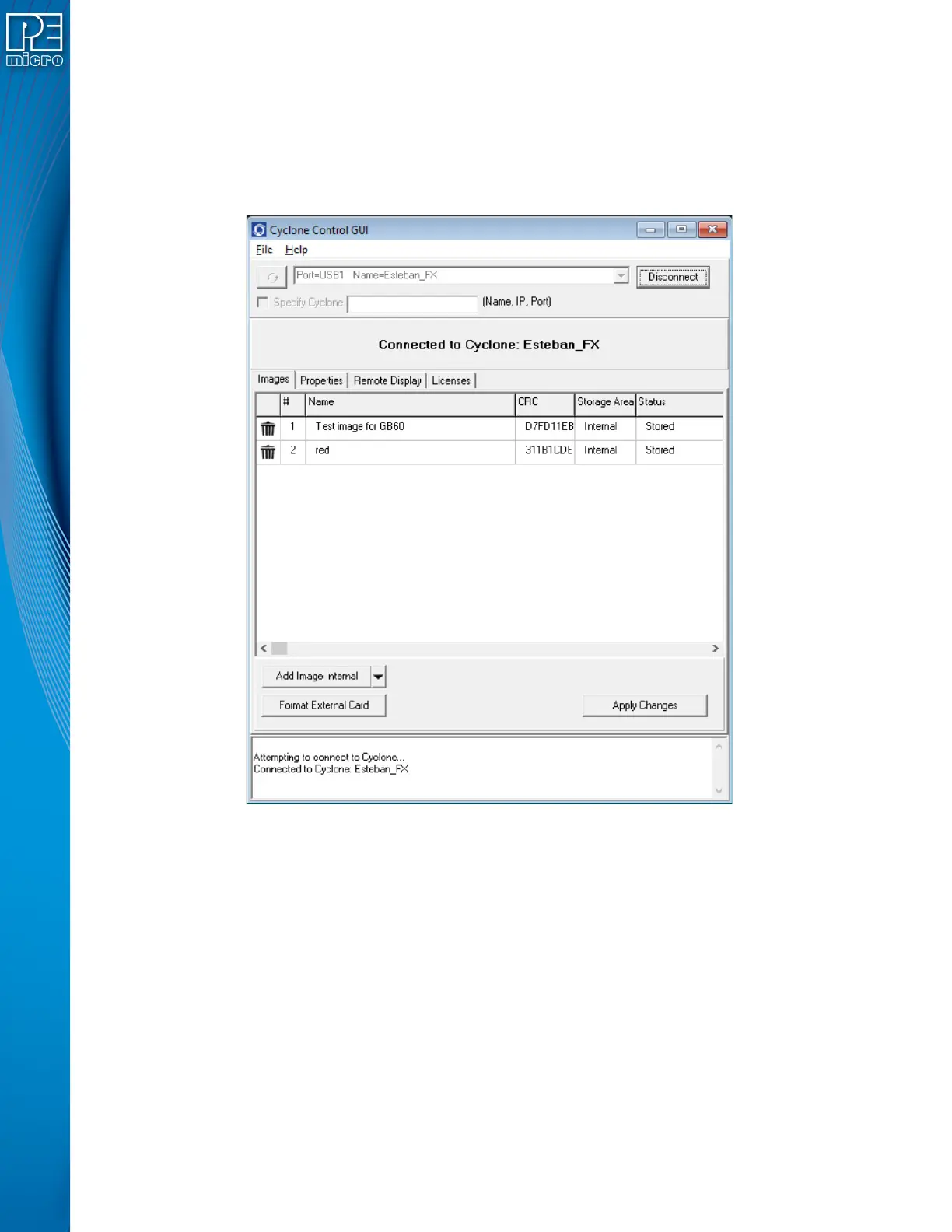
The Cyclone Control GUI, shown below in Figure 6-14, allows the Cyclone to store and manage
multiple images in the Cyclone’s internal memory, and on any compatible SDHC cards that are
loaded into the SDHC port. Once the programming images have been created and saved to the
disk using the Create Image utility, they may then be loaded collectively onto the Cyclone.
Figure 6-14: Manage Images Utility
Upon opening a selected Cyclone in the Cyclone Control GUI, the user is provided in the first tab
with a list of the images currently on the unit’s internal memory which are marked with a Storage
Area label of "Internal". A list of images on any installed SDHC card will also be displayed with a
Storage Area label of "External"
You can add images with the "Add Image Internal" button under the images panel. These images
will appear with a "Status" label of "Ready to Store". These images are not yet in the Cyclone, the
"Apply Changes" button will have to be clicked for the changes to take effect.
If the Cyclone’s SDHC port is activated, the user can also add images to the external memory by
using the drop-down next to the "Add Image Internal" button and selecting "External". Alternatively,
once an image has been added to the proposed changes and it is in the "Ready to Store" state, the
user may right click on the image and click the "Switch storage to External" option.
6.2.1 Delete Images From Internal/External Memory
Any images that are already stored on the Cyclone or installed SD card can be deleted by just
clicking on the trash can on the left of the image or by selecting the image and clicking the Delete


 To Next Page