This document describes a handheld game station, providing details on its functions, technical specifications, usage features, and maintenance.
Function Description:
The handheld game station is designed for portable gaming, supporting multiple emulators and offering various connectivity options. It features a built-in screen, a directional button, a thumb pointer, and several action buttons (A, B, C, D, X, Y). The device includes dedicated buttons for HOME, SELECT (insert coin), and START, as well as volume adjustment controls. It supports external gamepads for team play, HDMI output for monitor connection, and Bluetooth for wireless accessories. The device also has Wi-Fi connectivity for game downloads and OTA upgrades.
Important Technical Specifications:
- Connectivity: 2.4G Wi-Fi, Bluetooth, Micro HDMI (optional), Micro USB/External gamepad connection (optional).
- Storage: TF Card slot.
- Battery: Long battery life, with indicators for low battery (below 20% and 10%). Requires 4 hours for waking up from over-discharged state, and 6 hours for full charge in normal application. If unresponsive to charging, it may require 8 hours to return to normal charging mode from self-protection.
- Display: High resolution screen.
- Input: Joystick and D-PAD keys (functionality may differ in some games).
- Software: Includes a system settings menu for various configurations, and a factory data reset option to restore the original software environment.
- Hardware Serial Number: Example provided: No.5F48010E645401.
- Software Revision Code: Example provided: DATE 20191217 DEBUG.
Usage Features:
- Power ON/OFF: Long press the power button for 3 seconds to turn on. The power indicator LED will light up, and the boot image will display. Booting takes approximately 30 seconds. To power off, long press the power button for 3 seconds, then confirm with the "A" button. "B" button cancels shutdown.
- Standby Mode: The device automatically enters standby mode if inactive for a long time. The power button can also be pressed to enter or exit standby.
- Volume Adjustment: Use the "+, -" buttons to adjust volume, with a visible volume bar indicator.
- Navigation:
- Tabs & Game List: Features four navigation tabs: "All," "Category," "Recent," and "Search."
- Game Selection: Use UP/DOWN buttons to select games on the current page. Use LEFT/RIGHT buttons to jump to the next/previous page.
- Shortcut for Tabs Switching: Short press "START" to jump directly to the "Search" tab. Use the directional button to switch between tabs.
- Back to Top Switching: From any game category page, continuously press the LEFT direction button to return to the first game category page. Then, use the UP direction button to switch among all navigation tabs.
- Game Searching:
- Press "START" to move the cursor to the "Search" bar.
- Press "Right" to access the keyboard area.
- Move the cursor to the desired first letter and press "A" for confirmation. Repeat for additional letters. The system will display games matching the typed name.
- Use the "Left" button to select a matched game from the left game navigation list.
- In-Game Actions:
- Starting a Game: Select a game and press "A."
- Inserting Coins: When prompted in-game, press "SELECT" to insert coins, then "START" to begin.
- Pausing/Exiting/Saving/Loading: Short press "HOME" to access a menu with options: "A" for "Continue game," "B" for "Exit game," "C" for "Save state," and "D" for "Load state."
- System Settings: Long press "HOME" to enter system settings; short press "HOME" to exit.
- Handheld Settings: Basic system settings.
- Key Settings: Button settings for the console and external gamepads.
- Enter Game Settings: Game operation usage settings.
- Enter User Wizard: Basic operating instructions and system usage.
- Language: Set the system language.
- Factory Data Reset: Restores the system to its original software environment.
- Monitor Connection: Connect via Micro HDMI to display the device's image on a TV or monitor.
- Handheld Settings (Detailed):
- Wi-Fi Settings:
- Enter the Wi-Fi setting interface and turn on Wi-Fi.
- Choose a Wi-Fi network from the list.
- Enter the password and confirm.
- Input method tips: "A" confirms, "B" deletes, "HOME" exits the input method.
- Bluetooth Connection:
- Enter the Bluetooth settings interface and turn on Bluetooth.
- Turn on the wireless Bluetooth headset/gamepad.
- Select the connected Bluetooth device from the list.
- Choose the corresponding device name and press "A" for automatic bonding and connecting.
- Brightness Adjustment: Press "START" + "+/-" buttons to adjust screen brightness.
- Key Settings (Detailed):
- Edit Key Combinations: Select "Edit key combinations" in key settings. Select a gamepad and modify player settings with LEFT/RIGHT keys. Redefine gamepad keys with "A."
- Redefining Gamepad Keys: If keys are not recognized or you want to change the layout, select the corresponding key in the menu and follow on-screen instructions. Unplug and re-plug the gamepad to activate the new map.
- Gamepad Assignment: Specify inserted gamepads as player 1, 2, 3, or 4. The interface refreshes and displays gamepad driver names.
- Gamepad Utility Wizards: Provides information on corresponding key positions.
- Enter Game Settings (Detailed):
- Image Optimization: Pixel-art scaling algorithms for low-resolution games.
- Game Notice: Scrolling subtitles at the top of the screen provide tips on gameplay or button usage for some games.
- Turbo Fire: For shooting games, continuously pressing "A" fires in burst mode. Press "START+A" to activate/deactivate burst mode (5-20 bullets/second).
- Edit Difficulty and Life: Adjust difficulty level and number of game coins/lives for some games.
- Edit Favorite List: Mark games as favorites to display them at the top.
- Edit Game List: Hide, sort, etc., games you don't like or often play.
- Delete Game: Delete individual games if SD card capacity is low.
- Delete All Games: Delete all games stored on the console and downloaded.
- Language Setting: In system settings, select language, and use direction and joystick left/right to switch languages.
Maintenance Features:
- Battery Management: If the battery is below 10%, the system will shut down to prevent over-discharge. If the battery is over-discharged, it may require 4 hours of charging to wake up. In normal use, a full charge takes 6 hours. If the device doesn't respond to charging or turn on, the battery might be in self-protection mode, requiring at least 8 hours of charging (without the power indicator lighting up initially) to return to normal.
- Force Reset: Long press the power button for more than 14 seconds to force reset the device.
- System Restoration: The "Factory data reset" option allows restoring the system to its original software environment.
- Gamepad Power: When multiple gamepads are inserted, an external power supply (e.g., a USB HUB with power input) is required to power them, as the handheld's USB port has limited power supply capability.

 Need help?
 General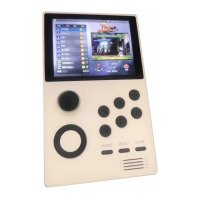

 To Next Page