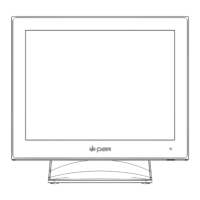
Customer Display 12v Power Setup
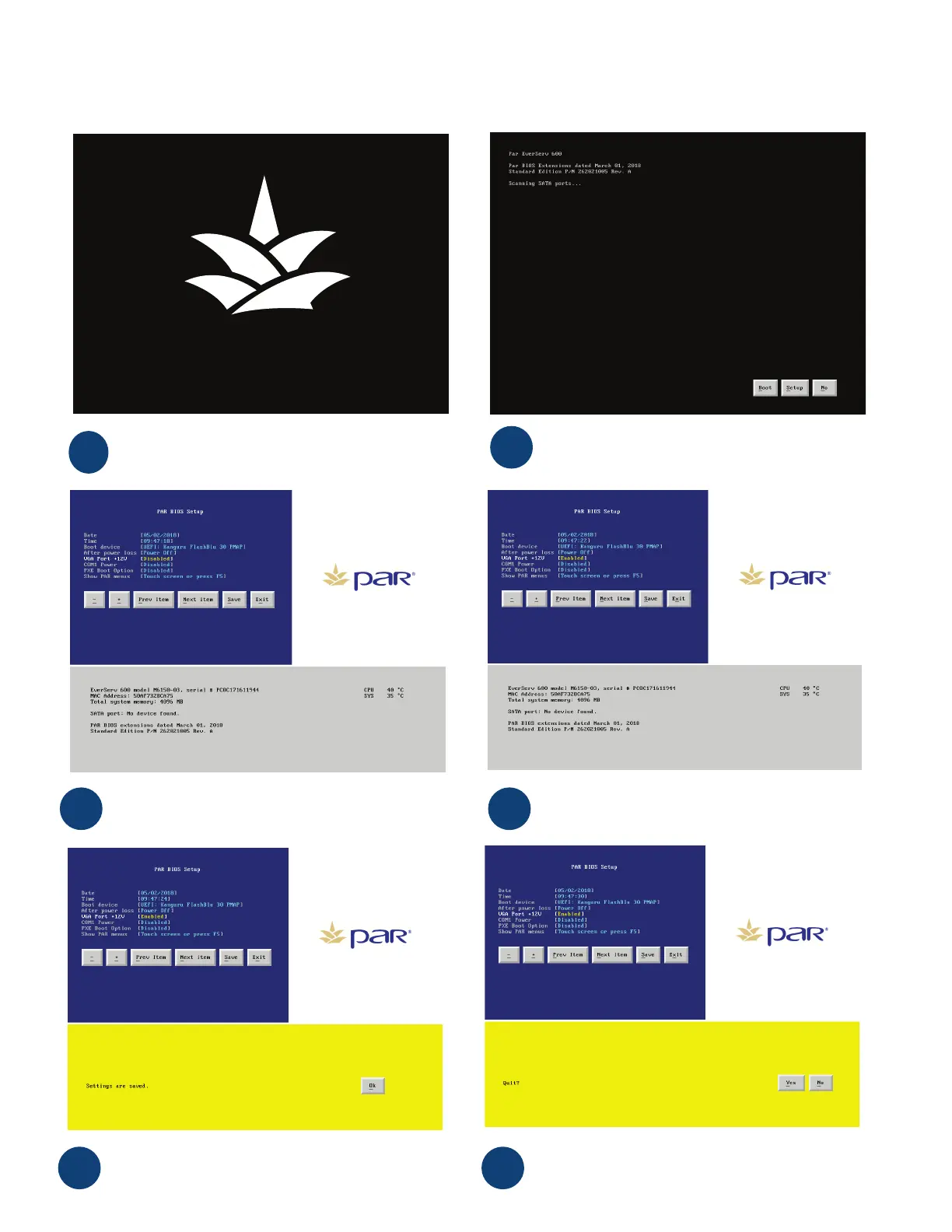
Begin by powering up the terminal. When you see the
pineapple touch the screen.
1
When the PAR BIOS Extensions screen appears, press
“Setup” button.
2
When the PAR BIOS Setup screen appears, press the “Next
Item” button until the VGA Port +12v is selected.
3
When the VGA Port +12v is selected, press the “+” to
Enable the 12v power.
4
Once you have enabled the 12v power, press the “Save”
button then press the “Ok” button that appears below.
5
Once you have Saved, press the “Exit” button then press
the “Yes” button that appears below. The terminal will
reboot and the display will be ready to use. 2nd screen
functionality will automatically be congured.
6


 To Next Page