EasyManua.ls Logo

Parrot TRAVIS - Switching on the Minidrone; Com Pati Bi I Ity; Downloading the App; Connecting a Smartphone

Parrot TRAVIS
22 pages
Print Icon
To Next Page IconTo Next Page
To Previous Page IconTo Previous Page
Loading...
Switching
on
the
MiniDrone
Insert
the
battery
into
the
slot
or
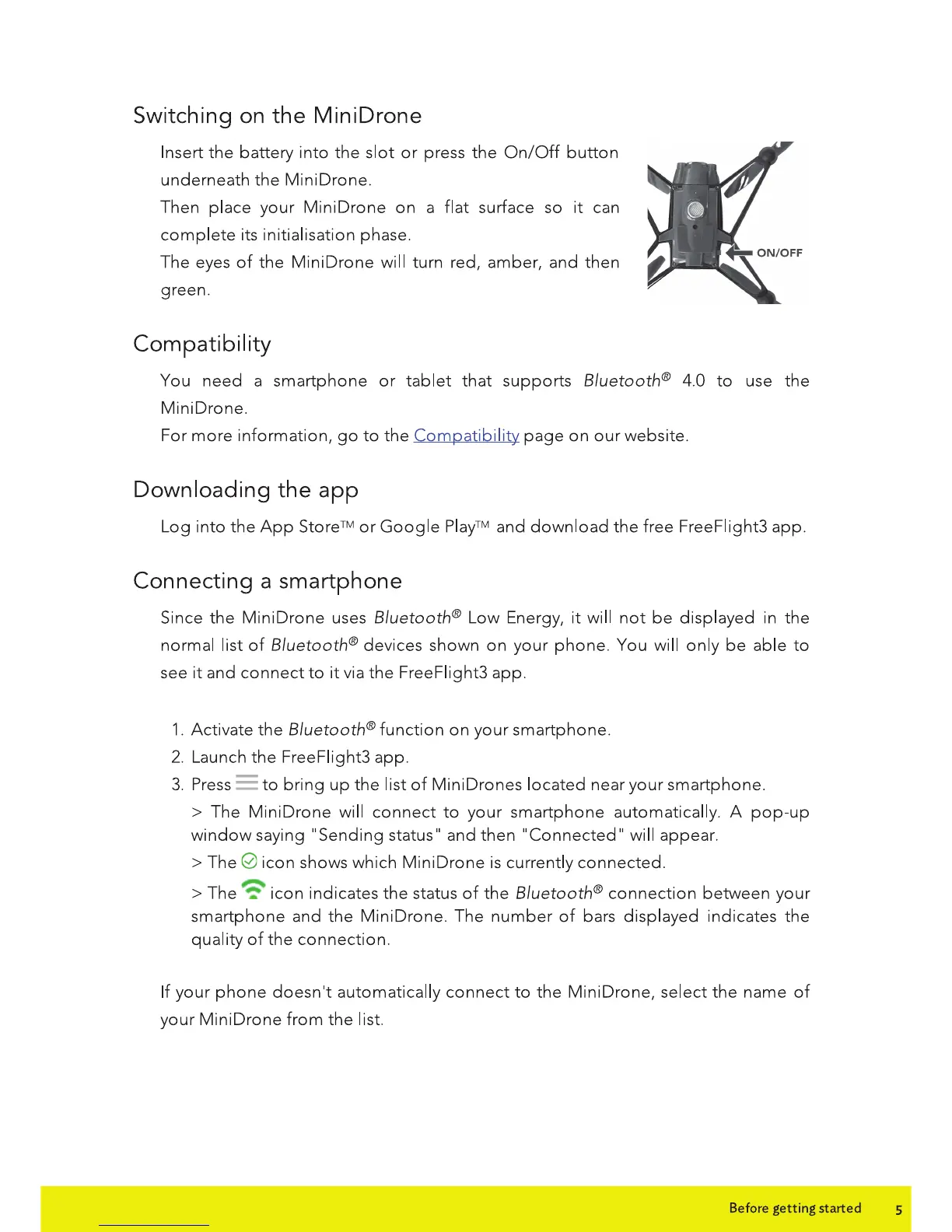
press
the
On/Off
button
underneath
the
MiniDrone.
Then
place
your
MiniDrone
on
a
flat
surface so
it
can
complete
its initialisation phase.
The eyes
of
the
MiniDrone
will turn red,
amber,
and
then
green.
Com
pati b i I ity
You
need
a
smartphone
or
tablet
that
supports
Bluetooth® 4.0
to
use
the
Mini
Drone.
For
more
information,
go
to
the
Compatibility
page
on
our
website.
Downloading
the
app
Log
into
the
App
Store™
or
Google
Play™
and
download
the
free FreeFiight3
app.
Connecting a smartphone
Since
the
MiniDrone
uses Bluetooth®
Low
Energy,
it
will
not
be
displayed
in
the
normal
list
of
Bluetooth® devices
shown
on
your
phone.
You will
only
be
able
to
see
it
and
connect
to
it
via
the
FreeFiight3
app.
1.
Activate
the
Bluetooth®
function
on
your
smartphone.
2.
Launch
the
FreeFiight3
app.
3.
Press =
to
bring
up
the
list
of
Mini
Drones
located
near
your
smartphone.
> The
MiniDrone
will
connect
to
your
smartphone
automatically. A
pop-up
window
saying
..
Sending
status
..
and
then
..
Connected
..
will appear.
>The
0
icon
shows which
Mini
Drone
is
currently
connected.
>
The
~
icon
indicates
the
status
of
the
Bluetooth®
connection
between
your
smartphone
and
the
MiniDrone.
The
number
of
bars
displayed
indicates
the
quality
of
the
connection.
If
your
phone
doesn•t
automatically
connect
to
the
Mini
Drone,
select
the
name
of
your
Mini
Drone
from
the
list.
Before getting started s

Related product manuals