26 C H A P T E R 2 B I O S S E T U P
Security Settings
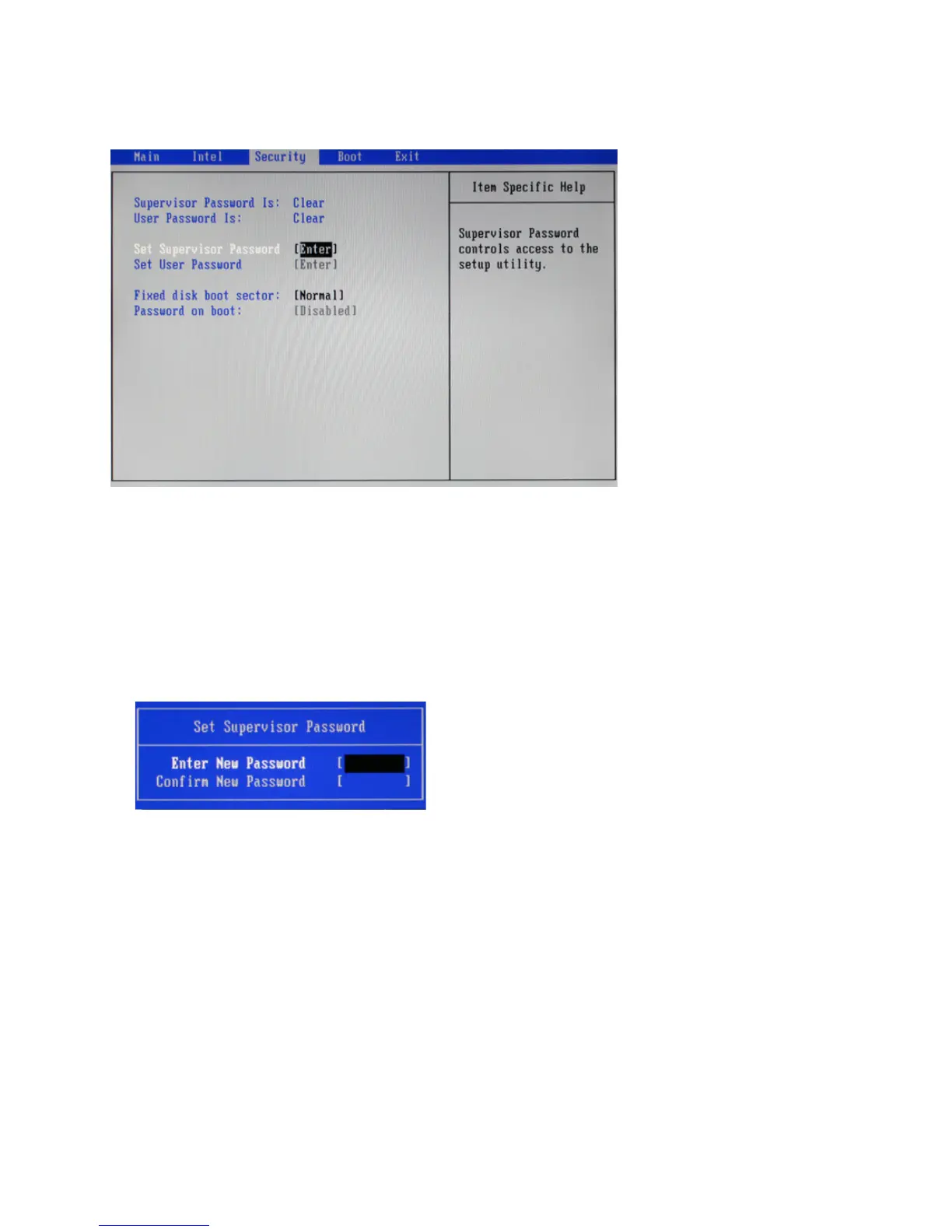
Thisscreenallowsyoutocongurethesystemsecuritysettings.
Figure 2.13 Security
Settings screen
Supervisor/ User Password
Indicates whether a supervisor/ user password has been set. If the password has been installed, Set displays. If
not, Clear displays.
Set Supervisor/ User Password
These items can be used to install a password. A Supervisor password takes precedence over a User password,
and the Supervisor can limit the activities of a User. To install a password, follow these steps:
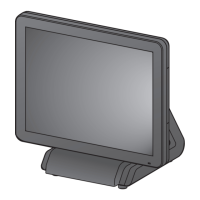
1. Highlight the item Set Supervisor/ User Password on the Security menu and press <Enter>.
2. The password dialog box appears.
3. If you are installing a new password, type in the password. You can type up to eight alphanumeric charac-
ters. Symbols are ignored. The Set Supervisor/ User Password item differentiates between upper and lower
casecharacters.Press<Enter>afteryouhavetypedinthepassword.Toconrmthepassword,typethe
password again and press <Enter>. To clear the password, leave the dialog box blank, press <Enter>, when
theconrmboxappears,press<Enter>again.
4. Write the passwords down and keep them in a safe place.
Fixed disk boot sector:
This feature provides rudimentary anti-virus protection by write-protecting the boot sector. Set to [Write
Protect], the BIOS will block any attempt to write to the boot sector.
Password on boot
When enabled, system will ask input password on post time. When disabled, system will ask input password
when go to Setup Utility.



 To Next Page