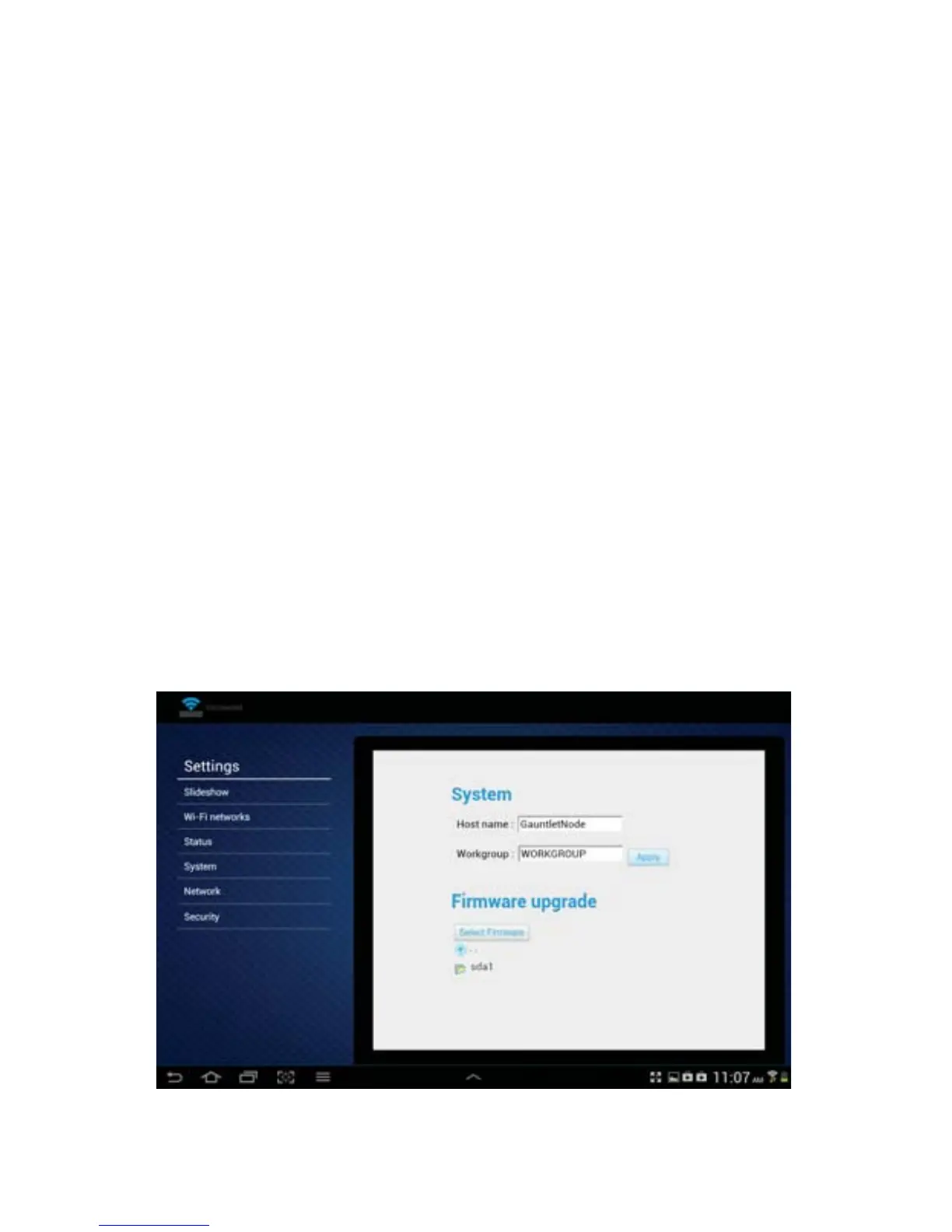
System:
Tap this box to view or change the Host name and Workgroup name used in Windows computer
networks. The default host name is set to: “GauntletNode” and the default Workgroup is set to:
“WORKGROUP”.
This is used if you wish to connect the Gauntlet drive to your home computer network. This is
not required to transfer les which can be done by simply plugging in the included USB 3.0/2.0
cable.
Firmware Upgrade Button:
Tap the “Select Firmware” button to update to the latest rmware available for Gauntlet Unit.
First, go to the Support page for the Gauntlet product model at www.patriotmemory.com, and
download the latest rmware version onto the Gauntlet Drive in any location. You can tap the
‘status’ box to see the current rmware revision to compare to the website Support page le
download to determine if a newer version is available.
After placing the downloaded le onto the Gauntlet Drive, tap this button, tap the drive folder
that appears and locate the rmware le downloaded. Upgrade the unit rmware by simply
tapping the le to open it.
The le will perform the upgrade automatically. Do not turn o the unit or press other buttons
while the le is running as this can interfere with the upgrade. The process should take no more
than 1 minute to complete.
It is recommended to exit the app and then re-enter to ensure that it captures any new features
or changes from the new rmware installed.
Android
24


 To Next Page