TO UPLOAD AND DOWNLOAD FILES
You can copy, move, delete, upload, and download your les, documents and media between
the Gauntlet Drive and other devices such as a PC, Mac, notebook, netbook, most smartphones,
most tablets, and the Kindle Fire.
For PC, Mac, Notebook, Netbook:
If the Gauntlet Drive is connected to your Mac, PC, notebook or netbook you can move and
copy les within “Windows Explorer” in Windows computers or “Finder” in Apple computers as
you would with any other drive.
Note: If connected by Wi-Fi, the Gauntlet Drive will appear in the “Network” as a network drive
on Windows computers and as an available network drive in the “Finder” on Apple computers.
For Smartphone, Tablet, Kindle Fire:
If the Gauntlet Drive is connected to a smartphone, tablet, or Kindle Fire, follow the steps below
to move, copy, and delete les between devices using the “Gauntlet Connect” app.
1) Using iPhone / iPad / iPod Touch devices
(these devices do not allow music les to be uploaded or downloaded)
A. Uploading photo/video les to Gauntlet Drive
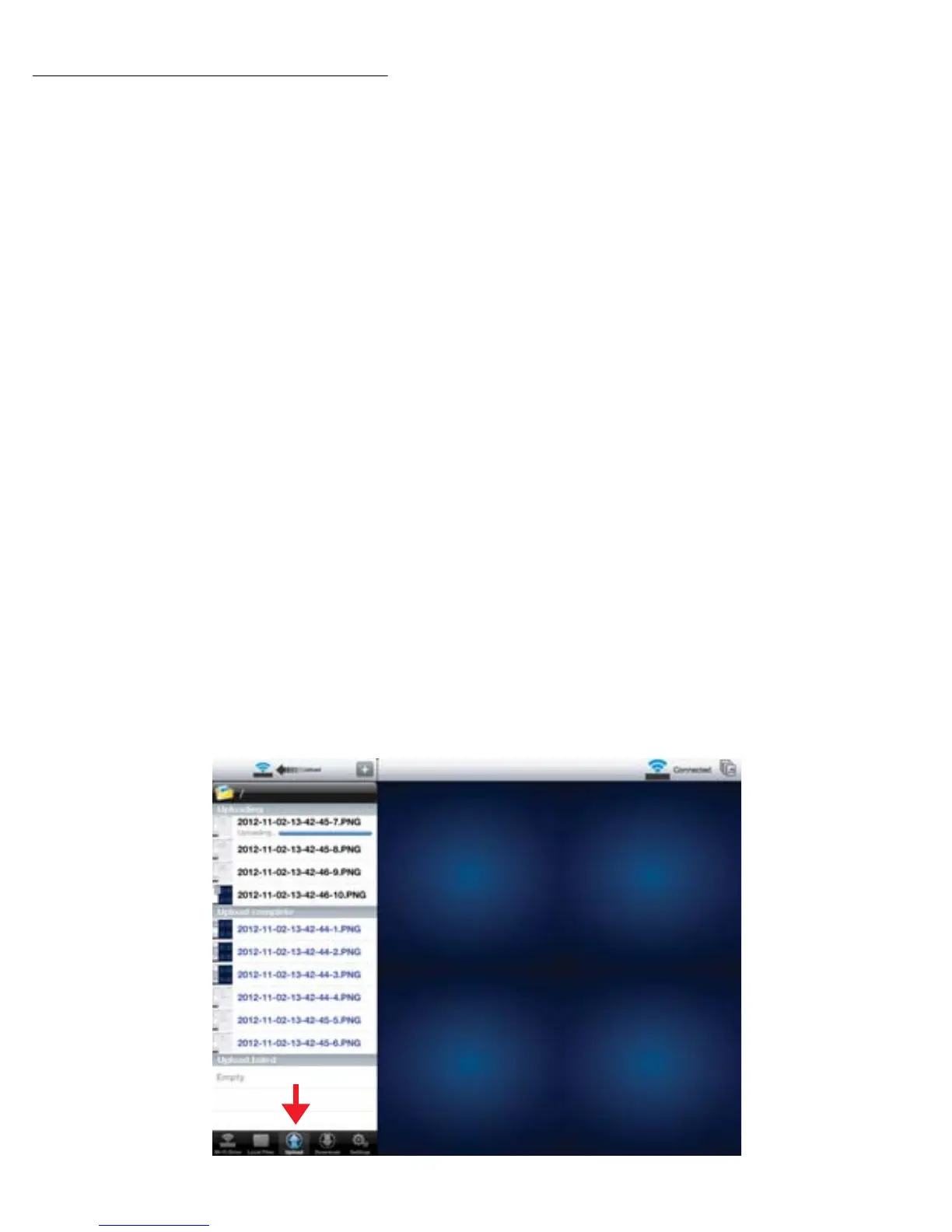
• Select the “upload” tab > press “+” > select desired le(s) > Press Upload button.
iPad
7


 To Next Page