- 16 -
6.5.3 File update
<Equipment>
1) USB memory (Copy the file defined below for preparation)
2) System file “33UH071-xx.rbf” (The adequate version file is provided by PENTAX. “xx” version number)
<Procedures>
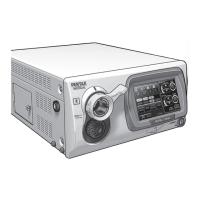
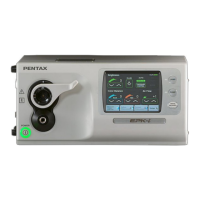
1) Connect the USB memory to the USB port and turn on the EPK-i and wait until the system is ready.
Then tap “Set up” button on the touch panel (Refer to Photo-16 Left).
2) Tap “Printer” button on the next screen (Refer to Photo-16 Middle).
3) Tap the place “A” three times and then tap the place “B” twice on the next (Refer to Photo-16 Right).
4) Tap “FileUpdate” button on the next screen (Photo-17 Left).
5) Tap “Process” button on the next screen (Photo-17 Middle).
6) Tap “FPGA(Cyclone)” on the next screen (Photo-17 Right).
7) Tap the button assigned with the USB memory drive on the next screen (Photo-18 Left).
8) Tap “33UH071-xx.rbf” icon on the next screen (Photo-18 Middle).
9) Tap “Yes” button on the next screen after confirming if the selected file is correct (Photo-18 Right).
Note: If you select a wrong file to write, the warning message “File is Not Correct!! Please Select Again!!”
appears.
Photo-16 Touch panel operation -1
Tap “Set up” button
Tap “Printer” button
Tap “FileUpdate” button
Tap “Process” button
Tap “FPGA(Cyclone)” button
Photo-17 Touch panel operation -2
Tap button
assigned with
Tap correct file icon
Tap “Yes” button if correct
Photo-18 Touch panel operation -3
“B”
“A”
Tap place “A” three times
and then tap place “B” twice.


 To Next Page
 Loading...