Page | 12
● After getting past the installer credentials, the installation
process is identical to how it used to be
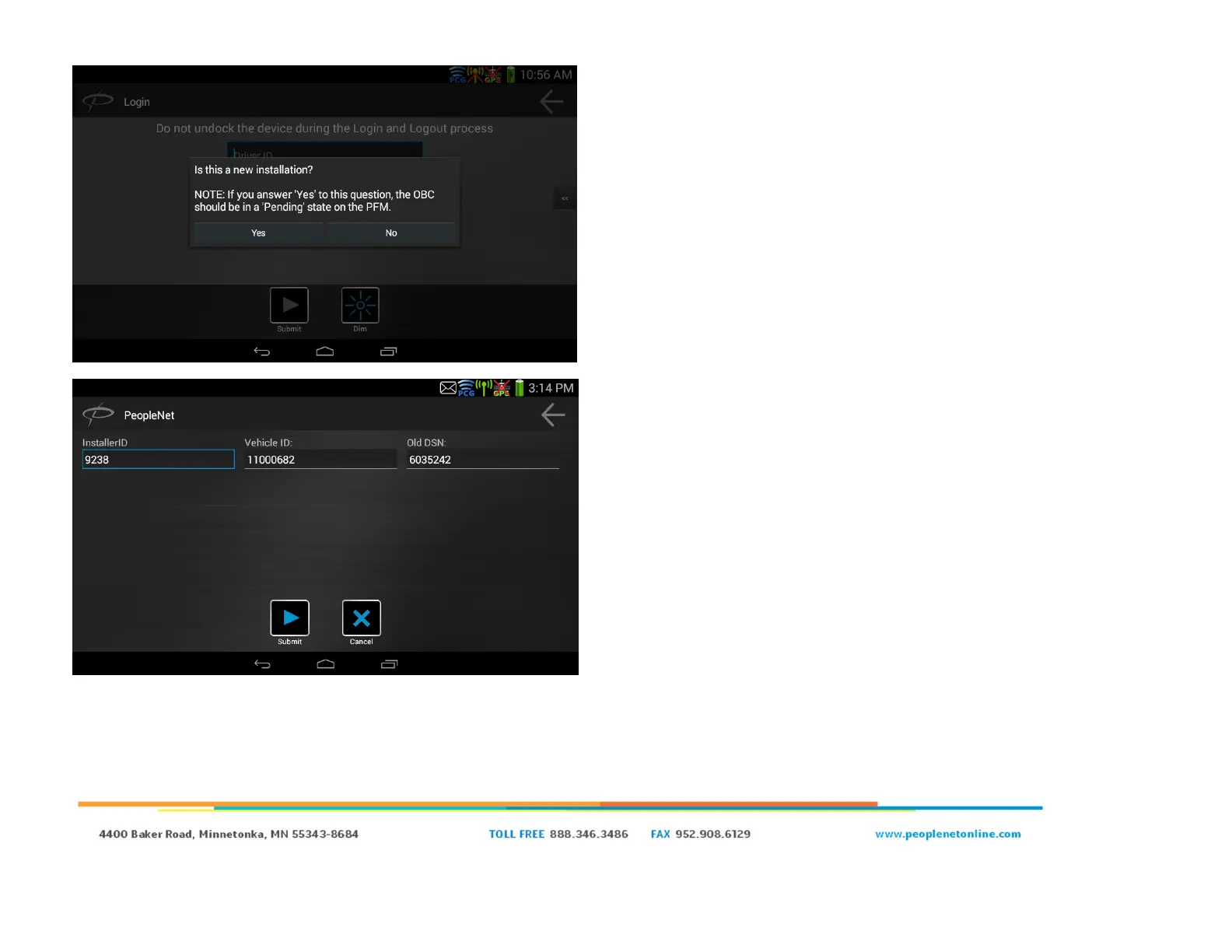
● You will be asked if this is a “new installation”
○ If the OBC is in a pending state (the OBCs will be
shipped in this state) in the PFM (PeopleNet Fleet
Manager) and you are going to give it a new truck
number, then click “yes” this is a new installation
○ If the OBC is already in an activated state or you want to
give a pending OBC an already existing truck number,
then click “no” this is not a new installation
● If you selected “yes” this is a new installation, you will be
prompted with InstallerID and Vehicle ID fields (you will not see
the Old DSN field like you see in the screenshot).
○ Enter your Installer ID. This installer ID will not be the
same as the installation credentials, and only digits are
allowed in this field. If you do not have an installer ID,
enter a number that will differentiate you from other
installers in your fleet (the Installer ID used at this screen
is recorded in the PFM, it has no impact on your ability to
complete an install).
○ Enter the Vehicle Number you would like assigned to this
device (it will be the vehicle number you use in the PFM
to lookup this device)
○ Click “Submit”
● If you selected, “no”, this is not a new installation, you will be
prompted with InstallerID, Vehicle ID, and Old DSN fields (same
as the screenshot).
○ Enter the Installer ID and Vehicle ID as noted above
○ Enter “Old DSN” only if you are swapping the PMG/PCG
module in this vehicle


 To Next Page