9
Step 6. To identify your device,
tap ‘Select’. When the light
on the device blinks green rapidly,
tap ‘Next’ (fig 4.2.10).
Step 7. Wait for the app to exchange
data with the Petcube and scan for
available Wi-Fi networks, then select
your home Wi-Fi network from
the list (fig 4.2.12), put in your network
password and hit ‘Connect’ (fig 4.2.13).
If you don’t see your home network
on the list or if you’re using a hidden
network, connect to your home Wi-Fi
by entering the name of your network
and password manually and then hit
‘Connect’ (keep in mind that it is case
sensitive).
Step 8. Your Petcube device is almost
set! Please wait until it connects and
the light on the front turns white
(fig 4.2.15).
Step 9. Once the LED light on your
Petcube changes to solid white,
you are ready to play with your Petcube
(fig 4.2.16).
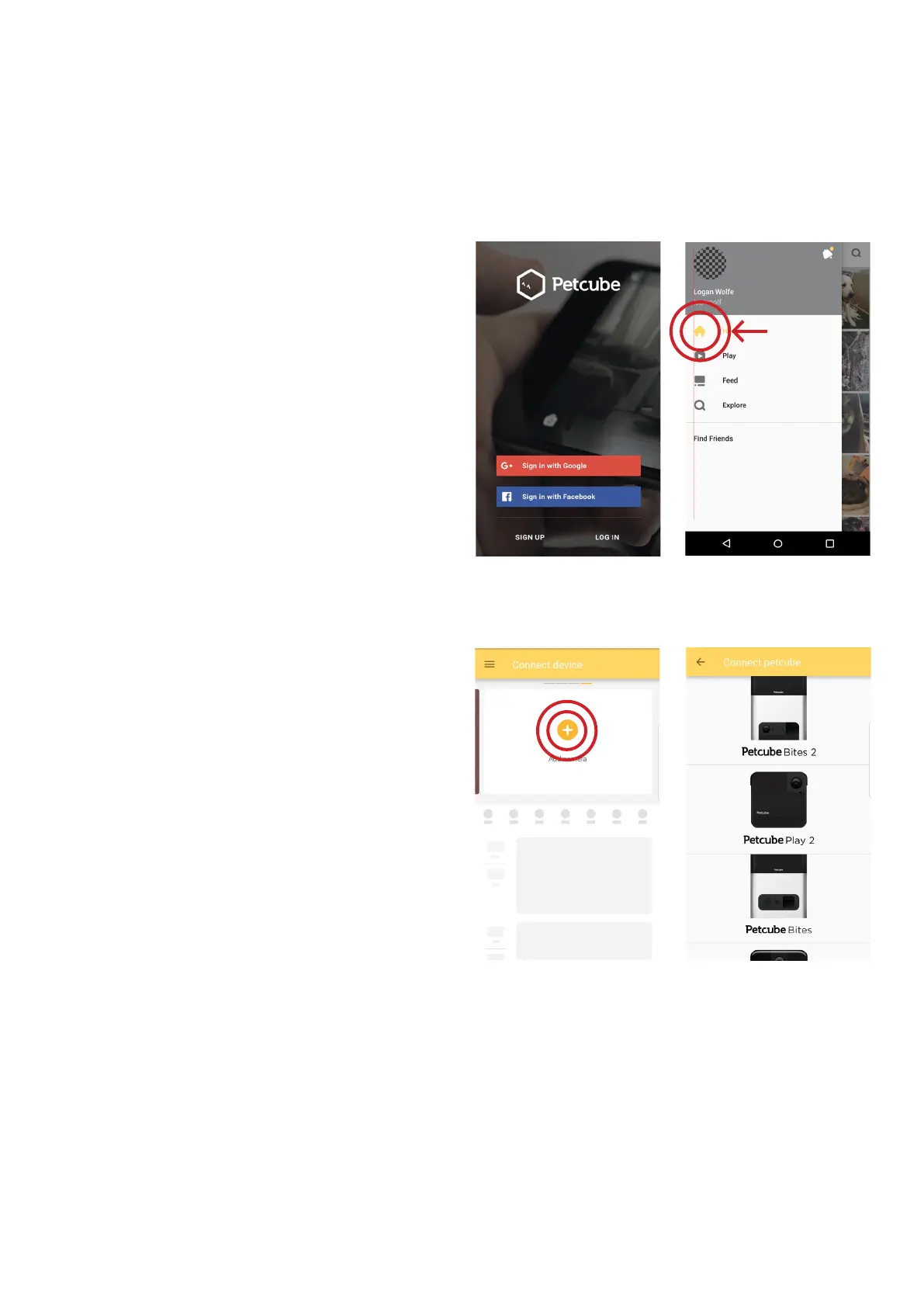
Fig. 4.2.3 Fig. 4.2.4
Fig. 4.2.5 Fig. 4.2.6


 To Next Page