49
Chapter 6: On-Screen Displays
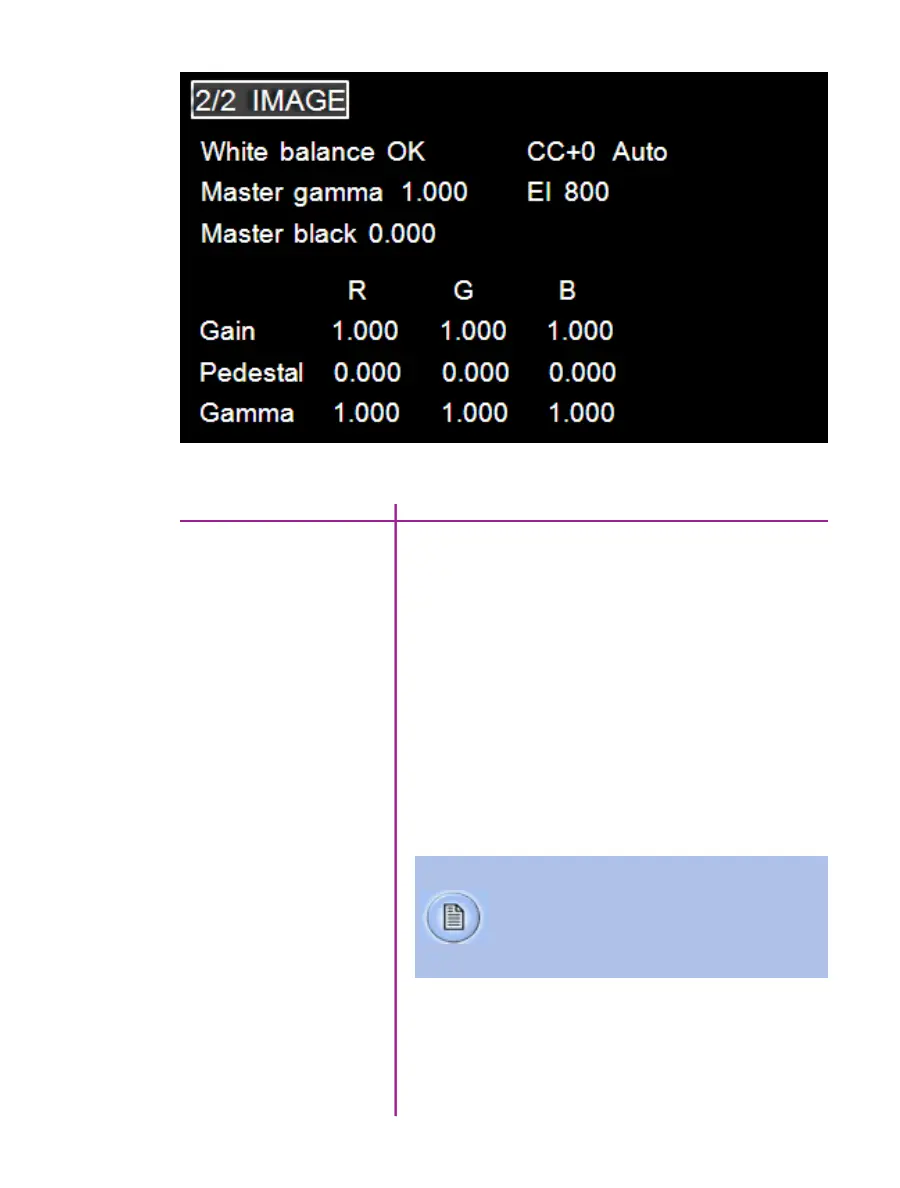
A White Balance process is used to balance the active
pixels of the image sensor to the overall color temperature
of the lighting.
1. Point the camera towards an area that represents
white, or place a white object in front of the
camera. Ensure that the white subject is not
fully saturated.
2. Select and highlight “OK” next to the word
“White Balance”.
3. Rotate the Menu knob to select a white balance
value, and press again.
White balance
CC+0
Color Compensation is automatic, however it can be
further adjusted if necessary.
image menu
Most of the settings in this menu pertain to color cameras only.
Color temperature adjusts the red and blue
components of white balance, while Color
Compensation (CC+0) adjusts the magenta and
green components of the white balance.



 To Next Page