4
Installation
107T6 CRT
Go to cover page
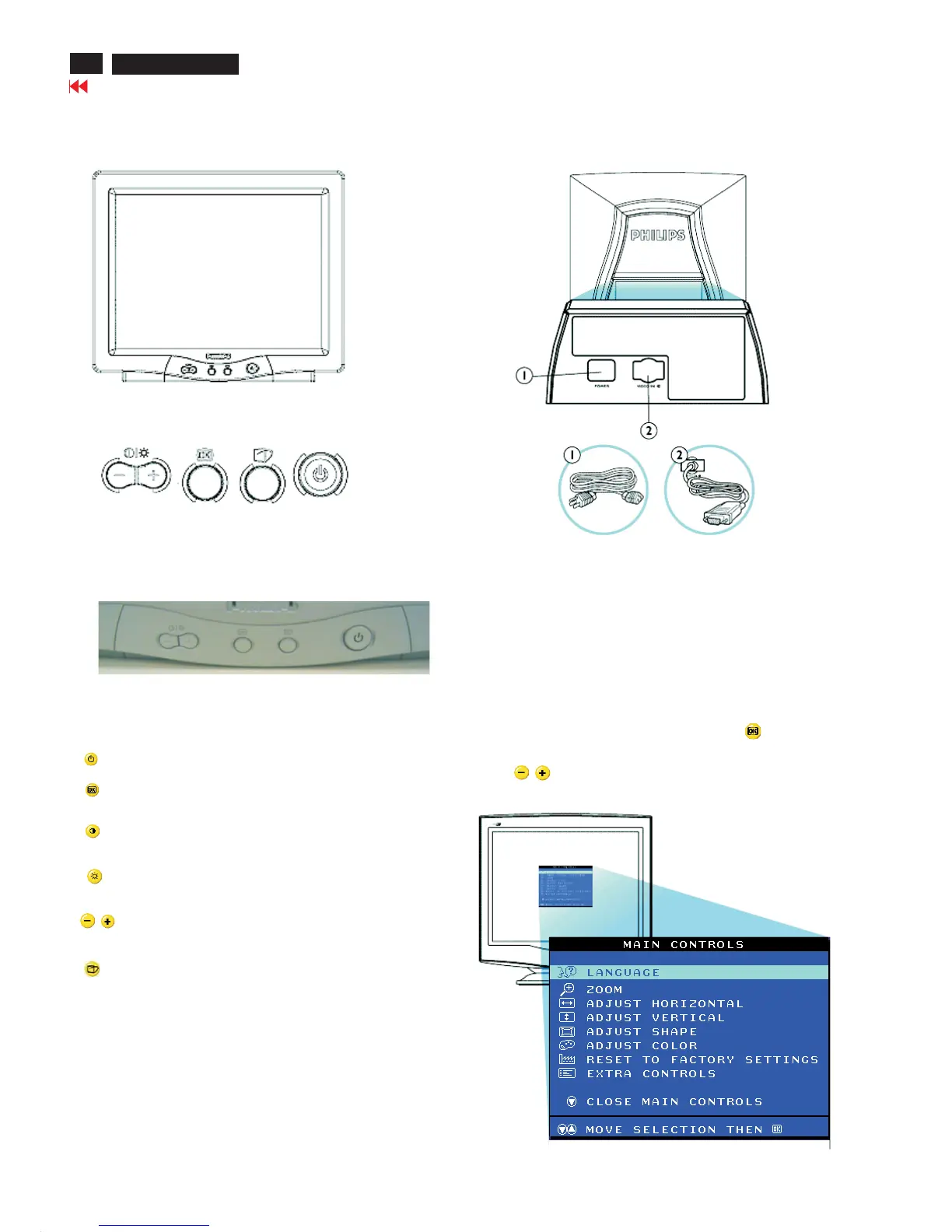
Power button switches your monitor.
OK button which when pressed will take you to the
OSD controls
Contrast hotkey. When the"-" button is pressed,the adjustment
controls for the CONTRAST will show up.
Brightness hotkey. When the "+" button is pressed,
the adjustment controls for BRIGHTNESS will show up.
"-" and "+" buttons, are used for adjusting the OSD of
your monitor.
LightFrame hotkey. When the button is pressed, the
adjustment controls for LightFrame will show up.
1. Power in-attach power cable here.
2. Video In-this is a cable which is already attached to your monitor.
Connect the other end of the cable to your PC.
This is a feature in all philips monitors which allows an end-user to
adjust screen performance of monitors directly through an on screen
instruction on window. The user interface provides user-friendliness and
ease-of-use when operating the monitor.
On the front controls of your monitor, once you press button, the
On Screen Display (OSD) Main Controls window will pop up and you
can now start making adjustments to your monitor's various features.
Use the buttons to make your adjustments within.
Description of the On Screen Display
What is the On Screen Display?
Basic and simple instruction on the control keys.
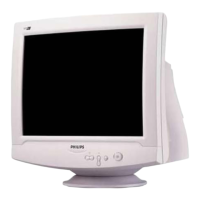
Front control
Rear View
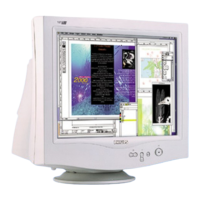
Front View



 To Next Page