107T6 CRT
Go to cover page
23
ISP (In System Program)
Note: Before you connect all the cables and box, you must
execute EDID46.exe (substeps 5 to 7) firstly, otherwise, after you
connected the alignment kits, the following warning message will
appearonthescreenasshowninFig.17.
CHECKSIGNALCABLE
Fig. 17
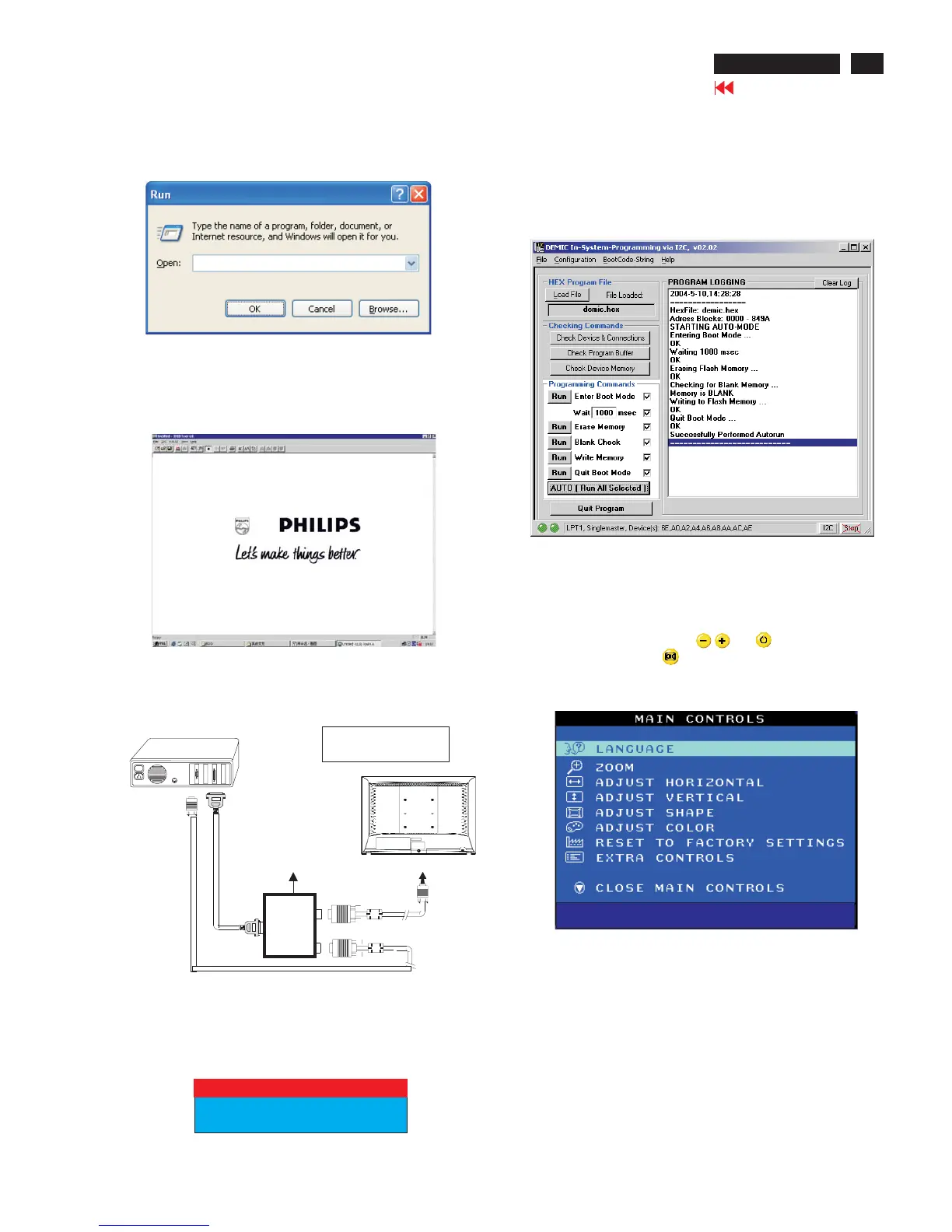
Fig. 14
2. At the submenu, type the path of EDID46
(For example, C:\107T6\EDID46.exe, as shown in Fig. 14).
C:\107T6\edid46.exe
3. Click button. The main menu appears (as shown in Fig. 15).OK
This is for initialize alignment box.
Fig. 15
Step 4. Connecting all cables and box as shown in Fig. 16.
Fig. 16
1
1=Power connector
2=D-SUB connector
~
~
PC
To printer port (LTP1)
DC Power
8-12V
Printer
Port
To
Monitor
To PC
1
2
----->
----->
To PC Video Port (D-sub)
Step 5: Upgrade the firmware
Choose all the items of the Programming commands, then click
"AUTO(RunAll Selected)",thesoftwarewillupgradethefirmware,
the LED will extinguish several seconds, after finished the upgrade,
the monitor will stand-up automatically. Bring up the window as
showninFig.18,whichmeansyouhavefinishedtheupgrade
successfully.
Fig. 18
Turn off the monitor, then press and simultaneously till
the LED light, then press button, bring up MAIN CONTROLS.
You will find, after upgrade, the version have already changed
from the former"V32 107T6 V0.24 20040303" to the present
"V32 FAMILY V2.00 20040427".
MODEL SELECT
V32 107T6 V0.24 20040303
MODEL SELECT
V32 FAMILY V2.00 20040427
Factory
Mode-------------
Indicator
Turn off the monitor to exit the factory mode.
Fig. 19
, shown in Fig. 19.
Click"Quit Program", quit the program.



 To Next Page