26
190CW7 LCD
Update the firmware
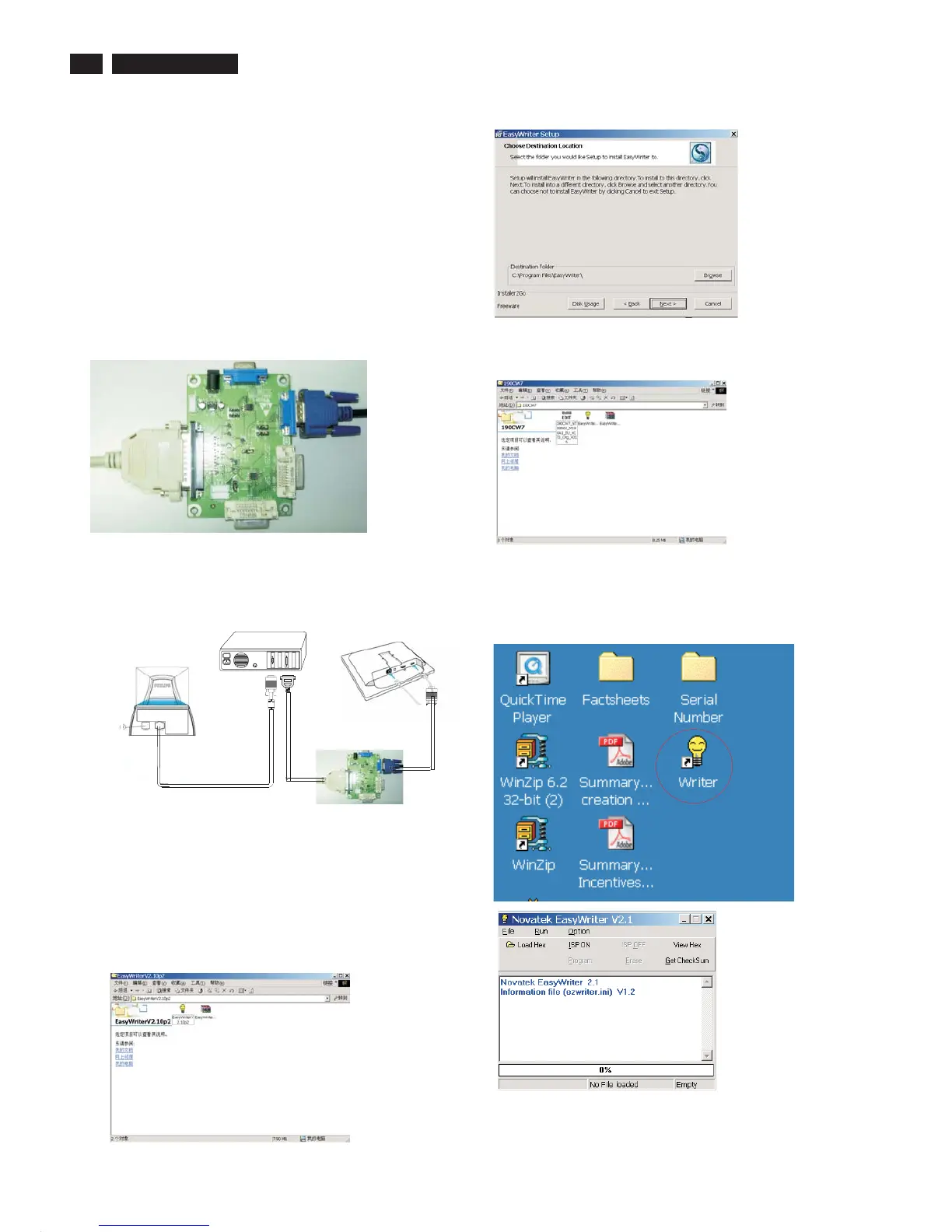
1. Double click the Easywriter.exe icon in desktop then appears
window as shown in Fig.7 .
Step 5 :Copy the 190CW7_NT68663_M190A1_EU_4C70_Org_V015
to C:\190CW7 as shown in Fig. 5 .
6. Install and setup the Easywriter program
Step 1 : Make a folder in your PC as shown in Fig. 3.
For example : C:\190CW7
Step 2 : Copy ISP Software Easywriter into your folder
as shown in Fig.3.
Step 3 : Unzip Easywriter.zip into your folder as shown in Fig. 3.
Step 4 : Double click the EasyWriterV2.10p2 icon to install the
Application as Fig. 4.
.zip
Configuration and procedure
"Easywriter " The software is provided by Novatek to upgrade the
firmware of CPU.
DDC2BI_ISP TOOL (3138 149 53161) is for the interface between
"Parallel Port of PC" and "15 pin-D-SUB connector of Monitor".
It is a windows-based program, which cannot be run in MS-DOS.
System and equipment requirements
1. An i486 (or above) personal computer or compatible.
2. Microsoft operation system Windows 95/98/2000/XP.
4. as shown in Fig. 1
3. ISP Software " Easywrite "
DDC2BI_ISP TOOL (3138 106 10396)
5. Connect and Mains cord to Monitor as shown
in Fig. 2.
DDC2BI_ISP TOOL
Fig. 1
Fig. 4
Fig. 5
Fig. 6
Fig. 7
Parallel Port to Print Port in PC
D-SUB to monitor
Fig.2
PC
To printer port (LTP1)
To video card
Video cable
Connect to
Mains cord
Monitor (A)
190CW7-Monitor (B)
D-Sub
Connect to Mains
cord at this moment.
------------------------------->
ISP box
Fig. 3
2. Press the Load hex then select the hex as shown in Fig. 8.
Firmware Upgrade for CPU


 To Next Page