27
190CW7 LCD
Firmware Upgrade for CPU
Fig. 8
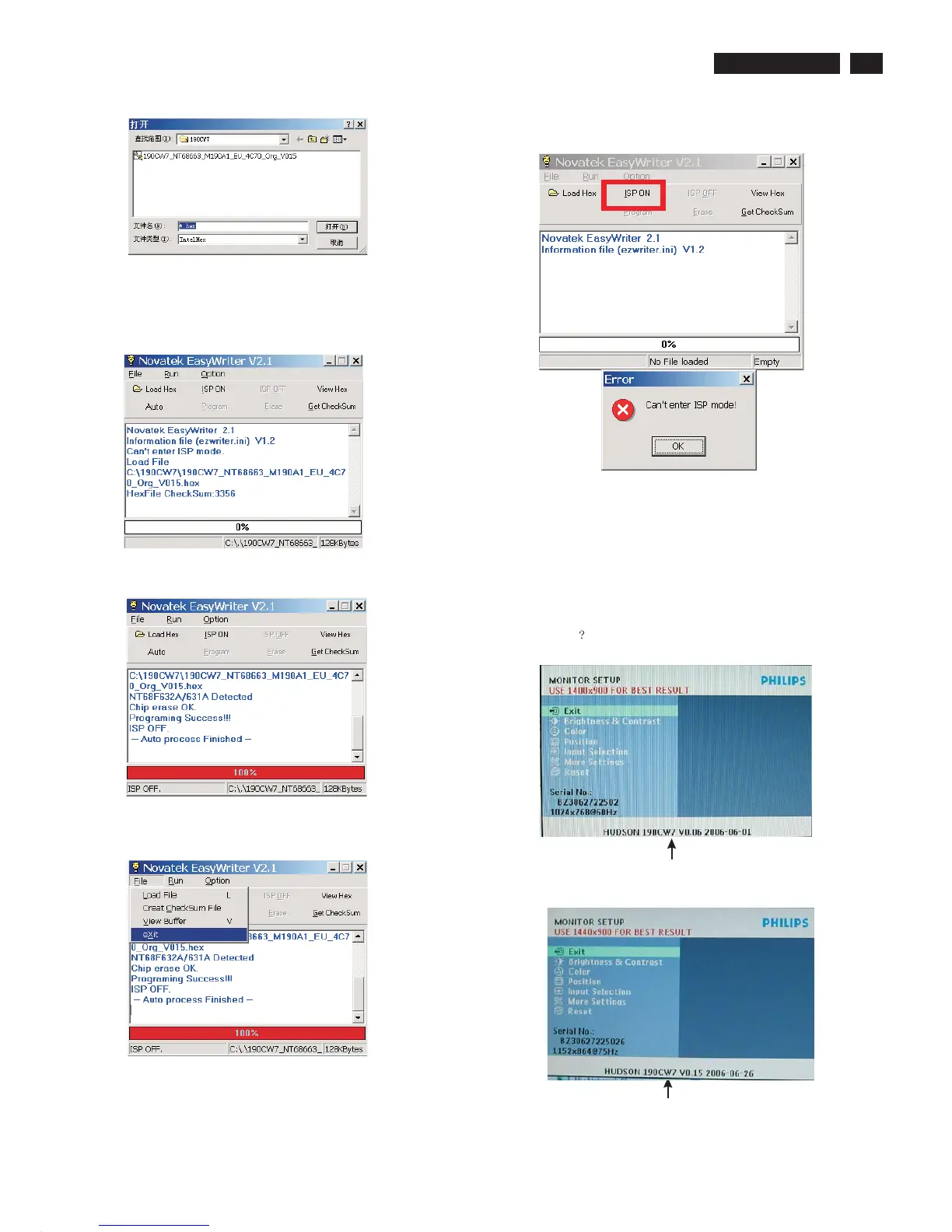
If there is a warring message coming as shown in Fig 12. , you
have to check the AC power, Video cable, or Novatek MCU.
Fig. 10
Fig. 11
Fig. 13
4 Press the file --> exit to end program , as shown in Fig. 11.
4) Turn off the monitor, exit the factory mode.
Fig. 14
5 Check the firmware version
1). Turn off monitor.
2).
3).Press "MENU" button, wait until the OSD menu come on the
Screen of the monitor.You will find, after upgrade, the version
have already changed from The former"HUDSON 190CW7
V0.06 2006-06-01" to the Present "HUDSON 190CW7 V0.15
2006-06-26 as shown in Fig. 13 and Fig. 14.
[Push "AUTO" & "MENU" buttons at the same time and hold them]
+[Press "power" button untill comes out "Windows screen" ]
=> then release all buttons.
3 Press the AUTO to running program , the firmware be updated
as shown in Fig. 9~10.
Fig. 12
Fig. 9
Factory Mode indicator
Factory Mode indicator


 To Next Page