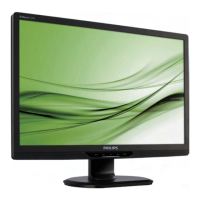
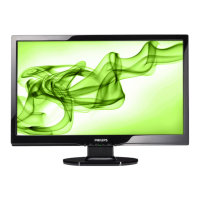
220B2 22” Wide 16:10 LCD Monitor
2010/02/10 PHILIPS 14 of 29
220BL2 LCD 67
ʳ
General Product Specificationʳ
3.14.1.1 Position
The position of the button is at the bottom center of the screen.
3.14.1.2 Smart Image Logo & Banner
As design to keep the LightFrame logo at header but change the name to “SmartImage”
with bitmap format.
3.14.1.3 Icon of each profile
Each profile will use text instead of icon & text before.
3.14.1.4 User Operation Procedure
A. 6 different modes are switched to next in the sequence from 1 to 6 then back to 1 while
pressing this button: 1) Office 2) Photo 3) Movie 4) Game 5) Economy 6)Off.
The default setting is ‘Off”.
B. The FOS optimization will be changed in real time by which profile to be scrolled, users
don’t need to confirm to enable.
C. The Smart Image OSD will remain on screen for 5 seconds after user last action. Or user
can also press [MENU] to close the Smart Image OSD immediately.
D. Except using [MENU] button to scroll down profile. If Smart Image OSD already launched
onscreen. User is allowed to use up/down key to choose profile and press [MENU] to
confirm selection and close the Smart Image OSD.
E. If the model has multiple inputs including VGA and DVI, each input has their own set of
profiles. When user switch input, the profile to be applied will also change.
F. Each input can memorize their individual “Smart Image” profile status.
For example, Smart Image is on with “Office” profile at VGA input, when switch to DVI
input, the Smart Image will revert to previous profile of DVI.
In the input switching process the “Smart Image” OSD will also show up to present which
profile is selected if “Smart Image” is enabled at that input.
The Smart Image status will also be stored after the monitor is resumed from AC on/off
or power switch on/off.


 To Next Page