26
USING P
ICTURE-IN-PICTURE (PIP)
The Picture-in-Picture (PIP) feature allows you to call up a subscreen
within your main screen to watch two channels or a channel and a
peripheral at the same time.
The Dual-window feature allows you to divide the main screen into
two subscreens so that two channels or a channel and an external
source can be watched simultaneously.
1
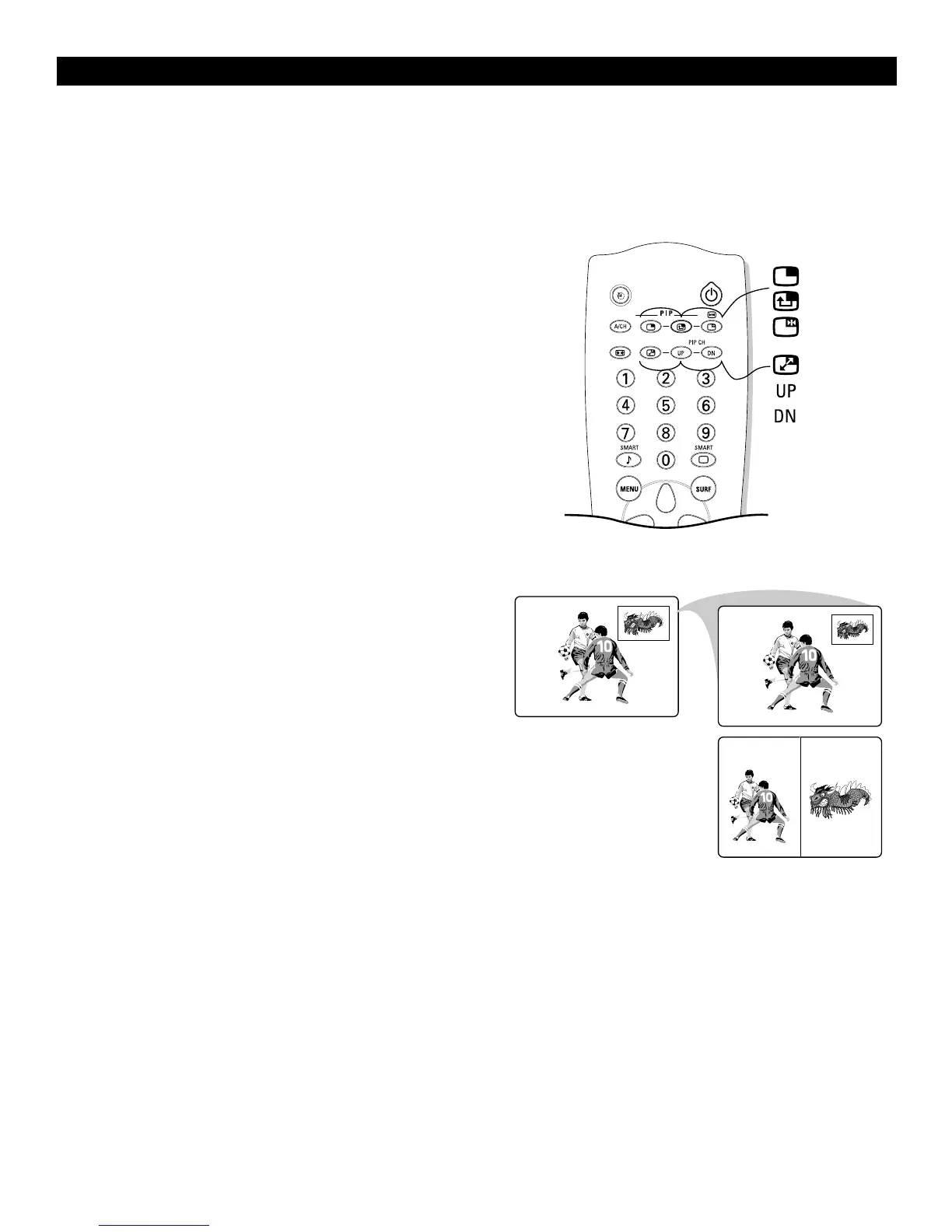
Press the n key on the remote control to switch PIP on.
2
Press the n key a second time to change the normal-size
PIP screen to a smaller size.
3
Press the n key a third time to switch to the Dual-window
screen.
4
To switch PIP off, press the n key a fourth time.
Moving the PIP screen
Press the o key.
Each time you press this key, the PIP window moves to
another corner of the main screen.
Freezing the PIP screen
Press the r key.
The picture in the PIP window stands still.
Press the r key again to unfreeze the PIP screen.
Switching Screens
Press the p key.
The main screen and the PIP window exchange places.
Selecting PIP Channels and External Sources
Press the keys PIP CH UP/DN to select a PIP TV channel
or external source in ascending or descending order.
Selecting Dual Window Channels
1
Press the CH +/– key to cycle through the TV channels in
the left picture.
2
Press the PIP CH UP/DN keys to cycle through the chan-
nels in the right picture.
Adjusting the PIP Hue Setting
1
Select PIP in the FEATURES menu.
2
Press the cursor right to enter the PIP menu.
3
Press the cursor left/right to adjust the HUE setting.
4
Press the MENU key to return or the m key to switch the
menu off.


 To Next Page