6.5 Uninstail and reinstall channels
This section describes how to uninstall and reinstall a stored channel.
When a channel is uninstalled it is removed from the list of channels.
Uninstalled channels are not reinstalled during an installation update.
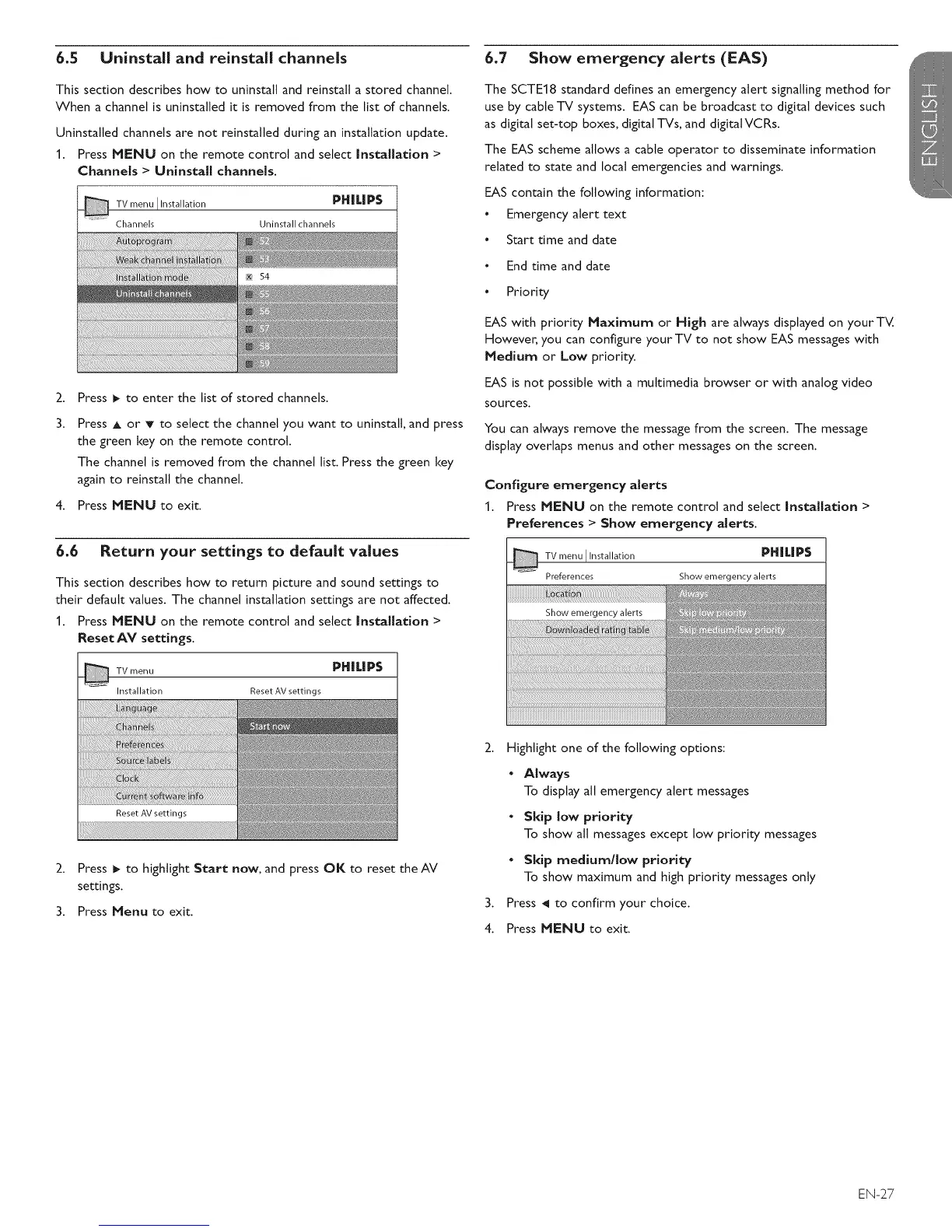
1. Press MENU on the remote control and select |nstallation >
Channels > Uninstall channels.
_ V menu I Installation PH|LIP$
Channels Uninstall channels
2.
3.
Press _ to enter the list of stored channels.
Press A or T to select the channel you want to uninstall, and press
the green key on the remote control.
The channel is removed from the channel list. Press the green key
again to reinstall the channel.
4. Press MENU to exit.
6.6 Return your settings to default values
This section describes how to return picture and sound settings to
their default values. The channel installation settings are not affected.
1. Press MENU on the remote control and select Installation >
Reset AV settings.
TV menu
Installation
PH|LIPS
Reset AV settings
2. Press I_ to highlight Start now, and press OK to reset the AV
settings.
3. Press Menu to exit.
6.7 Show emergency alerts (EAS)
The SCTE18 standard defines an emergency alert signalling method for
use by cable TV systems. EAS can be broadcast to digital devices such
as digital set-top boxes, digital TVs, and digital VCRs.
The EAS scheme allows a cable operator to disseminate information
related to state and local emergencies and warnings.
EAS contain the following information:
• Emergency alert text
• Start time and date
• End time and date
• Priority
EAS with priority Maximum or High are always displayed on your TV.
However, you can configure yourTV to not show EAS messages with
Medium or Low priority.
EAS is not possible with a multimedia browser or with analog video
sources.
You can always remove the message from the screen. The message
display overlaps menus and other messages on the screen.
Configure emergency alerts
1. Press MENU on the remote control and select installation >
Preferences > Show emergency alerts.
_ TV menu IInstallation PH|L|P$
Preferences Show emergency alerts
2. Highlight one of the following options:
• Always
To display all emergency alert messages
• Skip low priority
To show all messages except low priority messages
• Skip medium/low priority
To show maximum and high priority messages only
3. Press _1to confirm your choice.
4. Press MENU to exit.
EN-27










 To Next Page