5 - Playback and Record
• Play , to playback.
• Pause , to pause playback
• Stop , to stop playback
• Rewind , to rewind
• Fast forward , to go fast forward
• Record , to start recording
6 -
To open the Netflix App directly. With the TV switched
on or from standby.
7 - Channel
To switch to the next or previous channel in the
channel list. To open the next or previous page in
Text/Teletext. To start the next or previous chapter on
a disc.
8 - Mute
To mute the sound or to restore it.
9 - TEXT
To open or close Text/Teletext.
3.2
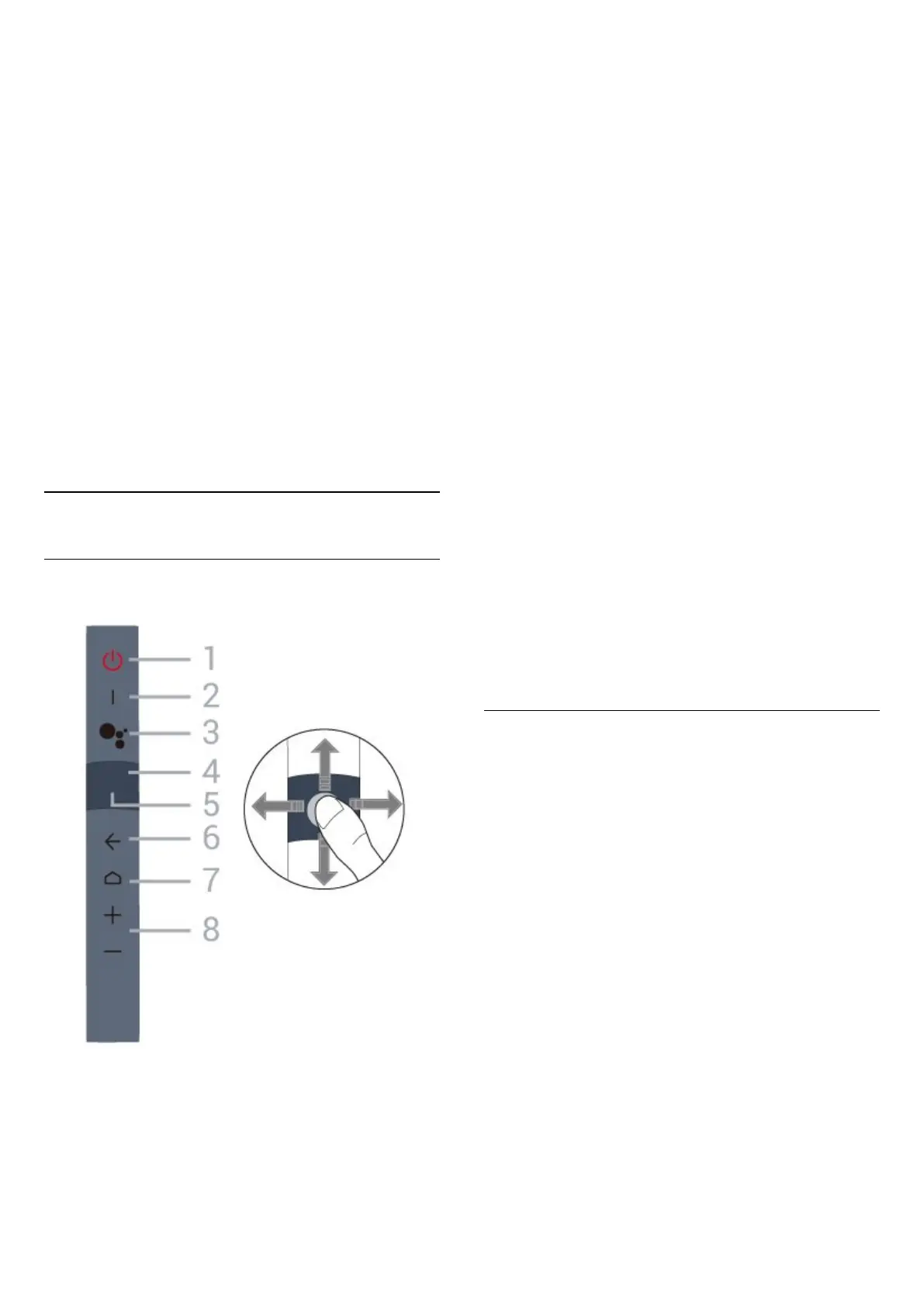
Key Overview (Easy Remote)
Key Overview
1 - Standby / On
To switch the TV on or back to Standby.
2 - VOICE microphone
Speak near this hole during voice search.
3 - Google Assistant™
To launch the Google Assistant™.
4 - Navigation Pad - arrow / navigation
• To navigate up, down, left or right.
• During broadcast, swipe up/down to switch
channels.
5 - Navigation Pad - OK
To confirm a selection or setting.
6 - BACK
• To switch back to the previous channel you
selected.
• To return to previous menu.
7 - HOME
To open the Home menu.
8 - Volume
To adjust the volume level.
Other functions
Mute
Long press "-" (Volume down) to mute the sound.
TV Menu
Long press Home to open the TV menu with typical
TV functions.
Switch channels
Swipe up/down in "Watch TV" mode to switch
channels.
Pairing with Your TV
You can simply point the remote control to TV, then
press-and-hold the HOME and BACK keys
until remote control Blue LED starts blinking (about 3
seconds later), then release the Home and Back
keys.
It is advisable to start the pairing process after the TV
set has fully started-up (i.e. Android launcher is fully
loaded).
Please keep the remote control close to the TV
(within 1m distance) during pairing.
Alternatively, go Settings > All settings > Wireless
and network > Remote control > Pair remote
control, then follow the on-screen instructions.
A message appears when the pairing is successful.
9





 To Next Page